AI Abilities, Policies & Safety
Policies, confirmations, domain locks and how to revoke access.
On this page
- The three gates
- Policy modes: how much the agent asks
- Every change is visible, and you can stop anytime
- Credit spending outside the agent
- The two revocation paths
- Why an application password, not your login password
- FAQ
- What is the default policy?
- If I turn off AI Abilities, is the agent disconnected?
- Can an Editor or Author use the agent?
- Could the agent modify my theme files or install plugins?
- Related reading
Hydrogen AI can edit your site's SEO, so its safety model is deliberately strict: three independent gates decide whether the agent can act at all, a policy setting decides how much it must ask before writing, every change is shown to you, you can stop it at any moment, and there are two separate ways to revoke its access. This page explains each layer so you know exactly what the agent can and cannot do on your site.
The three gates
Before Hydrogen AI can touch anything, three conditions must all be true. Any one of them failing means the agent cannot act.
- The AI Abilities toggle must be on. The agent works through abilities the plugin registers: tools for metadata, schema, sitemaps, robots rules, redirects, alt text, and featured images. While the AI Abilities toggle is off, those tools are not registered at all. There is nothing for the agent to call; it isn't merely blocked, the capability doesn't exist.
- Abilities are domain-locked. The abilities registered on your site only work for your site's domain. A credential can't be lifted and pointed at another site, and the agent connected to one domain cannot act on a different one.
- Only
manage_optionsusers can drive it. The agent acts through a WordPress user, and only users with themanage_optionscapability (Administrators on a standard site) can operate it. Editors, Authors, and lower roles cannot drive the agent, full stop.
These gates are cumulative with WordPress's own permission system: the agent authenticates like any REST API client and is subject to the same capability checks.
Policy modes: how much the agent asks
On top of the gates, an approval policy controls the agent's write behavior. You pick it from the policy picker under the message box. There are four:
| Policy | Behavior | Best for |
|---|---|---|
| Ask before permanent changes (default) | Reads and ordinary edits run freely. Anything with no undo, such as resetting templates, clearing a page, deleting a redirect or noindexing a post type, asks first | Day-to-day use |
| Ask before every change | Every change asks first, however small | Cautious rollouts, client sites, first weeks with the agent |
| Run everything | Nothing pauses for approval; changes land without review | Only for runs you have already checked with a dry run |
| Dry run — change nothing | The agent investigates and tells you what it would do, but changes nothing | Audits, exploration, building trust |
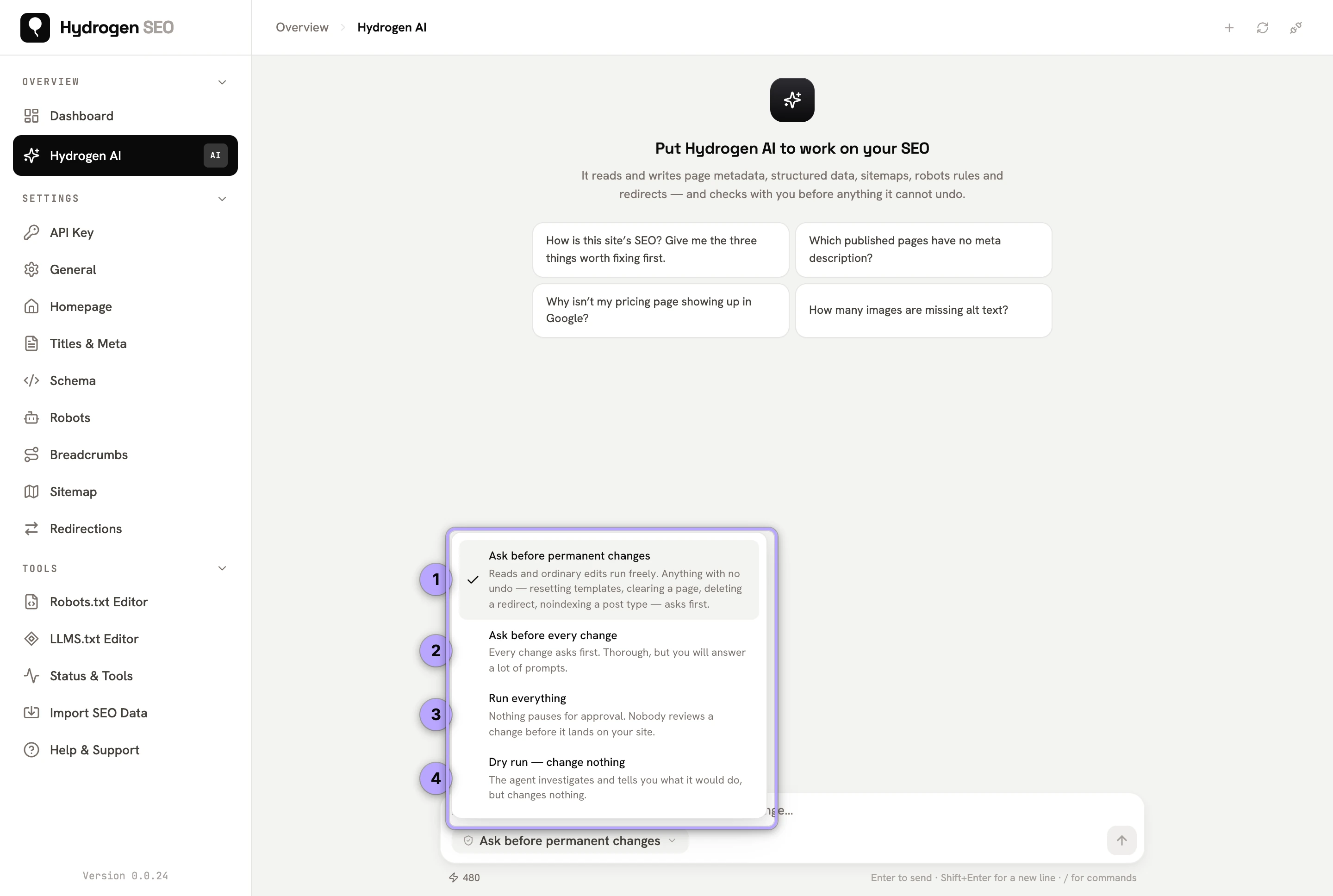
A dry run is a genuinely useful setting, not just a safety valve. Pointing the agent at your site with a dry run and asking it to audit metadata or find broken internal links gives you a full picture with zero risk, and pairs well with the plugin's own site audits and on-page SEO analysis.
Every change is visible, and you can stop anytime
Whatever the policy mode, the agent shows you every change it makes. There is no silent background editing. If a run is going somewhere you don't like, you can stop the agent at any time, mid-task included.
Because the agent writes through the plugin's own registered tools, its edits land in the same places your manual edits do. You can open the relevant screen afterwards, such as titles and meta descriptions or the redirection manager, and review or adjust anything by hand.
Some settings are write-only for the agent. The video sitemap settings, changed through the video object of the update-sitemap-settings ability, include an optional YouTube API key, and that key is never shown to the agent. Starting and following the video scan goes through its own ability, scan-sitemap-videos (status, start and step).
Credit spending outside the agent
The policy modes govern the agent. Two AI features outside the agent can also spend credits, and both are under your direct control:
- Generate Alt Text with AI on Upload (Hydrogen SEO → General → Images). Off by default. When you switch it on, each image uploaded without alt text gets AI alt text at 1 credit per image. Only images are sent, never PDFs or other files. It is shown only while the site is connected to Hydrogen AI.
- The ◆ Generate Alt Text buttons in the Media Library: one in the attachment details panel for a single image, and a bulk button in the Media → Library toolbar for the images you select. The bulk button asks you to confirm before it runs. Each image uses 1 credit.
Neither is an agent action, so the policy modes do not apply to them: they run only when you click them or, for uploads, only when you have switched the setting on. See image alt text and credits and billing.
The two revocation paths
You can cut the agent's access entirely, at any time, through either of two independent paths:
- Disconnect from the plugin. Use the disconnect control in the Hydrogen SEO dashboard.
- Revoke the application password in WordPress core. Go to Users → Profile → Application Passwords and revoke the credential named "Hydrogen SEO Agent". This path works even if the plugin were deactivated, because application passwords are managed by WordPress itself.
Either path alone is sufficient: once the credential is gone, the platform's stored copy is useless. Switching off the AI Abilities toggle is a third, softer brake that unregisters the agent's tools without deleting the credential.
Why an application password, not your login password
Hydrogen AI never sees or stores your WordPress login password. Instead, connecting creates a single application password named "Hydrogen SEO Agent" (see Connect Hydrogen AI for the exact flow). The distinction matters:
- An application password only works for REST API requests. It cannot be used to log in to wp-admin.
- It is individually revocable. Deleting it does not change your password or affect anything else.
- It is auditable: it appears by name in Users → Profile → Application Passwords, so you can always see that it exists.
- On the platform side it is transmitted over HTTPS only, verified by a callback before storage, and stored encrypted with AES-256-GCM.
Sharing your actual login password with any external service would grant irrevocable, unauditable, full access. An application password grants the minimum that works and can be destroyed in one click.
FAQ
What is the default policy?
Ask before permanent changes. The agent handles reads and ordinary edits without interrupting you but always asks before anything with no undo. You can tighten this to Ask before every change, or switch to a dry run that changes nothing.
If I turn off AI Abilities, is the agent disconnected?
The credential still exists, but the agent's tools are unregistered, so it cannot act. To fully disconnect, use the plugin's disconnect control or revoke the "Hydrogen SEO Agent" application password in Users → Profile → Application Passwords.
Can an Editor or Author use the agent?
No. Only users with the manage_options capability can drive Hydrogen AI. On a standard WordPress site that means Administrators.
Could the agent modify my theme files or install plugins?
No. Its reach is exactly the plugin's registered SEO tools: metadata, schema, sitemaps, robots rules, redirects, alt text, and featured images. It has no file, code, or plugin-management access.