Fix Duplicate Meta Output
Two SEO plugins printing tags? Here is how to find and fix it.
On this page
- What duplicate output looks like
- Step 1: Detect it
- Step 2: Pick one primary plugin
- Step 3: Import your existing SEO data — before deactivating anything
- Step 4: Deactivate in the right order
- Step 5: Re-check
- FAQ
- Can I run Hydrogen SEO alongside another SEO plugin permanently?
- Will deactivating my old SEO plugin lose its data?
- The duplicate description remains after deactivating — why?
- Do I need to redo my titles manually?
- Related reading
Duplicate meta output almost always has one cause: two SEO plugins are active at the same time, and both are printing titles, meta descriptions, and schema into your pages. The fix is to pick one primary SEO plugin, configure it fully, and deactivate the other — in that order. This guide shows you how to confirm the problem, switch safely, and verify the result.
What duplicate output looks like
When Hydrogen SEO runs alongside another SEO plugin (Yoast, Rank Math, All in One SEO, and so on), each plugin independently renders its own tags. In your page source you will see symptoms like:
- Two
<meta name="description">tags with different text - Two sets of Open Graph tags (
og:title,og:description,og:image) - Two JSON-LD
<script type="application/ld+json">blocks describing the same page - Conflicting canonical URLs or robots meta tags
Search engines then have to guess which signals to trust, and validators flag the page. Hydrogen SEO is deliberately compatible alongside other SEO plugins — nothing crashes — but two plugins printing the same tags is never what you want in production.
Step 1: Detect it
- View the page source. Open any post on the front end, press
Ctrl+U(orCmd+Option+Uon Safari/Chrome for Mac), and search fordescription,og:title, andld+json. More than one of each means duplicate output. - Run a validator. Paste the URL into Google's Rich Results Test or the Schema.org validator. Duplicate or conflicting schema blocks show up immediately — see validate rich results.
- Check social previews. Share-card debuggers (and Hydrogen SEO's own social share previews) reveal when the "wrong" plugin's Open Graph data is winning.
Step 2: Pick one primary plugin
Choose the plugin that will own your SEO output. If that is Hydrogen SEO, the migration order below keeps you covered at every moment; do not deactivate anything yet.
Step 3: Import your existing SEO data — before deactivating anything
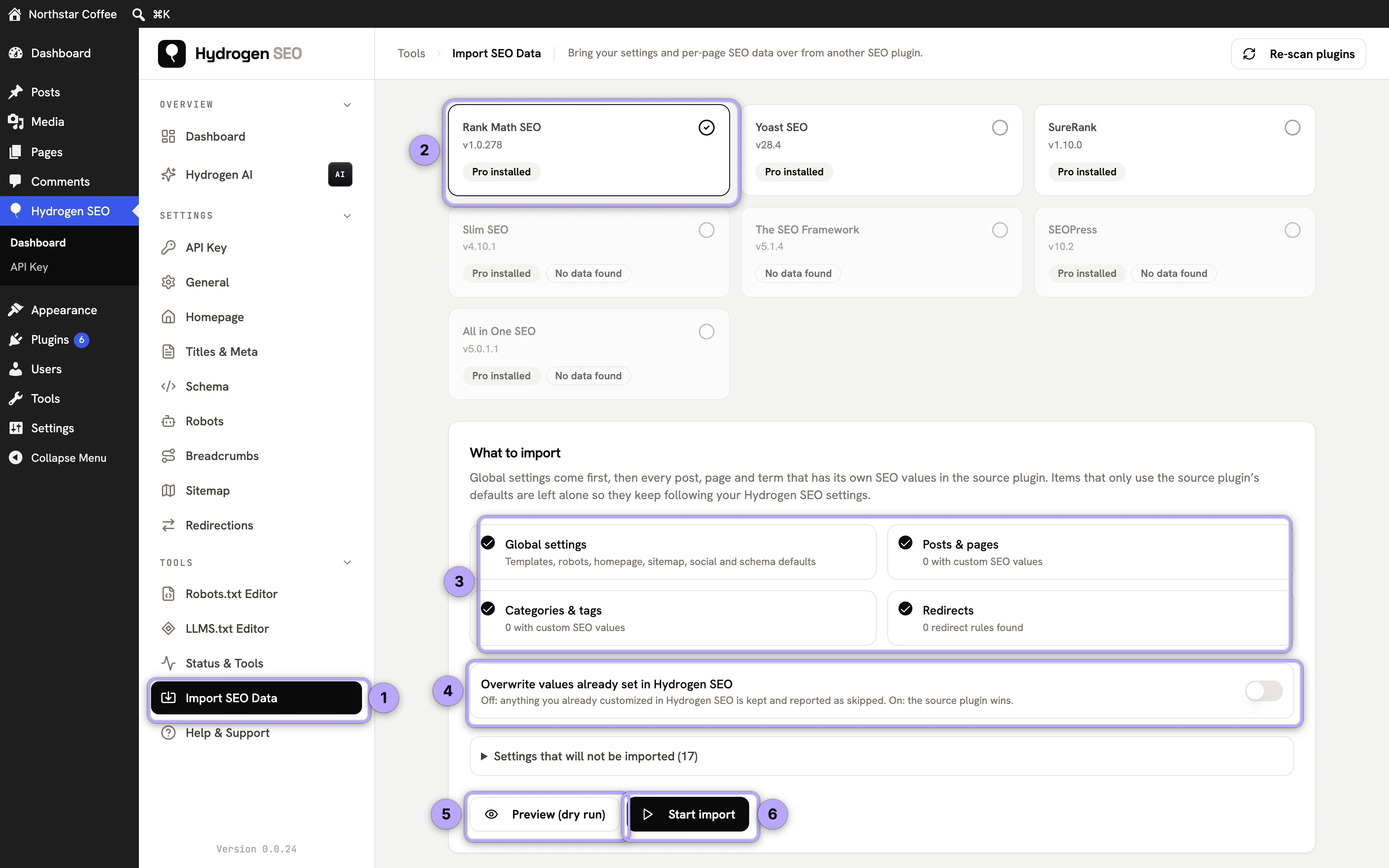
- Go to Hydrogen SEO → Tools → Import SEO Data. It detects Rank Math SEO, Yoast SEO, SureRank, All in One SEO, The SEO Framework, Slim SEO and SEOPress (and their PRO / Premium / Business add-ons) and shows how many posts, pages, terms and redirects carry their own SEO values.
- Click Preview (dry run) to see every setting and every per-post field that would be written, then Start import. Templates, robots rules, homepage and social defaults, knowledge graph, robots.txt, sitemap options, per-post and per-term SEO and redirect rules all come across; the full list is in switch from another SEO plugin.
- Review the report and spot-check a few pages. Every import can be undone from the same screen.
- If your old plugin is not one of the three, configure Hydrogen SEO by hand instead: templates in Titles & Meta (guide) and homepage SEO, per-post overrides in the editor's SEO Settings sheet, schema markup, Open Graph settings, Twitter cards, redirects in the redirection manager and your robots.txt.
- Note your new sitemap URL from the Sitemap screen.
Step 4: Deactivate in the right order
- Deactivate the old SEO plugin. The import tool does this for you when the import finishes (it is on by default); otherwise use Plugins → Installed Plugins. Deactivate, don't delete, until you have verified everything — its settings stay in the database in case you need to check an old value or undo the import.
- Clear every cache: page cache plugin, server cache, CDN. Cached HTML will keep showing duplicate tags long after the cause is gone.
- Update Google Search Console: remove the old plugin's sitemap and submit Hydrogen SEO's sitemap.
Step 5: Re-check
- View source on several page types — a post, a page, an archive, the homepage. Exactly one description tag, one Open Graph set, one schema block per type.
- Re-run the Rich Results Test on your key templates.
- Run a site audit and the site health score to confirm nothing regressed.
If duplicates persist after all caches are cleared, the extra tags may come from your theme or a non-SEO plugin (some themes print their own Open Graph tags). Search the page source for the duplicated text and check the theme's settings for a "social meta" option to disable.
FAQ
Can I run Hydrogen SEO alongside another SEO plugin permanently?
You can — nothing breaks — but both will print titles, meta, and schema, which is exactly the duplicate output this page fixes. Use one primary SEO plugin for production output.
Will deactivating my old SEO plugin lose its data?
Deactivating leaves its settings in the database; only deleting may remove them (behavior varies by plugin). That is why the safe order is: configure Hydrogen SEO first, deactivate the old plugin, verify, and delete only when you are confident.
The duplicate description remains after deactivating — why?
Almost always caching. Clear the page cache, object cache, server cache, and CDN, then re-check in a private window. If it still persists, the second tag is coming from your theme or another plugin, not an SEO plugin.
Do I need to redo my titles manually?
Not if you are coming from Rank Math, Yoast SEO, SureRank, All in One SEO, The SEO Framework, Slim SEO or SEOPress: Import SEO Data brings templates and every per-post override across. From any other plugin, templates cover most pages quickly — set them once per post type with template variables — and with a connected account, Hydrogen AI can draft metadata for the rest in bulk (AI titles and descriptions).