Install the Hydrogen SEO WordPress Plugin
Install and activate Hydrogen SEO from the plugin directory or a zip upload.
On this page
- Requirements
- Method 1: Install from the plugin directory
- Method 2: Upload the zip file
- What you see after activation
- Already running another SEO plugin?
- Recommended next steps
- FAQ
- Do I need an account to install or use the plugin?
- The plugin won't activate — what should I check?
- Will Hydrogen SEO slow down my site?
- Can I install it on a staging site first?
- Related reading
Installing Hydrogen SEO takes about two minutes: search for it under Plugins → Add New, or upload the zip if you downloaded it directly, then activate. The plugin is free, GPL-licensed, and currently in Beta (v0.0.19). Every non-AI feature works immediately with no account.
Requirements
Before you install, check that your site meets the minimums:
- WordPress 6.7 or later
- PHP 7.4 or later
- An administrator account (you need the
install_pluginscapability, which administrators have by default)
If your host runs an older PHP version, update PHP first — most hosts expose this in their control panel. Hydrogen SEO ships zero front-end JavaScript and lazy-loads its admin assets, so there is no performance penalty to worry about on either side of the site.
Method 1: Install from the plugin directory
This is the standard path for most sites.
- Log in to wp-admin.
- Go to Plugins → Add New.
- Search for "Hydrogen SEO". Look for the plugin by sheeshlabs.
- Click Install Now.
- When the button changes, click Activate.
That's it. WordPress downloads the latest version and keeps it updated through the normal plugin update flow.
Method 2: Upload the zip file
Use this if you downloaded the plugin zip from hydrogenseo.com or need to install on a site where directory search is unavailable.
- Go to Plugins → Add New.
- Click Upload Plugin at the top of the screen.
- Click Choose File and select the
hydrogen-seozip file. - Click Install Now.
- On the success screen, click Activate Plugin.
If you manage sites over SFTP instead, unzip the file into wp-content/plugins/ and activate from the Plugins screen. Either way, the result is identical.
What you see after activation
On activation, Hydrogen SEO adds a Hydrogen SEO item to the wp-admin sidebar and offers to launch the setup wizard: Welcome, Import (only when another SEO plugin's data is found), Personal Details, Activate AI, Business Profile and Finish. The wizard is optional and fully skippable — everything it configures can be changed later from the dashboard.
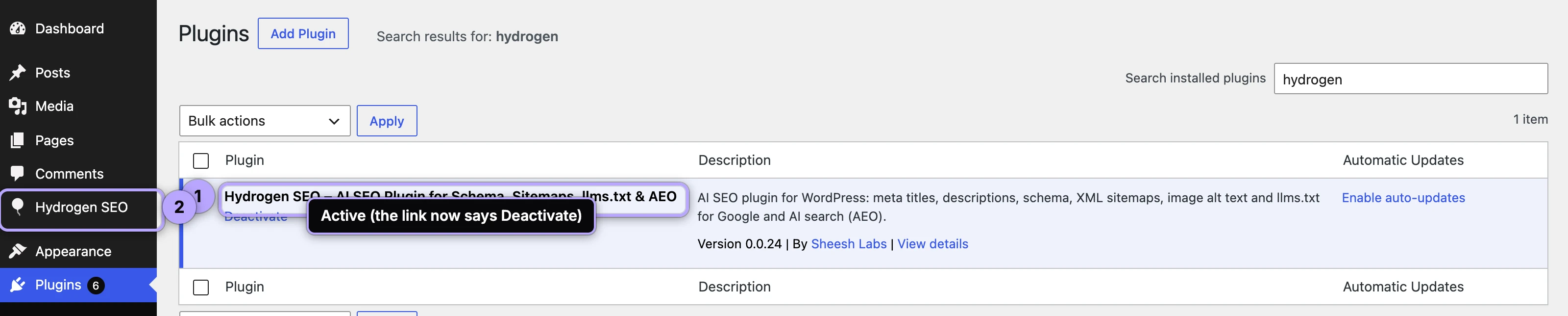
From the sidebar you can reach the plugin's React dashboard: the health score, Hydrogen AI, the API Key, General, Homepage, Social, Titles & Meta, Schema, Robots, Breadcrumbs, Sitemap and Redirections screens, and the robots.txt and llms.txt editors. The plugin dashboard overview walks through each screen.
You will also find a new SEO Settings sheet in the post editor (block or Classic) and on category and tag edit screens, for per-item titles, descriptions, schema, robots, and social previews; press ⌘E / Ctrl+E to open it — see the SEO Settings sheet guide and block editor integration.
Already running another SEO plugin?
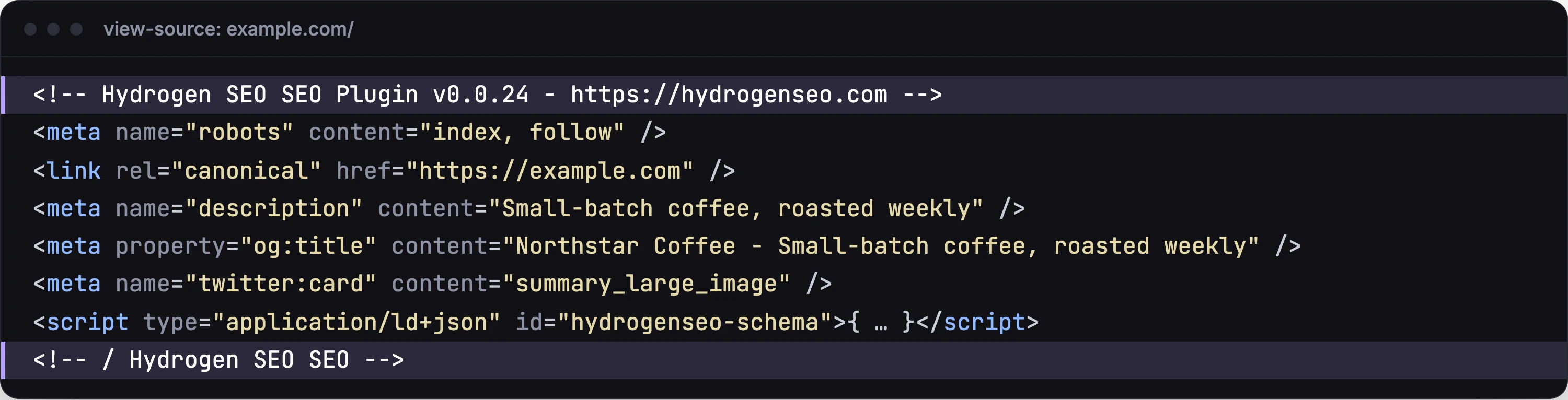
Hydrogen SEO can be installed alongside other SEO plugins, but two plugins both printing titles, meta, and schema will produce duplicate output in your page source. Pick one primary SEO plugin. If you are switching to Hydrogen SEO, configure it first, verify the output, then deactivate the old plugin — the full procedure is in fix duplicate meta output.
Recommended next steps
- Run the setup wizard. Fill in the Business Profile to seed your Organization schema; it only fills settings that are empty.
- Open Hydrogen SEO → Dashboard and run your site health score.
- Work through your first 30 minutes with Hydrogen SEO — the highest-impact fixes, prioritized.
- Optionally connect a free hydrogenseo.com account to unlock the Hydrogen AI agent and AI image alt text.
FAQ
Do I need an account to install or use the plugin?
No. Installation, activation, and every non-AI feature work with no account. A free hydrogenseo.com account is only needed for AI features and the Hydrogen AI agent.
The plugin won't activate — what should I check?
The two most common causes are an unsupported environment (WordPress below 6.7 or PHP below 7.4) and a partial upload of the zip. Check Tools → Site Health for your WordPress and PHP versions, re-download the zip, and try again. If it persists, contact support with the exact error message.
Will Hydrogen SEO slow down my site?
No. The plugin outputs server-rendered markup with zero front-end JavaScript, and its admin assets lazy-load only on Hydrogen SEO screens, so the rest of wp-admin stays fast.
Can I install it on a staging site first?
Yes, and since the plugin is in Beta that is a sensible habit. All settings live in your WordPress database, so your production migration workflow will carry them across as usual.