Homepage SEO Settings
Control how your homepage appears in search results.
On this page
- Why the homepage snippet matters most
- Static front page vs. latest posts
- Set your homepage title and description
- Homepage Open Graph settings
- Social profiles live on the Social screen
- The homepage canonical
- FAQ
- My homepage is a static page. Do I use the Homepage screen or the page's SEO Settings sheet?
- Google shows a different homepage title than the one I set. Why?
- Should the homepage description just be my tagline?
- Do these settings work with any theme or page builder?
- Related reading
Your homepage is usually the most linked, most crawled, and most searched-for page on your site: it is what appears when someone Googles your brand, and its snippet is the first impression for the highest-intent visitors you have. Hydrogen SEO gives the homepage its own dedicated settings for the SEO title, meta description, Open Graph data, and canonical URL, so this one page never has to make do with a generic template.
Why the homepage snippet matters most
Brand searches convert better than almost any other query, and the homepage is normally what ranks for them. A vague title like "Home – Acme" wastes the single most visible line of text your brand owns in search results. A deliberate title and description tell searchers, in one glance, what you do and why to click. The homepage is also the page most often shared and linked, so its Open Graph card and canonical URL deserve the same care.
Static front page vs. latest posts
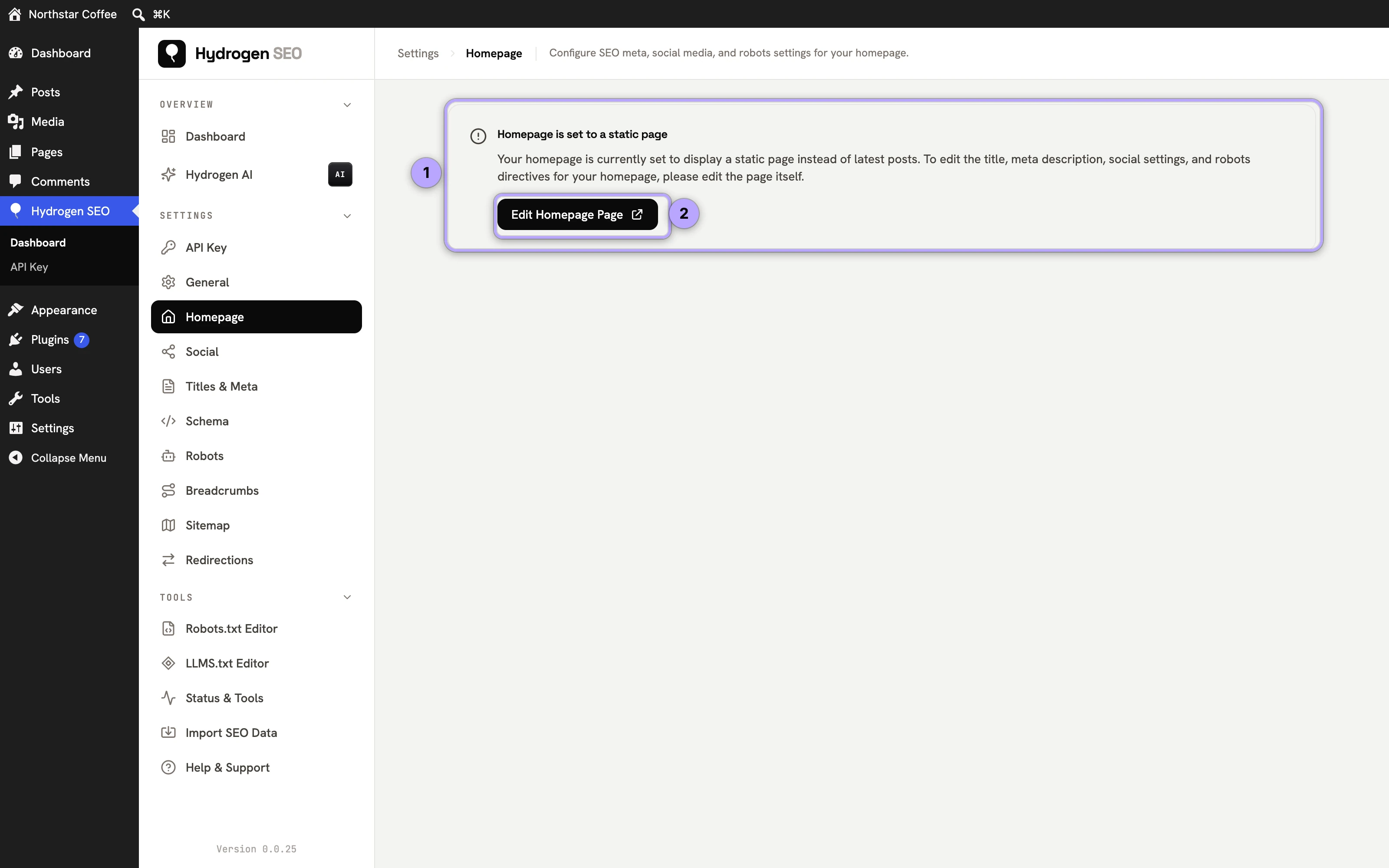
WordPress serves the homepage in one of two modes (Settings → Reading), and it changes where the homepage's SEO lives:
- A static page is your front page. That page exists in the editor, so you can manage its SEO like any other page through its SEO Settings sheet, and the homepage settings in Hydrogen SEO govern the front page context.
- Your latest posts are the front page. There is no page to edit, so the Homepage settings screen in Hydrogen SEO is the only place its title, description, and social data come from. Setting them there is essential in this mode.
Set your homepage title and description
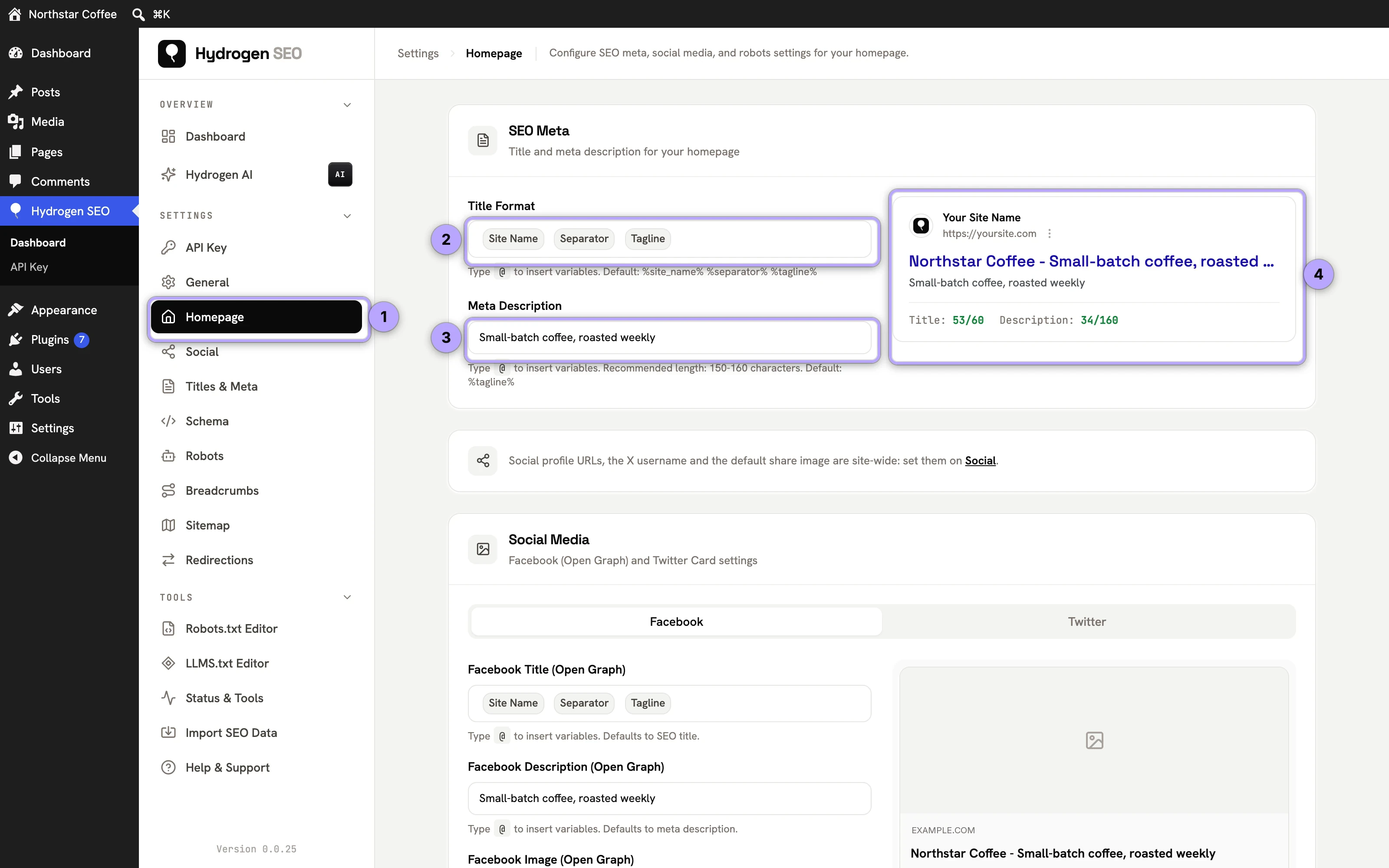
- In wp-admin, go to Hydrogen SEO → Homepage.
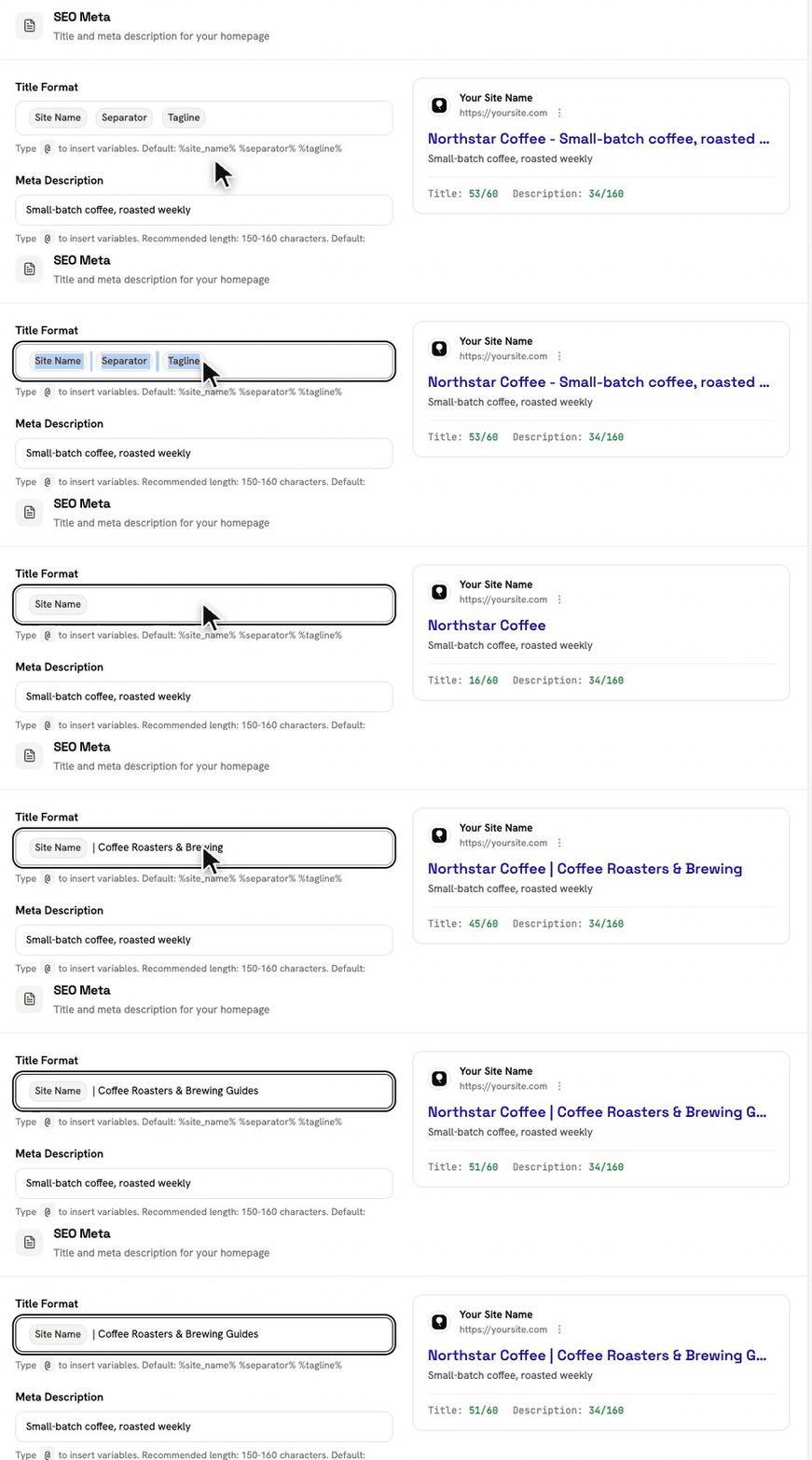
- Enter the Homepage title. Lead with what you do, not just your name: "Acme – Project Management for Agencies" beats "Home". The shipped default is
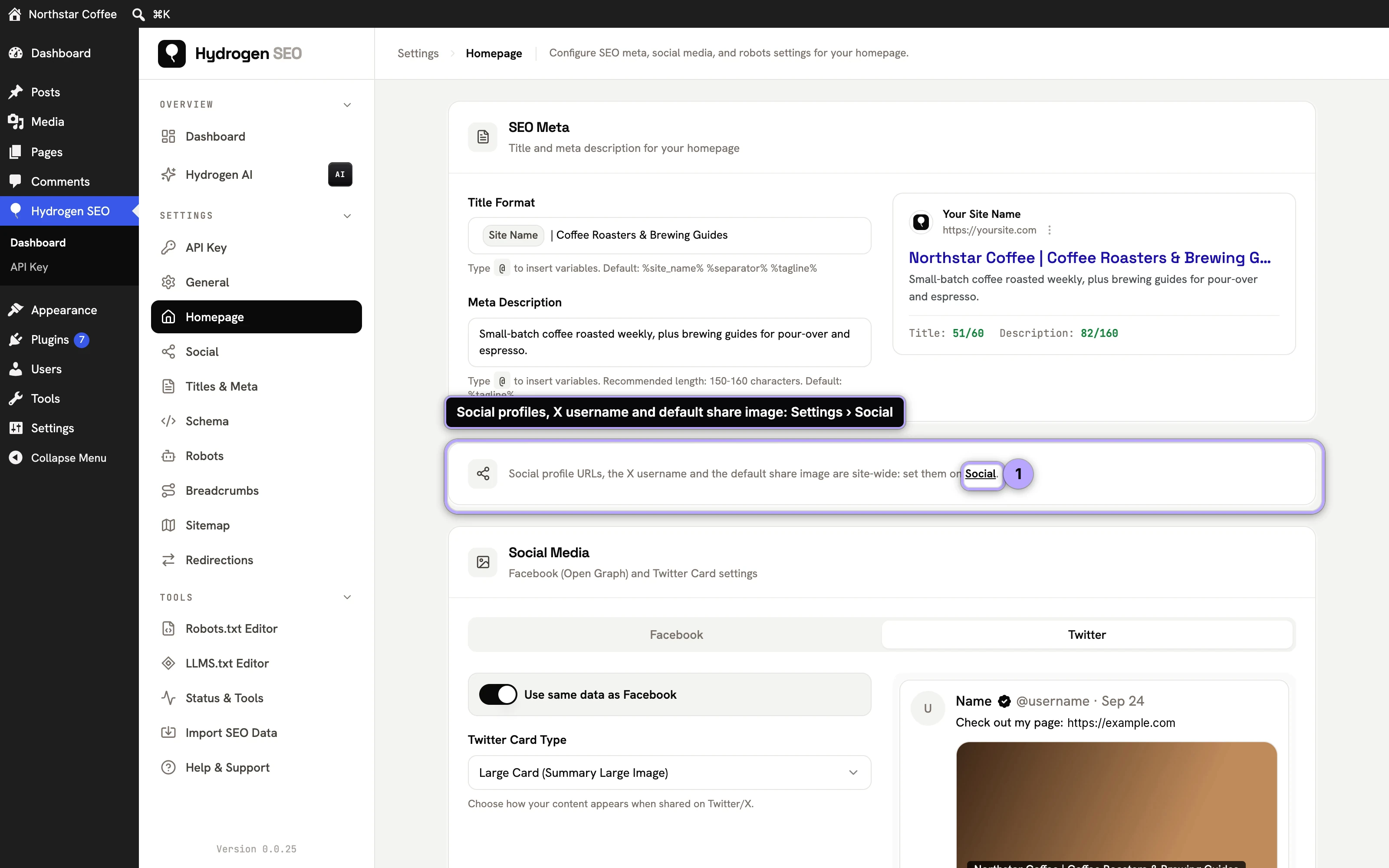
%site_name% %separator% %tagline%. Variables like%site_name%,%tagline%, and%separator%work here; press@for the smart-tags editor.%separator%prints the Title Separator chosen in Titles & Meta → General (see SEO titles and meta descriptions). - Enter the Homepage meta description: one or two sentences, roughly 120–160 characters, stating what the site offers and for whom.
- Check the SERP preview for truncation before you rely on it.
- Save your changes.
If you want a starting point, Hydrogen AI can draft title and description options; see AI meta titles and descriptions (requires a connected free account).
Homepage Open Graph settings
The homepage is shared more than any other URL, so give it explicit social data rather than letting scrapers guess:
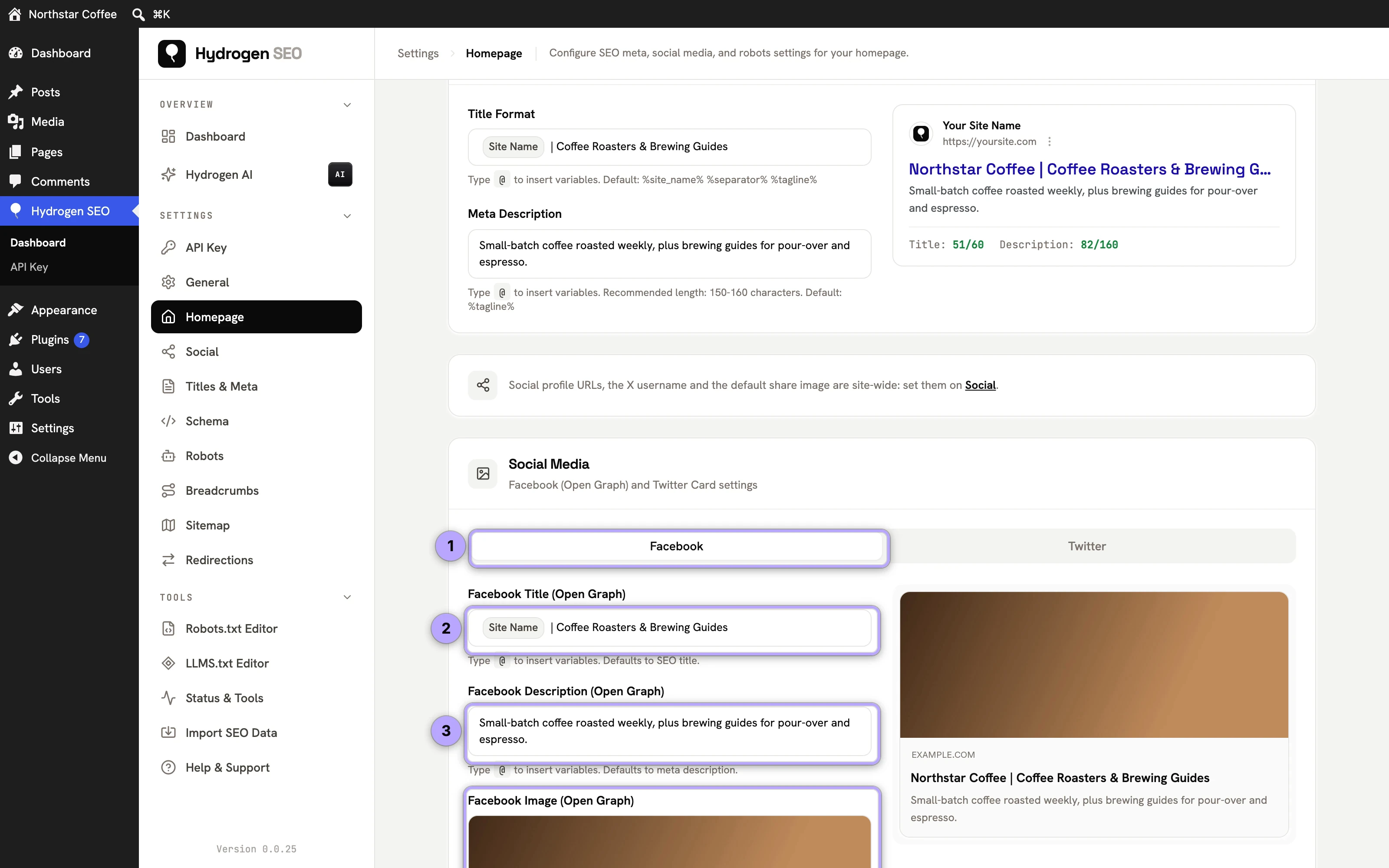
- On the same Homepage settings screen, set the OG title and OG description. These can differ from the SEO title; social copy can be warmer and more direct.
- Set a dedicated OG image, ideally 1200×630 pixels, with your brand legible at small sizes.
- Use the live share-card preview to check how the card will look before saving; the same preview UI is described in social share previews.
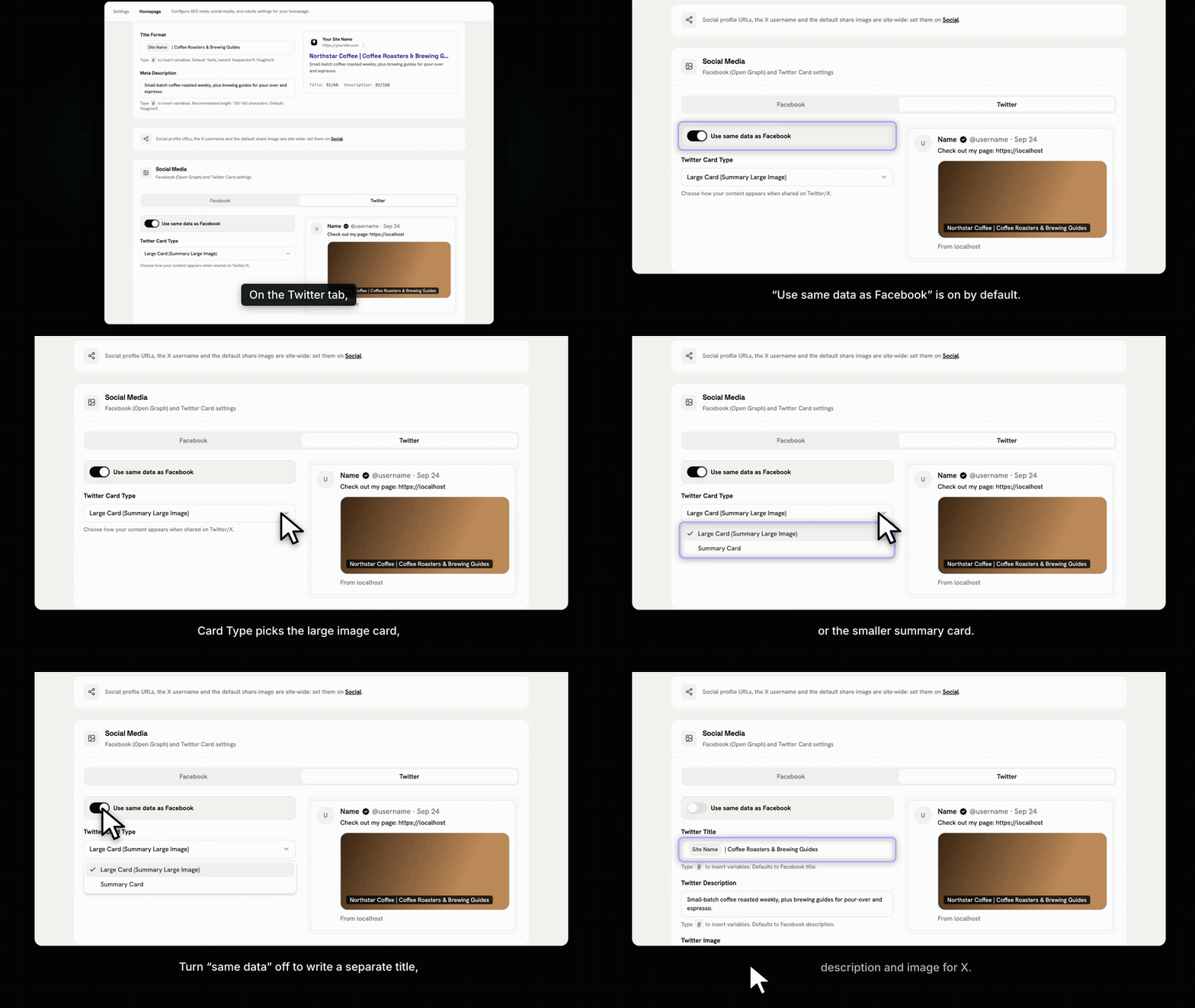
X (Twitter) cards fall back to your Open Graph values when no X-specific fields are set, so a good OG setup covers both networks. See Open Graph settings and X card settings for the full picture.
Social profiles live on the Social screen
The Homepage screen no longer has a Social Profiles card; it points you to Hydrogen SEO → Social instead. That screen holds your Facebook, Instagram, LinkedIn, YouTube, Pinterest, TikTok and other profile URLs, your X username, your Facebook App ID and the site-wide default share image. The profiles are listed as sameAs in your Organization schema. See social settings.
The homepage canonical
Hydrogen SEO outputs a canonical URL for the homepage pointing at your clean root URL, matching your site's configured scheme and host (https vs. http, www vs. non-www). That single tag consolidates signals when the homepage is reachable with tracking parameters, trailing variations, or campaign URLs, telling search engines they are all the same page.
You rarely need to touch this. The main exceptions, such as a site served through an alternate domain, are covered in canonical URLs. As with all Hydrogen SEO output, the canonical, title, meta, and OG tags are server-rendered into the homepage HTML, with no front-end JavaScript involved.
FAQ
My homepage is a static page. Do I use the Homepage screen or the page's SEO Settings sheet?
Either works; pick one and be consistent. Managing it from the page's SEO Settings sheet keeps everything in the editor alongside the content, while the Homepage screen keeps it with your site-wide settings. Avoid entering conflicting values in both places.
Google shows a different homepage title than the one I set. Why?
Google sometimes rewrites titles, and for homepages it often favors the brand name it associates with your site. A concise, accurate title that includes your brand is the most reliable way to keep your own wording.
Should the homepage description just be my tagline?
Only if your tagline honestly explains what you offer. Most taglines are too abstract for a search snippet. Write a description that would make a stranger understand the site in one read.
Do these settings work with any theme or page builder?
Yes. The homepage tags are printed server-side in the document head, independent of how the page's visible content is built, so they work identically with the block editor, Elementor, Divi, or a classic theme.