AI Meta Titles & Descriptions
Draft titles and descriptions with the Hydrogen AI tab, for one post or many.
On this page
- What you need first
- Title and description for one post
- Titles and descriptions across many posts
- Getting better suggestions
- What the AI does and doesn't touch
- FAQ
- Where did the AI suggestions beside each field go?
- Why doesn't the Hydrogen AI tab respond?
- How many credits does a generation use?
- What happens when I run out of credits?
- Can I use the AI suggestions as-is?
- Related reading
Hydrogen SEO can draft your metadata for you through Hydrogen AI, the plugin's SEO agent. For the post you are editing, open the Hydrogen AI tab in the SEO Settings sheet and ask for a title and description; for many posts at once, ask the agent from Hydrogen SEO → Hydrogen AI. The agent reads the post's real title and content, writes an SEO title and meta description (plus Open Graph and X variants), and either shows you the suggestions or saves them onto the post, depending on what you ask. There is no separate AI control beside each field; all AI help for titles and descriptions goes through Hydrogen AI.
What you need first
AI generation is the one part of metadata that requires an account. Every other titles-and-meta feature (templates, overrides, variables, the SERP preview) works with no account at all.
- Create a free account at hydrogenseo.com. Signup includes free credits.
- Connect your site by following connect your account.
- Switch on AI Abilities and connect the agent, as described in connect Hydrogen AI.
Each generation consumes credits from your account. Free credits cover regular use; heavier use is covered by paid plans, and the details live in credits and billing. When credits run out, only AI generation pauses. Nothing else in the plugin breaks or degrades.
Title and description for one post
- Open the post in the editor and open the SEO Settings sheet (the toolbar button, the ⋮ menu, or ⌘E / Ctrl+E; see the SEO Settings sheet).
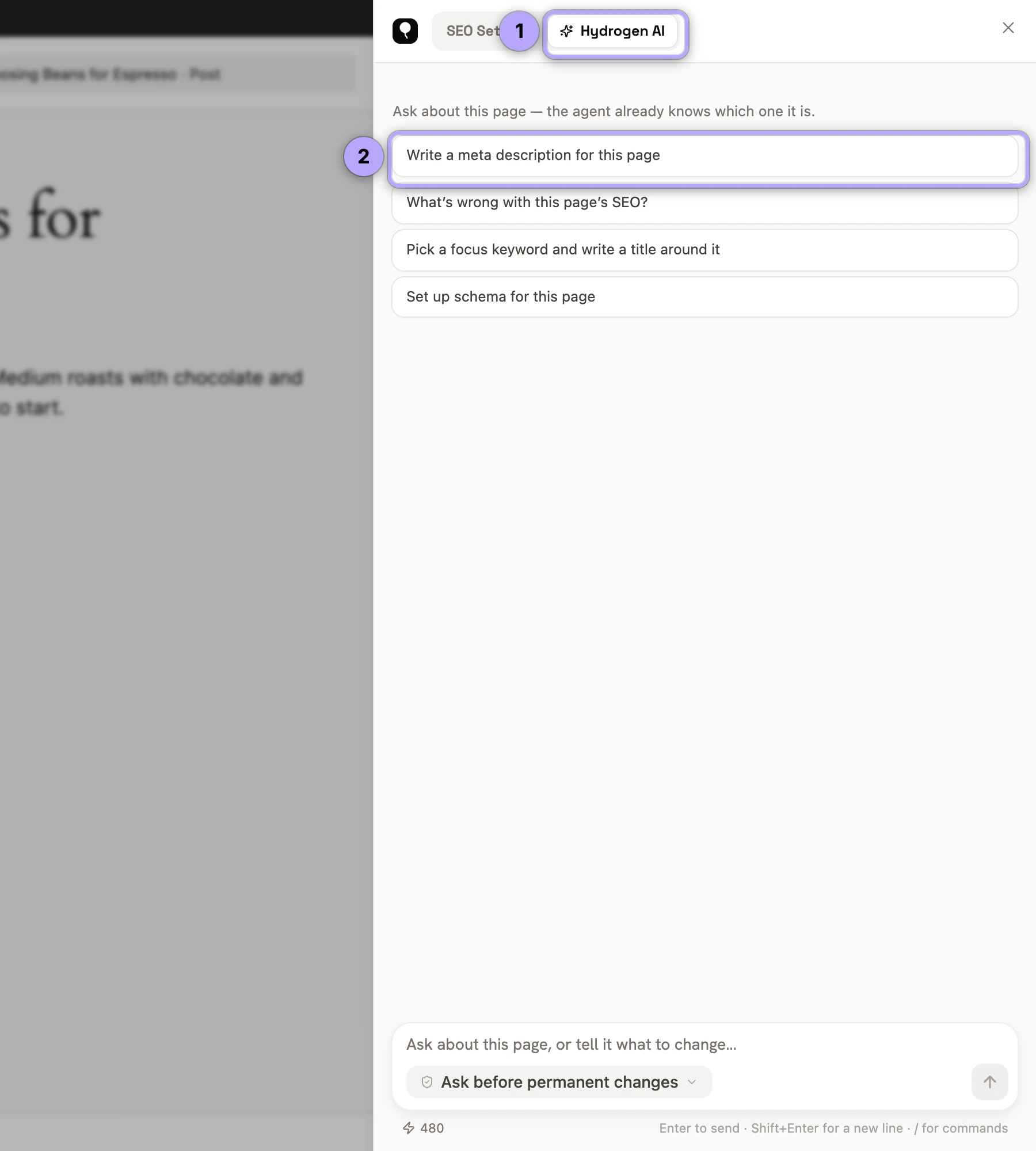
- Switch to the Hydrogen AI tab. The agent is scoped to the post you have open.
- Ask in plain language. Two useful forms:
- "Suggest an SEO title and meta description for this post, but don't save them." The agent returns the suggestions with their lengths, and nothing is written.
- "Write and save an SEO title and meta description for this post." The agent generates them and saves them onto the post, showing you the change.
- Steer it when it matters. Tell the agent what the page should rank for ("focus on 'pour-over coffee dripper'") or what to mention ("mention free shipping"); without that, it infers the topic from the content, which is usually right for an article and often wrong for a landing page.
- Check the result on the SEO tab: the fields, the character counts and the SERP preview show exactly how the snippet will look. Edit anything you like; the text is ordinary text in an ordinary field.
The same request also produces Open Graph and X title and description variants, which you can review in the social fields and the share-card previews.
Aim for roughly 50–60 characters for titles and 120–160 for descriptions. The agent aims for those sizes but does not guarantee them, so check the preview and ask for a shorter version if a description runs long.
Titles and descriptions across many posts
From Hydrogen SEO → Hydrogen AI, the agent works site-wide. Examples:
- "Write meta descriptions for every post missing one."
- "Find pages with no SEO title and draft titles for them. Show me before saving."
Bulk generation uses one generation per post, so it draws on credits accordingly. Under the default policy the agent asks before anything destructive, and you can set it to ask before every write or run read-only; see AI abilities and safety. More prompts are in Hydrogen AI recipes.
Getting better suggestions
The AI works from your content, so the quality of the input shapes the output:
- Write the post first. Suggestions generated from a finished draft are far more specific than ones generated from an outline and a heading.
- Ask again. If the first result does not land, ask for alternatives ("give me three shorter options"); picking the least-bad option is never required.
- Treat suggestions as raw material. The strongest workflow is usually AI draft plus human edit: take the suggestion with the right structure and replace its generic words with your specific ones.
- Mind the intent. A meta description should answer the searcher's query; an OG description should make someone stop scrolling. It is fine, often better, for the search and social copy to differ.
For guidance on what makes metadata effective in the first place, see SEO titles and meta descriptions.
What the AI does and doesn't touch
- Metadata generation reads the post and writes only its SEO title, meta description and social variants. It does not modify the post's content.
- Asked to suggest without saving, it writes nothing. Asked to save, it writes onto the post and shows you the change.
- Every value it writes is an ordinary field you can edit or clear afterwards in the SEO Settings sheet.
- The agent is gated by the AI Abilities toggle and its policy mode; see AI abilities and safety.
FAQ
Where did the AI suggestions beside each field go?
They were removed. AI help for titles and descriptions is now the Hydrogen AI tab in the SEO Settings sheet (for one post) and the Hydrogen AI agent in the dashboard (for many posts). The fields themselves, the character counts and the previews are unchanged.
Why doesn't the Hydrogen AI tab respond?
Almost always because no account is connected or the agent is not set up. Follow connect your account and connect Hydrogen AI. If the connection previously worked, check agent connection issues.
How many credits does a generation use?
Each generation draws on your account's credit balance, one generation per post; current allowances and plan details are documented in credits and billing. Signup includes free credits, so you can evaluate the feature without paying.
What happens when I run out of credits?
Only AI generation pauses. Your existing titles, descriptions, and every non-AI feature keep working exactly as before. Top up or upgrade at pricing to resume generating.
Can I use the AI suggestions as-is?
You can. But suggestions are drafts: a quick human pass to add specificity and brand voice almost always improves click-through.