Plugin Dashboard Overview
A tour of every screen in the Hydrogen SEO admin dashboard — what each one is for, and which you can ignore on day one.
On this page
- Dashboard and site health score
- General
- Homepage
- Social
- Titles & Meta
- Schema
- Sitemap
- Robots editor and robots settings
- Webmaster Tools
- Instant Indexing
- 404 Monitor
- llms.txt
- Redirections
- Import SEO Data
- Hydrogen AI
- On the Posts screens
- API Key
- The Save button and unsaved changes
- Performance by design
- FAQ
- Where are per-post SEO settings?
- Why is a screen asking me about unsaved changes?
- Which screens need an account?
- Related reading
The Hydrogen SEO dashboard is a modern React app inside wp-admin. Every screen is backed by the plugin's own REST API, heavy assets lazy-load only when you open a Hydrogen SEO screen (so the rest of wp-admin stays fast), and one consistent Save button with an unsaved-changes prompt governs every screen. This page tours each screen so you know where everything lives.
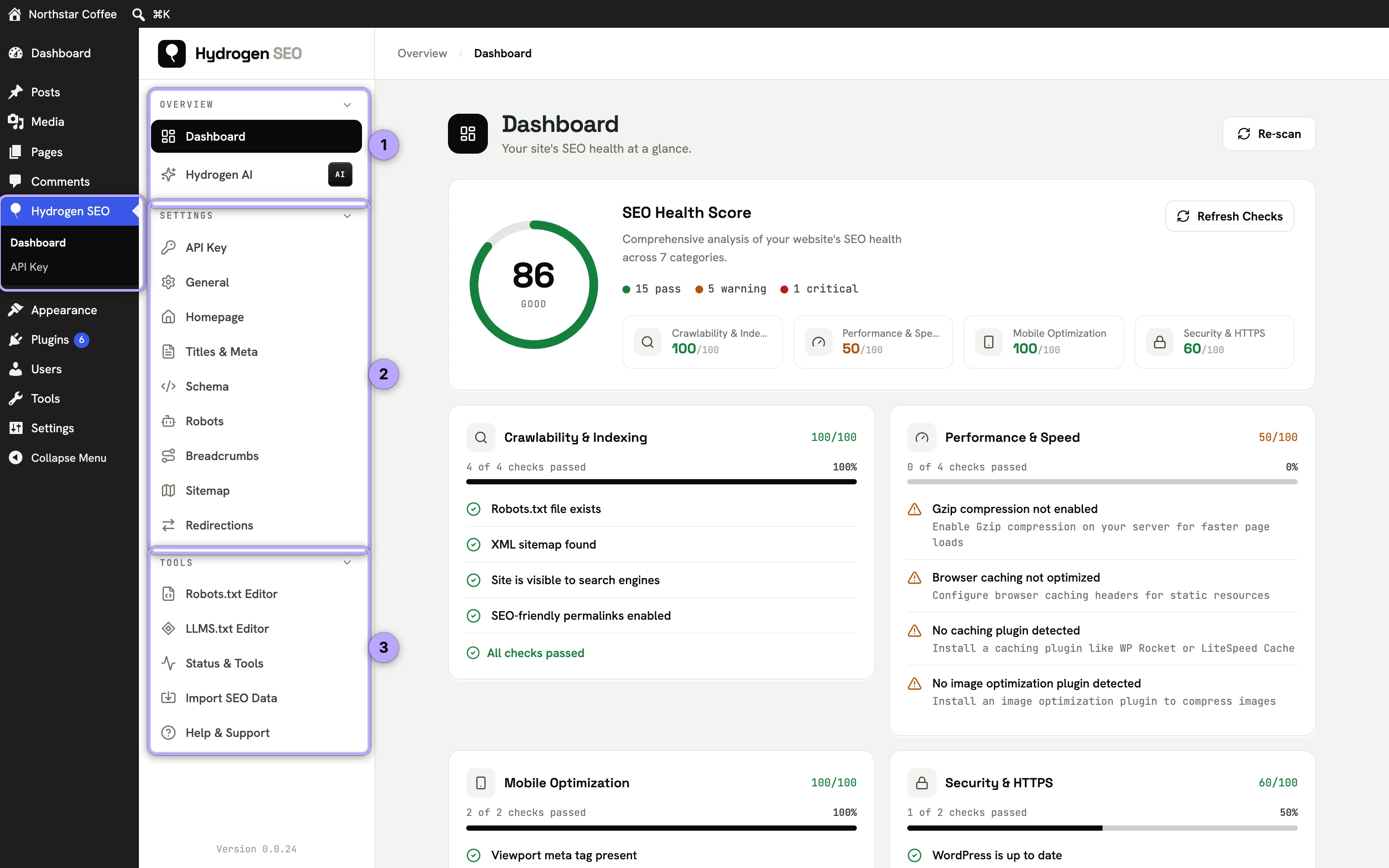
The sidebar has three groups. Overview holds the Dashboard and Hydrogen AI. Settings holds API Key, General, Homepage, Social, Titles & Meta, Schema, Robots, Breadcrumbs, Sitemap, Webmaster Tools, Instant Indexing and Redirections. Tools holds the 404 Monitor, the robots.txt and llms.txt editors, Status & Tools, and Import SEO Data.
Dashboard and site health score
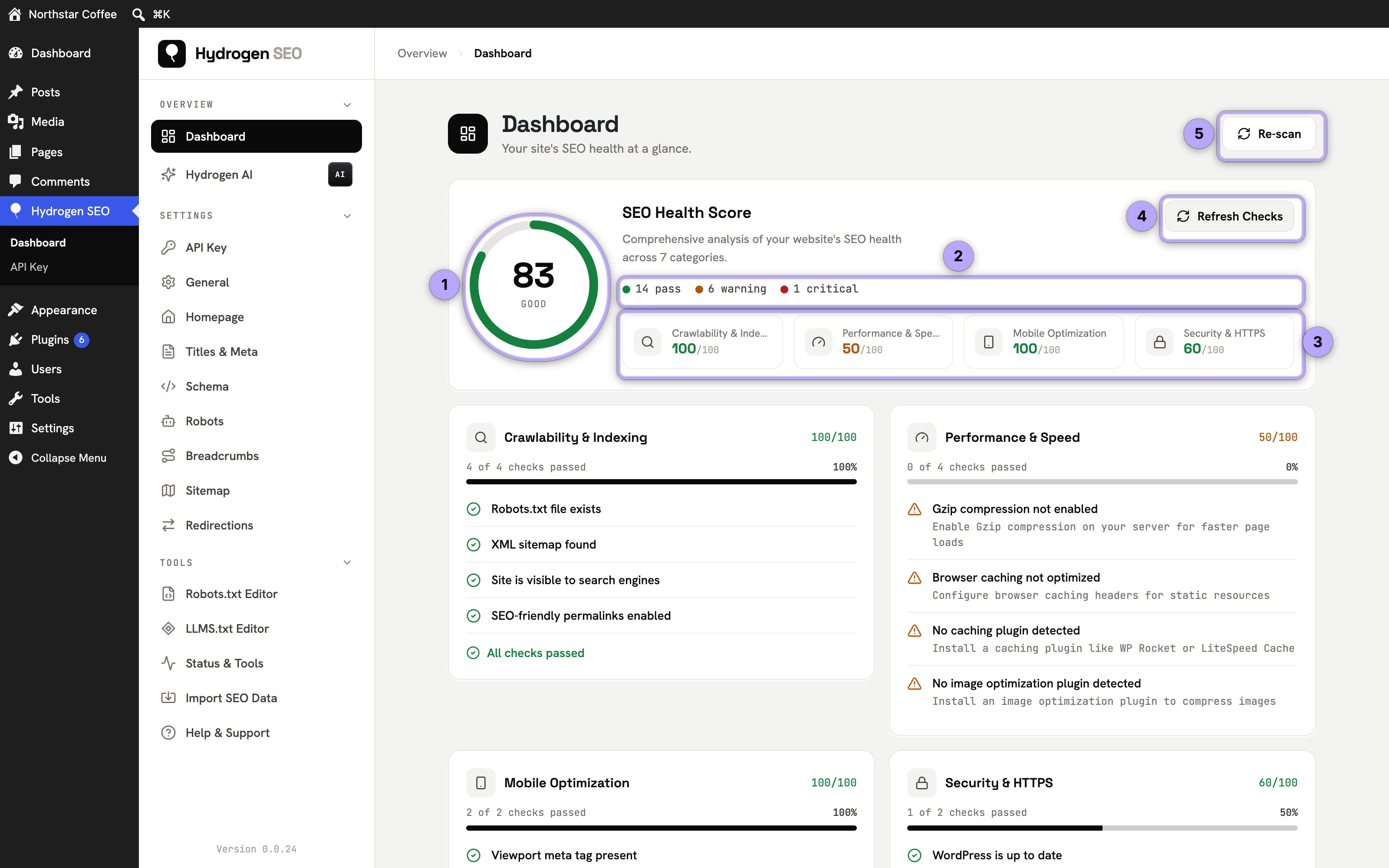
Hydrogen SEO → Dashboard opens on your site health score: a grade across seven areas — crawlability, performance, mobile, security, content structure, schema markup, and technical health — with a card per area underneath listing every issue, marked warning or critical, with a hint on how to fix it. Start here after installing, fix the critical issues first, and click Refresh Checks to see the score move. Full details in site health score and site audits.
General
The General screen holds site-wide switches for URLs, links and images: Strip Category Base (category links become /news/ instead of /category/news/, with redirects from the old addresses), Redirect Attachment Pages (each upload's own page redirects to the post it belongs to; see attachment page redirects), nofollow and new-tab behaviour for external links, filling in missing image alt and title attributes, the optional Generate Alt Text with AI on Upload, and RSS Feed, a line with links added before or after each post in your feeds (RSS feed text). See general settings.
Homepage
The Homepage screen sets your homepage's SEO title, meta description, Open Graph data and robots, independent of any template. Social profiles used to have a card here; they now live on the Social screen. See homepage SEO.
Social
The Social screen switches Open Graph and X (Twitter) card tags on or off site-wide, and holds the default share image, your X username, Facebook App ID and social profile URLs. The profiles are listed as sameAs in your Organization schema. A share-card preview and the resulting sameAs list show on the screen. See social settings.
Titles & Meta
The Titles & Meta screen holds your title and meta description templates for posts, pages, custom post types, taxonomies, archives (date, author, search results) and the 404 page. Its General section sets the Title Separator that %separator% prints, the Capitalization of template-built titles, and Noindex Empty Archives. Its Archives section also decides whether author and date archives are indexed, kept out of search results or switched off (author and date archives). Type @ in any field to open the smart tags editor and insert variables like %title%, %site_name%, %separator% and %search_query%. A Google SERP preview updates as you type. See SEO titles and meta descriptions and template variables.
Schema
The Schema screen is where you pick and configure JSON-LD types — Article, Product, FAQ, HowTo, Recipe, Course, Event, Local Business, Breadcrumbs, and more — including your Organization details and a site-wide Local Business with Display On rules. Schema fields support smart tags, so values can be dynamic per page. Per-post schema also lives in the editor's SEO Settings sheet. Start with the schema markup overview and schema types reference.
Sitemap
The Sitemap screen controls your XML sitemap: image entries, caching, and exclusions. Grab the sitemap URL here to submit it to Google; if anything looks off, sitemap troubleshooting has the fixes.
Robots editor and robots settings
Two related screens: site-wide robots settings (plus per-post robots meta in the editor), and a built-in robots.txt editor that saves your rules exactly as typed, one directive per line, with a link to the live file. See robots.txt editor and robots meta settings.
Webmaster Tools
The Webmaster Tools screen holds the HTML-tag verification codes for Google Search Console, Bing Webmaster Tools, Yandex Webmaster, Pinterest, Baidu and Naver Search Advisor, and prints them in the head of your pages. Paste the code or the whole tag. Guide: Webmaster Tools.
Instant Indexing
The Instant Indexing screen sends changed URLs to search engines that use IndexNow (Bing, Yandex, Naver, Seznam.cz and Yep among them; not Google), with a submission history and a box for submitting URLs by hand. It is off until you switch it on. Guide: Instant Indexing with IndexNow.
404 Monitor
The 404 Monitor logs the URLs visitors and bots request that return a 404, with a hit count, dates, the last referrer and user agent, and turns any row into a 301 redirect. No IP addresses are stored, and it is off until you switch it on. Guide: the 404 Monitor.
llms.txt
The llms.txt editor publishes crawl and usage guidance for AI systems. llms.txt is a proposed convention rather than a formal standard, but it is a low-effort way to speak directly to AI crawlers. Guide: llms.txt editor.
Redirections
The Redirections screen manages 301 (permanent) and 302 (temporary) redirects — essential after moving or deleting URLs. See the redirection manager and 301 vs 302 redirects.
Import SEO Data
The Import SEO Data screen (under Tools) migrates settings, per-post and per-term SEO data and redirects from Rank Math SEO, Yoast SEO, SureRank, All in One SEO, The SEO Framework, Slim SEO or SEOPress — add-ons included — with a dry-run preview, per-item report and one-click Undo. Guide: switch from Rank Math, Yoast or SureRank.
Hydrogen AI
The Hydrogen AI screen is the site-wide chat agent. Give it plain-language instructions ("write meta descriptions for every post missing one") and it works through the plugin's registered abilities, showing every change and asking before anything destructive by default. A post-scoped version lives in a tab of the editor's SEO Settings sheet. See Hydrogen AI agent and AI abilities and safety.
On the Posts screens
Not everything lives in the dashboard. On Posts → All Posts, Pages → All Pages and the lists of custom post types, Hydrogen SEO adds an SEO column (score, focus keyword, own or template title and description, indexed or not), an SEO filter, sorting by score, SEO fields in Quick Edit and an Indexing choice in Bulk Edit. See SEO on the Posts screen.
AI alt text is not a dashboard screen: it lives in the WordPress Media Library, as the ◆ Generate Alt Text buttons in the attachment details panel and the Media Library toolbar. See image alt text.
API Key
The API Key screen connects the plugin to your hydrogenseo.com account, shows your connection status, and is where you disconnect. Connecting unlocks all AI features; the walkthrough is in connect your account.
The Save button and unsaved changes
Every dashboard screen shares one deliberate pattern: make your edits, then click the single Save button to persist them. If you try to navigate away with unsaved edits, the dashboard prompts you before you lose anything. Nothing is written until you save, which makes it safe to explore any screen.
Performance by design
Two engineering choices are worth knowing. First, the dashboard's assets are lazy-loaded — they load on Hydrogen SEO screens only, so the plugin adds nothing to the rest of wp-admin. Second, the plugin ships zero front-end JavaScript: everything visitors and crawlers see is server-rendered markup.
FAQ
Where are per-post SEO settings?
In the editor. Open any post or page and use the SEO Settings sheet for that post's title, description, schema, robots meta, and social previews; press ⌘E / Ctrl+E to open it. Category, tag and other taxonomy terms have the same sheet on their edit screens. For the SEO title, description, focus keyword and indexing, Quick Edit on the Posts screen is quicker when you are working through many posts; see SEO on the Posts screen. See the SEO Settings sheet and block editor integration.
Why is a screen asking me about unsaved changes?
You edited something and navigated without clicking Save. Save to keep the edits or discard to leave the screen unchanged — the prompt exists precisely so you never lose work silently.
Which screens need an account?
Only Hydrogen AI, and the Generate Alt Text with AI on Upload switch on the General screen, which appears only while the site is connected. Dashboard, General, Homepage, Social, Titles & Meta, Schema, Robots, Breadcrumbs, Sitemap, Webmaster Tools, Instant Indexing, Redirections, the 404 Monitor, both editors and Import SEO Data work with no account.