X (Twitter) Card Settings
Set up large-image cards for shares on X.
On this page
- The summary_large_image card
- The fallback chain
- Set X card data for a post
- Site-wide defaults
- AI help with X copy
- When your card looks wrong on X
- FAQ
- Do I have to fill in the X fields for every post?
- Can I choose a different card type than summary_large_image?
- Does X really need its own tags if it reads Open Graph?
- Why does my card image look cropped on X?
- Related reading
X (formerly Twitter) uses its own card tags to decide how a shared link renders in the feed. Hydrogen SEO outputs summary_large_image cards, the large-image format that gives your link a full-width visual, and lets you set an X-specific title and description per post in the SEO Settings sheet. Anything you leave unset falls back to your Open Graph values, so a well-configured OG setup already covers X.
The summary_large_image card
X supports several card formats; summary_large_image is the one that earns attention: a large image above the title and description rather than a small thumbnail beside them. Hydrogen SEO outputs this format, with the appropriate twitter:card, twitter:title, twitter:description, and image tags rendered server-side in your page's <head>.
Because the tags are in the raw HTML (the plugin ships zero front-end JavaScript), X's scraper sees them directly. No theme or builder dependency, no client-side injection that scrapers cannot read.
The fallback chain
You rarely need to fill in every field. Values resolve in order:
- X-specific fields set in the SEO Settings sheet win.
- Open Graph values fill any X field you left empty; X's scraper reads OG tags natively, and the plugin's fallback keeps the two consistent.
- SEO title and meta description stand behind those, so even an untouched post produces a coherent card.
Practical upshot: set your Open Graph fields well, and use the X fields only when a post deserves X-specific copy.
Set X card data for a post
- Open the post in the editor and open the SEO Settings sheet.
- Go to the social settings and find the X (Twitter) fields.
- Set the X title if you want it to differ from the OG title. On X, shorter and punchier tends to win; the card sits inside an already-short post.
- Set the X description. One tight sentence; X truncates card descriptions aggressively, so put the substance first.
- Check the card preview, which renders your image, title, and description as an X-style card so you can see truncation and cropping before publishing. The preview UI for both networks is covered in social share previews.
- Save or update the post. Nothing is output until you save.
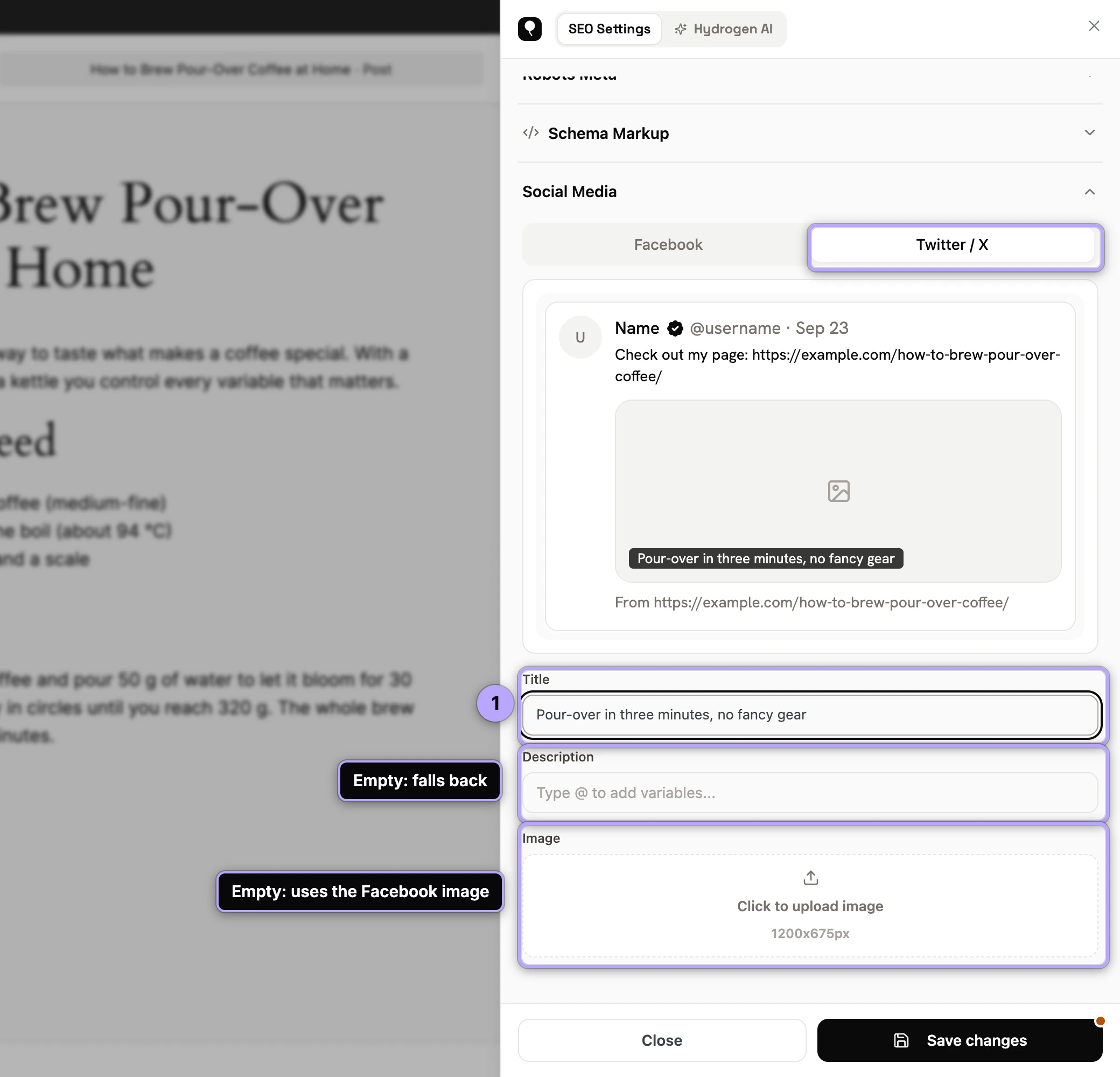
The card image follows your OG image, so the same guidance applies: 1200×630 pixels, key content away from the edges. A page with no social or featured image uses the default share image from the Social screen. For homepage cards, set the social fields on the Homepage settings screen; see homepage SEO settings.
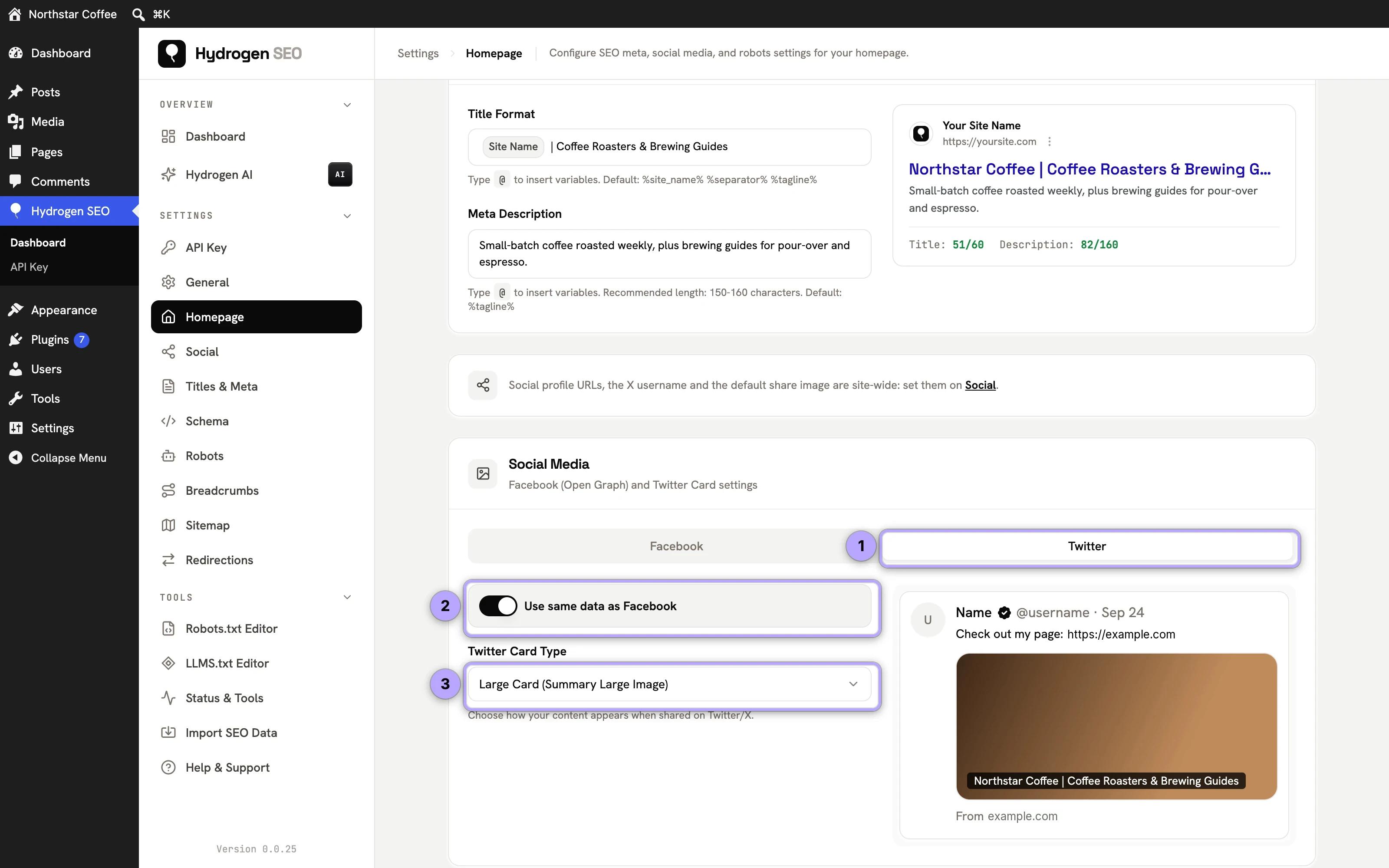
Site-wide defaults
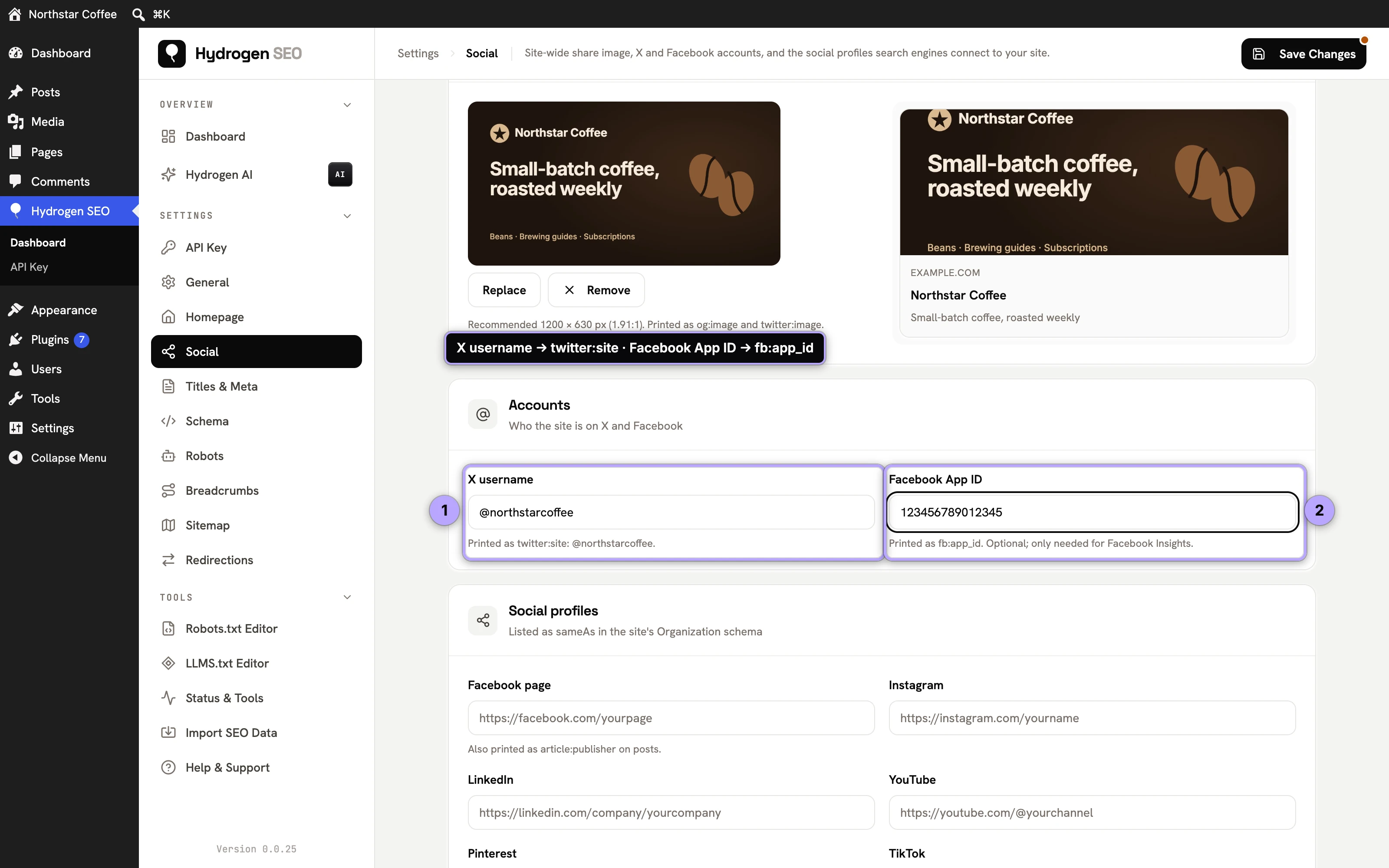
Site-wide settings for X live on Hydrogen SEO → Social (social settings):
- X (Twitter) card tags on or off. Off removes the
twitter:*tags from the site. - Your X username, printed as
twitter:site. Enter it with or without the@, or as a profile URL. If it is empty and your social profiles include an x.com profile URL, that account is used. - The default share image, used as
twitter:imagewhen a page has no social image or featured image.
AI help with X copy
To draft X titles and descriptions with AI, ask the Hydrogen AI tab in the SEO Settings sheet, for example "write a short X title and description for this post". Metadata generation produces X variants along with the SEO title and description; nothing is saved unless you ask the agent to save. AI generation needs a free connected account and draws on your credits; the full workflow is in AI meta titles and descriptions, and account setup is in connect your account.
Distinct X copy is a genuinely good use of the AI: the register that works on X (direct, provocative, short) is different from a meta description, and generating a few options beats reusing search copy verbatim.
When your card looks wrong on X
Three usual suspects:
- The change hasn't been scraped. X caches card data for previously shared URLs, so an updated title can take time to appear. Caching behavior and re-scrape options are covered honestly in social share previews.
- Another plugin is also printing card tags. Two SEO plugins outputting
twitter:orog:tags produce conflicts; keep one primary. See fixing duplicate meta output. - The image is too small or oddly cropped. Use 1200×630 and preview the crop before publishing.
FAQ
Do I have to fill in the X fields for every post?
No. The fallback to Open Graph (and behind that, your SEO title and description) means every post gets a valid card. Use the X fields when a post merits platform-specific copy.
Can I choose a different card type than summary_large_image?
The plugin outputs summary_large_image, the format that performs best for content links and is what virtually every publisher wants. There is no per-post card-type picker.
Does X really need its own tags if it reads Open Graph?
X's scraper does fall back to OG tags for most values, but explicit twitter: tags remove ambiguity, and the twitter:card tag is what requests the large-image format in the first place. Hydrogen SEO outputs the explicit tags so you are not relying on scraper guesswork.
Why does my card image look cropped on X?
X renders the large-image card at roughly a 1.91:1 to 2:1 ratio depending on placement. A 1200×630 image with critical content centered survives every variant; text near the top or bottom edge may be trimmed.