Sitemap Troubleshooting
Empty sitemaps, 404s, stale caches and whitespace errors.
On this page
- The sitemap URL returns 404
- The sitemap loads but is empty (or missing content)
- A video is missing from the video sitemap
- The news sitemap is empty
- The sitemap is stale (old URLs, missing new posts)
- "XML declaration allowed only at the start" and BOM errors
- Google Search Console says "Couldn't fetch"
- FAQ
- Where do I find my sitemap URL?
- Does the sitemap include images?
- I fixed the issue but Search Console still shows an error
- Can another SEO plugin's sitemap conflict with Hydrogen SEO's?
- Related reading
Most sitemap problems come down to four causes: a 404 from stale permalink rules, an empty sitemap from exclusions or noindex settings, a stale cached copy, or invalid XML caused by stray output from another plugin. This guide diagnoses each one, plus the Google Search Console "couldn't fetch" status and the video and news sitemaps. Hydrogen SEO's sitemap settings live on the Hydrogen SEO → Sitemap screen; the basics are covered in XML sitemaps.
The sitemap URL returns 404
A sitemap 404 usually means WordPress's rewrite rules have not been refreshed since the plugin registered the sitemap route. The fix is a permalink flush:
- Go to Settings → Permalinks in wp-admin.
- Change nothing — just click Save Changes. Saving flushes and rebuilds the rewrite rules.
- Reload your sitemap URL (copy it from the Sitemap screen to be sure you are using the right one).
If it still 404s:
- Confirm permalinks are not set to "Plain" — pretty permalinks are required for pretty sitemap URLs.
- Check for a server-level rule (nginx config or
.htaccess) that interceptssitemappaths before WordPress sees them; some hosts and old SEO plugin leftovers do this. - Confirm no other SEO plugin is claiming the same sitemap route — see fix duplicate meta output for running one primary plugin.
The sitemap loads but is empty (or missing content)
An empty or thin sitemap is nearly always intentional filtering doing more than you meant:
- Check exclusions. The Sitemap screen supports exclusions; review them and remove anything excluded by accident.
- Check robots meta. Content set to
noindexis left out of the sitemap by design — a sitemap should only list indexable URLs. Review site-wide robots meta settings and per-post robots in the editor's SEO Settings sheet. - Check post status. Only published, publicly queryable content is listed. Drafts, private posts, password-protected posts and non-public post types never appear.
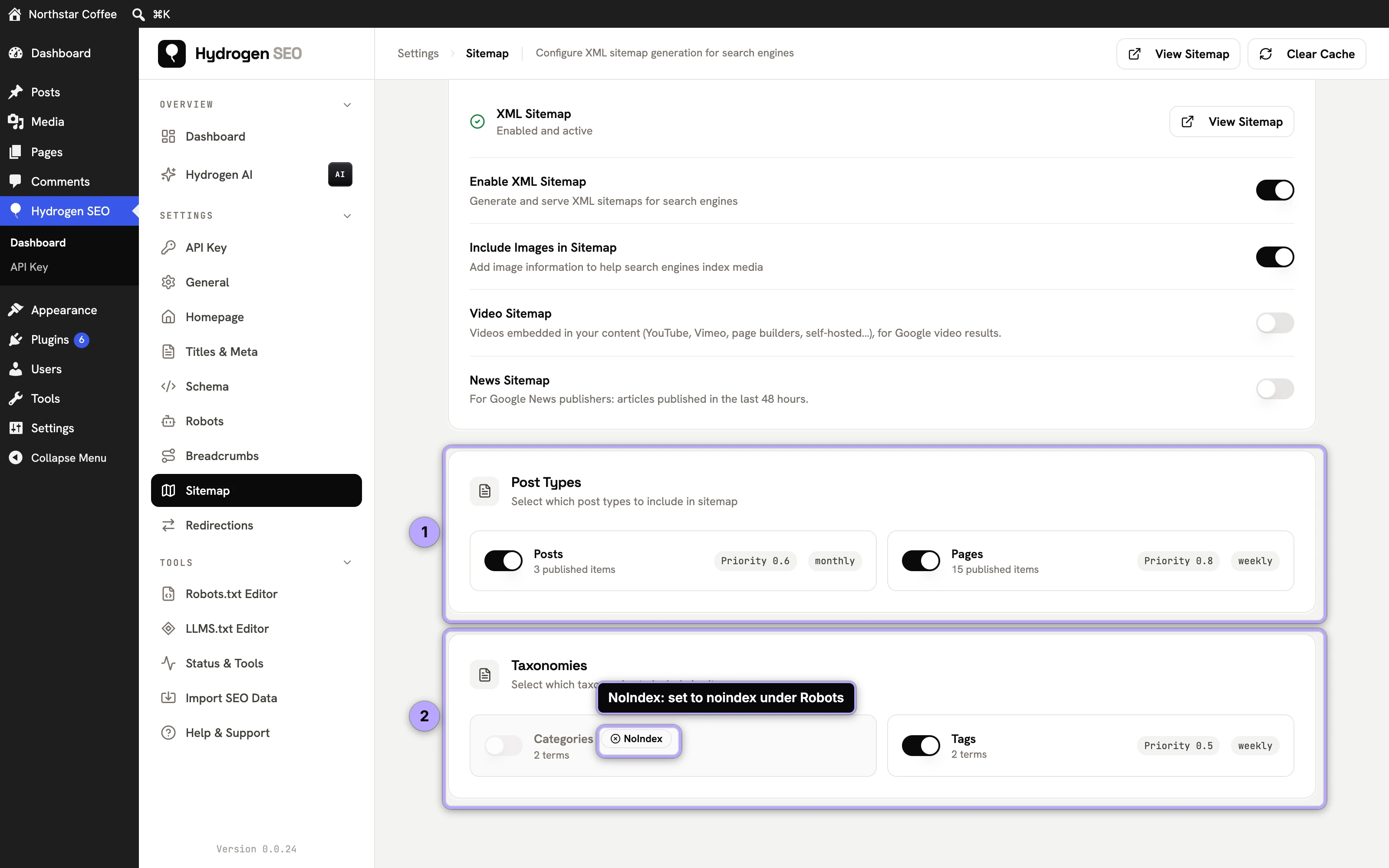
Developers can trace programmatic exclusions: the hydrogen_seo_sitemap_exclude_item filter is the hook code uses to drop entries, and hydrogen_seo_sitemap_post_type_xml / hydrogen_seo_sitemap_taxonomy_xml shape the output. See the filters reference.
A video is missing from the video sitemap
The video sitemap only lists a video when it can fill every field Google requires: a thumbnail, a title, a description and a player or content URL.
- No thumbnail. If the provider gives no thumbnail and the post has no featured image, the entry is left out rather than submitted invalid. Set a featured image, or add VideoObject schema to the post in the Hydrogen SEO metabox.
- Not scanned yet. Posts are scanned on save and by a background scan. If the post predates the video sitemap and the scan has not reached it, click Rescan in the Video Sitemap panel on the Sitemap screen.
- Not in scope. Check the post type is selected under Include, and that the post is not noindex, password-protected or canonicalised to another URL.
- Just a link. A plain link to a video in the middle of text is not counted. The video needs to be embedded, or its URL on a line of its own.
The news sitemap is empty
The news sitemap only lists articles published in the last 48 hours, so an empty one is often correct.
- Nothing recent. If nothing was published in the last 48 hours,
/news-sitemap.xmlserves an empty but valid sitemap. That is expected, not an error. - Post types not picked. Only the post types selected under Include count; Posts is the default. If your articles use a custom post type, select it.
- Categories too narrow. If categories are selected under Only from, articles outside them are left out.
The Right now count in the news sitemap panel shows how many articles are in the window at the moment.
The sitemap is stale (old URLs, missing new posts)
Hydrogen SEO caches the sitemap for performance, and your page cache or CDN may cache it again on top.
- Publish or update something, then hard-reload the sitemap URL in a private window.
- If it is still stale, clear your page cache, server cache, and CDN — a cached copy upstream is the most common culprit.
- You never need to wait out the plugin's own cache. It is rebuilt when content changes, when you save the Sitemap screen, and (from version 0.0.27) when you change a setting that alters the URL list: post type or taxonomy noindex on Robots, empty-archive noindex under Titles & Meta, Strip Category Base, the permalink, category base and tag base settings, or Discourage search engines under Settings → Reading. If the sitemap still looks old after one of those, the copy you are seeing comes from a cache in front of WordPress. When the plugin's sitemap cache is cleared, it fires the
hydrogen_seo_sitemap_cache_clearedaction — developers can hook this to purge external caches in the same moment (see the actions reference).
"XML declaration allowed only at the start" and BOM errors
If the browser shows an XML parse error like "XML or text declaration not at start of entity", something output whitespace or a UTF-8 BOM (byte-order mark) before the XML began. The sitemap itself is fine; another piece of code is polluting the response.
- View the raw response (curl or view-source) and look at the very first bytes — a blank line or invisible character before
<?xmlconfirms it. - The usual suspects: a plugin file or the theme's
functions.phpwith a blank line before<?phpor after a closing?>, or a file saved as "UTF-8 with BOM". - Deactivate plugins in halves to find the offender, or fix the file by removing the stray whitespace and re-saving as UTF-8 without BOM.
This class of error is caused by other code, not by Hydrogen SEO — but it will break any XML the site serves, sitemaps first.
Google Search Console says "Couldn't fetch"
- Verify the exact URL. Fetch the sitemap URL yourself over HTTPS from outside your network; a typo or an http/https mismatch is the number-one cause.
- Check for blocking. A firewall, bot-protection rule, or an overly broad
Disallowin robots.txt can block Googlebot specifically — test the sitemap path against your robots.txt. - Give it time. "Couldn't fetch" sometimes appears immediately after submission and resolves on its own within a day or two once Google actually crawls.
- Resubmit after fixing anything above. The full submission walkthrough is in submit your sitemap to Google.
FAQ
Where do I find my sitemap URL?
On the Hydrogen SEO → Sitemap screen in wp-admin. Always copy it from there rather than guessing the path.
Does the sitemap include images?
Yes — Hydrogen SEO's sitemap supports image entries, which helps image search. Configuration is on the Sitemap screen; see XML sitemaps.
I fixed the issue but Search Console still shows an error
Search Console statuses lag reality. Confirm the sitemap fetches correctly yourself, resubmit it, and check back after Google's next crawl rather than immediately.
Can another SEO plugin's sitemap conflict with Hydrogen SEO's?
Yes. Two active SEO plugins can both register sitemap routes and both print meta output. Run one primary plugin — the procedure is in fix duplicate meta output.