Block Editor (Gutenberg) Integration
Hydrogen SEO inside Gutenberg: opening the sheet, the previews, the SEO score and the Hydrogen AI tab.
On this page
- Opening Hydrogen SEO in the editor
- The SEO Settings sheet
- Live SERP and social previews
- The SEO score badge
- The Hydrogen AI tab, scoped to this post
- FAQ
- Does Hydrogen SEO work with the Classic Editor too?
- Do the previews and the score need an account?
- Will Hydrogen SEO slow down my editor?
- Can I control which post types get Hydrogen SEO in the editor?
- Related reading
Hydrogen SEO integrates directly into the WordPress block editor, so every SEO decision for a post happens where you write it. From the editor you open the SEO Settings sheet, watch live Google SERP and social share previews update as you type, see the post's SEO score in the sheet header, and talk to Hydrogen AI about the post you have open, without ever leaving the editor.
Opening Hydrogen SEO in the editor
There are three ways to open the SEO Settings sheet from the block editor:
- The toolbar button. Click the Hydrogen SEO balloon button in the editor's top toolbar.
- The ⋮ menu. Open the editor's Options menu (⋮, top right) and choose Hydrogen SEO.
- The keyboard shortcut. Press ⌘E on a Mac, or Ctrl+E on Windows and Linux.
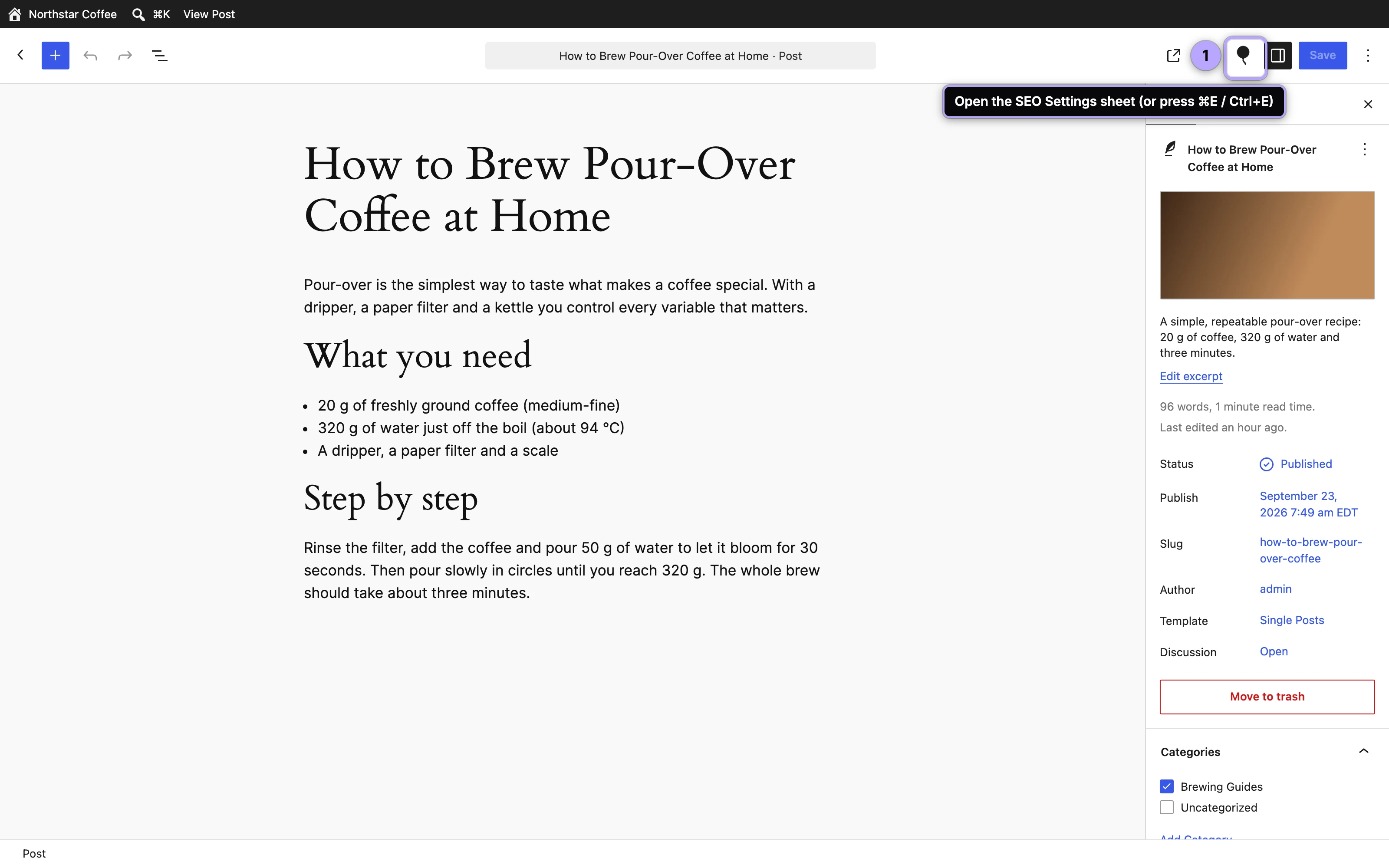
Everything the sheet does runs through the plugin's own REST API inside wp-admin. None of it ships to your visitors: Hydrogen SEO adds zero front-end JavaScript, and all SEO output is server-rendered markup.
The SEO Settings sheet
The sheet is the full control surface for this post: SEO title and meta description with smart-tag support (type @ in a field to insert template variables), focus keyword, canonical URL, robots meta, Open Graph and X card fields, per-post schema, and the Hydrogen AI tab. It gets its own field-by-field guide in the SEO Settings sheet; the short version is that everything you can set for a single post lives in one place.
Live SERP and social previews
As you type a title or description, Hydrogen SEO renders a live Google SERP preview, your snippet as it would appear in results, with real truncation behaviour rather than a raw character count alone. Alongside it, live share-card previews show how the post will look when shared on social platforms, driven by your Open Graph settings and X card settings.
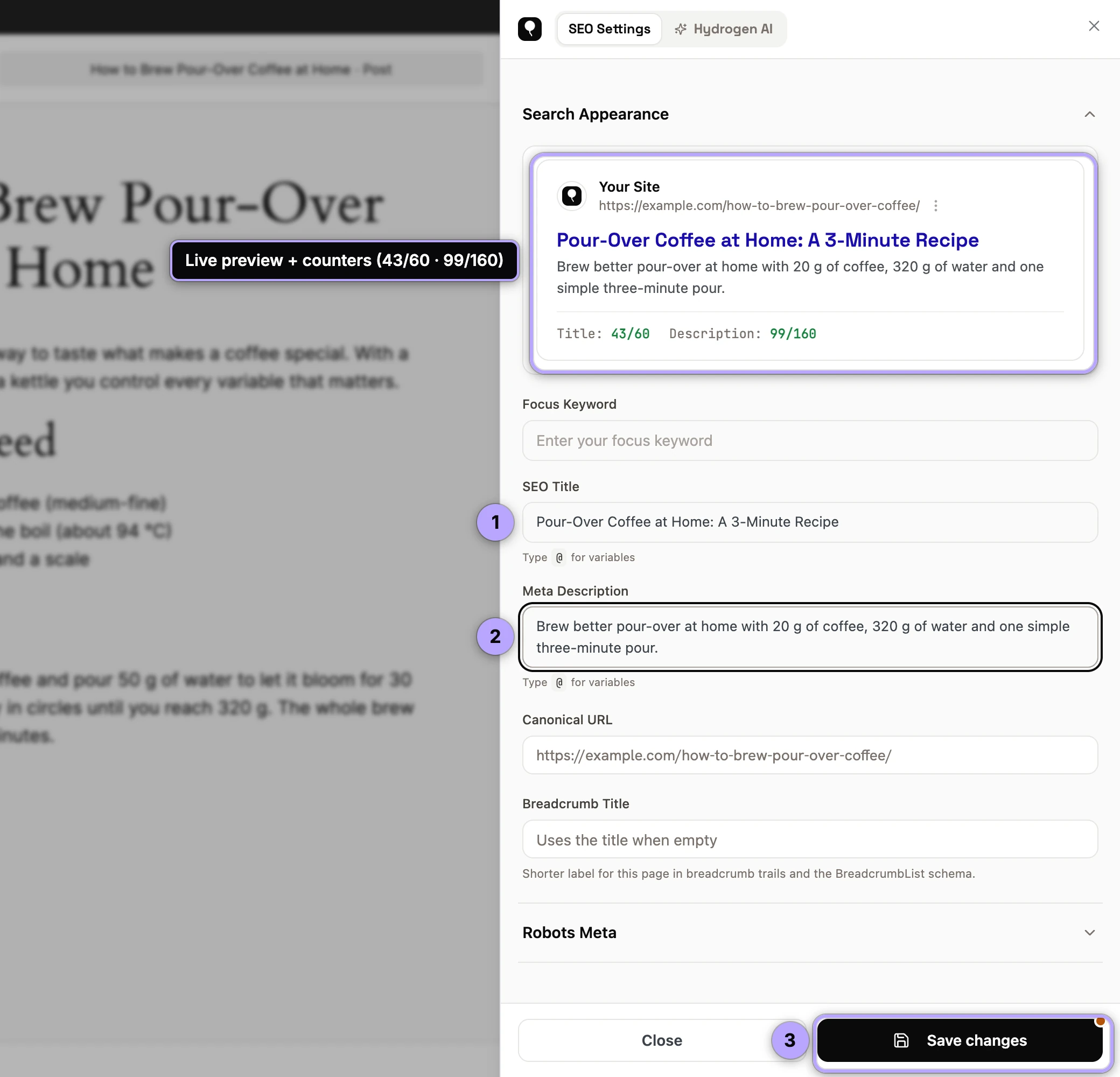
The previews turn metadata writing from guesswork into direct manipulation: you are editing the actual artefact searchers and sharers will see. More detail in SERP preview and social share previews.
The SEO score badge
The sheet header shows the post's SEO score as a badge from 0 to 100. The post is scored every time it is saved, and again when its focus keyword changes, so the badge reflects the last saved version. The score is built from five equal parts: content length, focus keyword density, readability, links, and image alt text. What each part measures, and how to raise it, is in on-page SEO analysis.
A practical rhythm: draft freely, save, glance at the badge, and look at the part that is holding it back before you publish.
The Hydrogen AI tab, scoped to this post
The SEO Settings sheet includes a Hydrogen AI tab: the same chat agent available site-wide from Hydrogen SEO → Hydrogen AI, but scoped to the post you are editing. This is where AI help for the post lives. Ask it things like "suggest an SEO title and meta description for this post", "add FAQ schema to this page" or "rewrite the meta description to mention the free plan" and it works on this post specifically, using the plugin's registered abilities. See AI titles and descriptions for the metadata workflow.
The agent's safety model applies here as everywhere: the AI Abilities toggle must be on, by default it asks before anything destructive, it shows every change, and it can be stopped at any time. See the Hydrogen AI agent overview and AI abilities and safety.
FAQ
Does Hydrogen SEO work with the Classic Editor too?
Yes. In the Classic editor a Hydrogen SEO side box has an Edit SEO settings button that opens the same SEO Settings sheet, and ⌘E / Ctrl+E works there too. The same button appears on category, tag and other taxonomy term edit screens. Hydrogen SEO's output itself, titles, meta, schema, is server-rendered and independent of any editor, which is also why it works with page builders; see the Elementor guide.
Do the previews and the score need an account?
No. The SERP preview, social previews, SEO Settings sheet, and SEO score are all free with no account. Only the Hydrogen AI tab needs a free hydrogenseo.com account.
Will Hydrogen SEO slow down my editor?
The plugin's heavy assets lazy-load, so the editor stays responsive and the integration only loads what the current screen needs.
Can I control which post types get Hydrogen SEO in the editor?
Yes, developers can adjust this with the hydrogen_seo_metabox_post_types filter; see the filters reference.