The SEO Settings Sheet
Everything in the SEO sheet for posts, pages and terms, field by field, and how to open it.
On this page
- Opening the sheet
- The SEO score badge
- Focus keyword
- SEO title
- Meta description
- Canonical URL
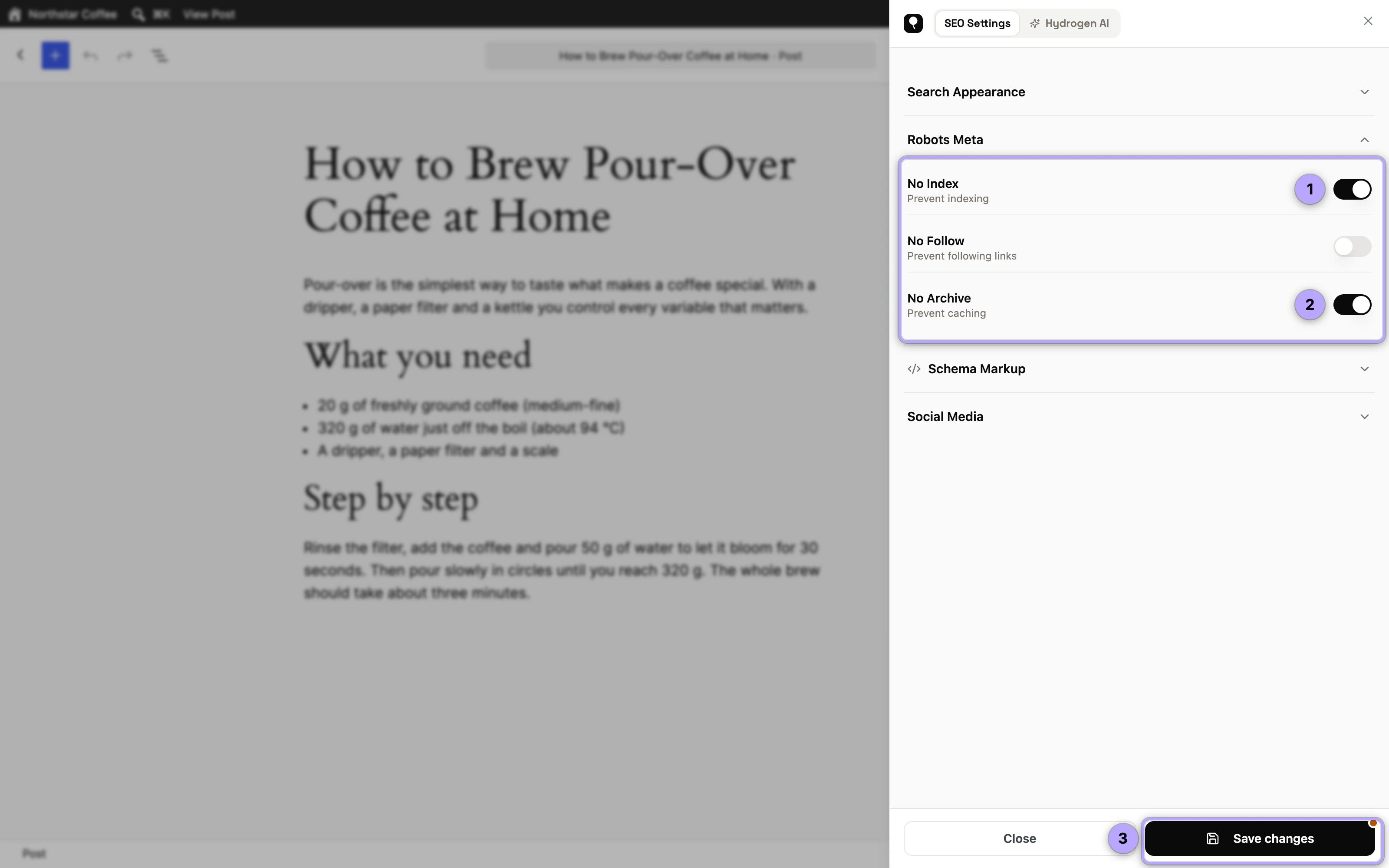
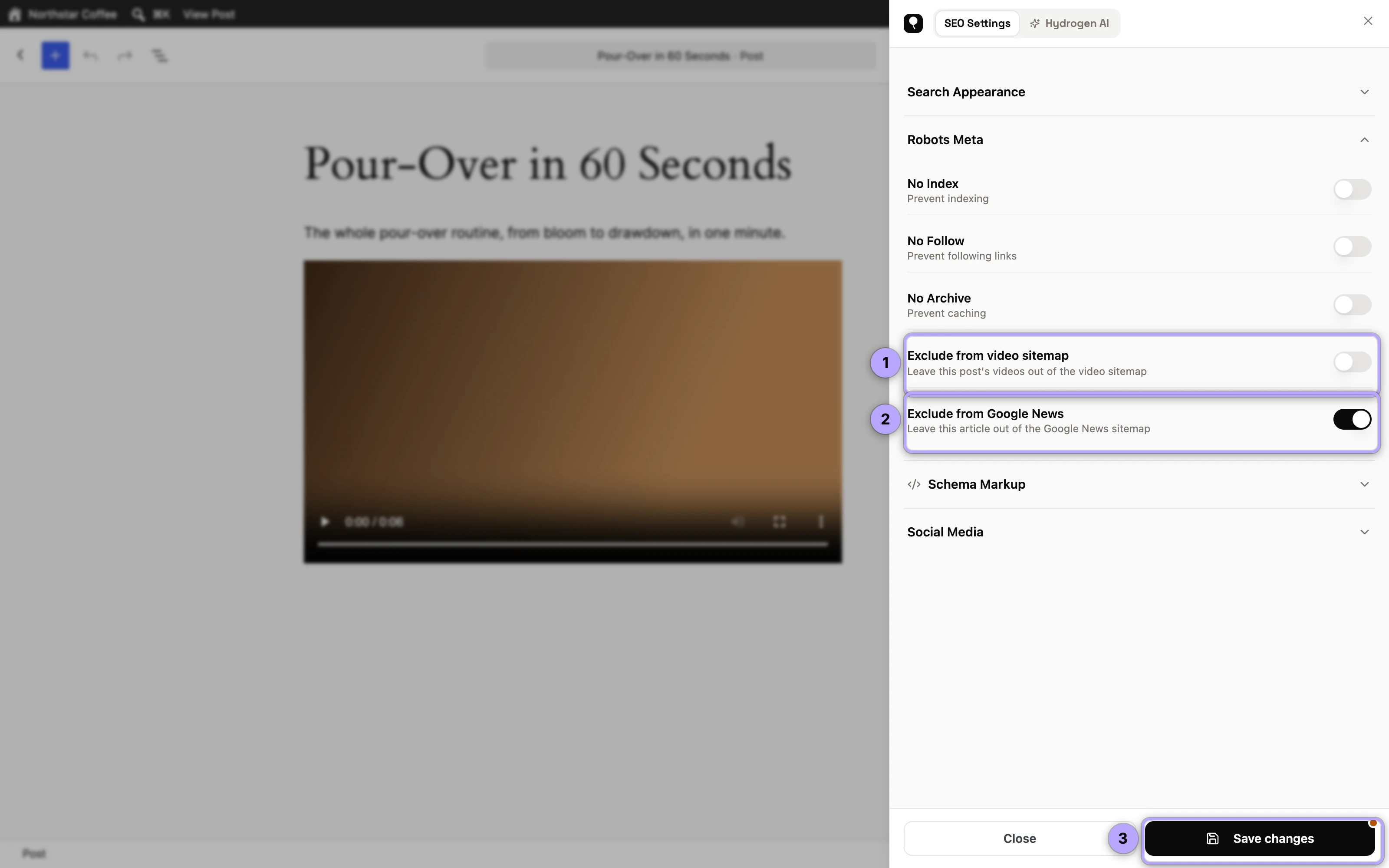
- Robots meta
- Open Graph: title, description, image
- X (Twitter): title and description
- Schema for this post
- The Hydrogen AI tab
- Settings on taxonomy terms
- Sheet behaviour worth knowing
- FAQ
- Do I have to fill in every field?
- What happens if I leave the SEO title empty?
- Is there an AI option beside each field?
- Does the sheet work outside the block editor?
- Can I change SEO settings without opening each post?
- Why is the score badge not updating as I type?
- Related reading
The SEO Settings sheet is Hydrogen SEO's per-item control surface: a slide-over panel that holds every SEO setting for the post, page or taxonomy term you have open, from the SEO title and meta description through canonical and robots controls, social card fields, per-item schema, and a Hydrogen AI tab. The same sheet opens in the block editor, the Classic editor, and on category, tag and other taxonomy edit screens. It closes when you click outside it, and it warns you before discarding unsaved changes.
This page covers how to open the sheet, what the score badge in its header means, and every field.
Opening the sheet
| Where you are | How to open it |
|---|---|
| Block editor | The Hydrogen SEO balloon button in the editor toolbar, the editor's ⋮ (Options) menu, or ⌘E (Ctrl+E on Windows and Linux) |
| Classic editor | The Edit SEO settings button in the Hydrogen SEO side box, or ⌘E / Ctrl+E |
| Category, tag or other taxonomy edit screen | The Hydrogen SEO → Edit SEO settings button, or ⌘E / Ctrl+E |
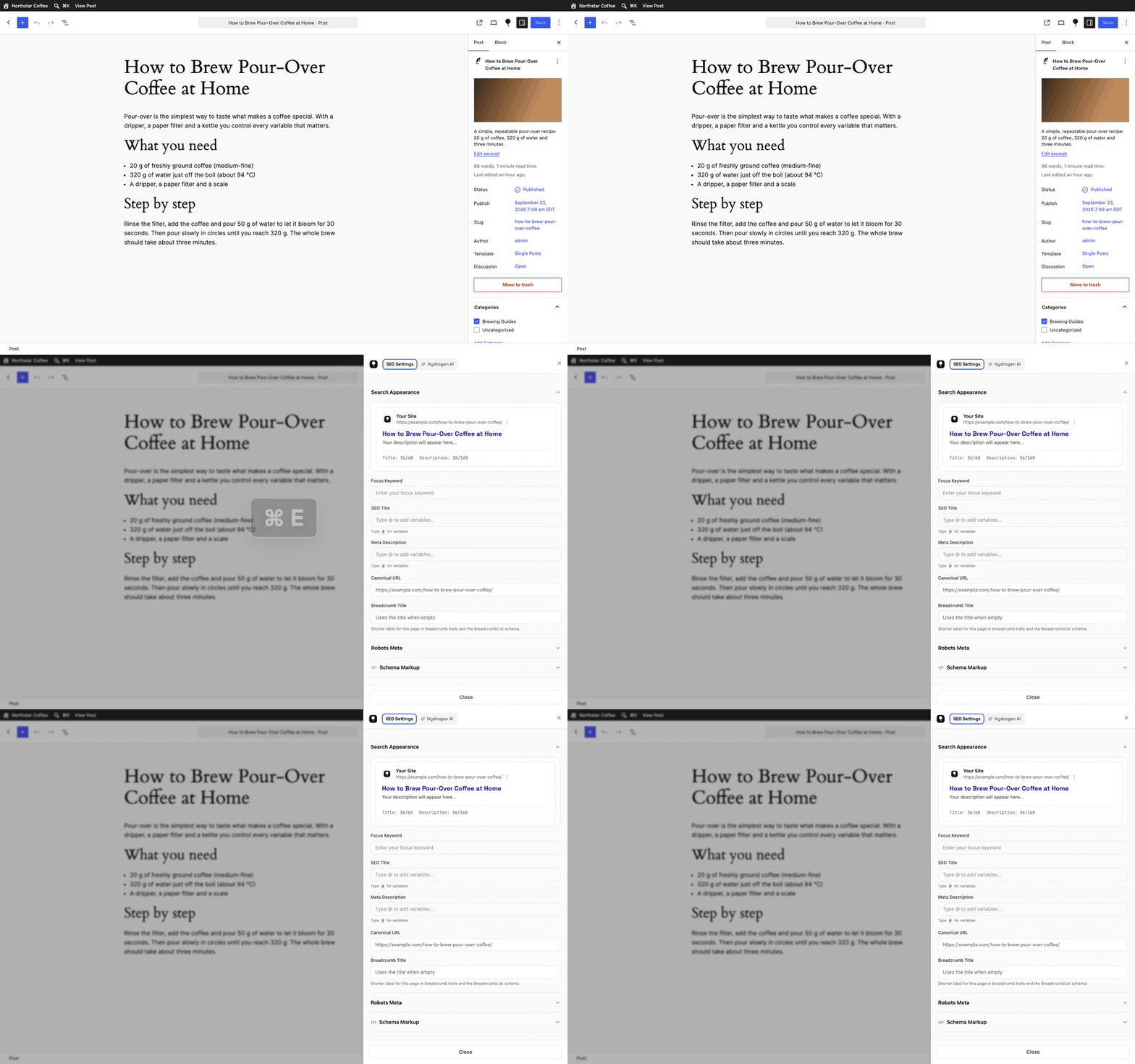
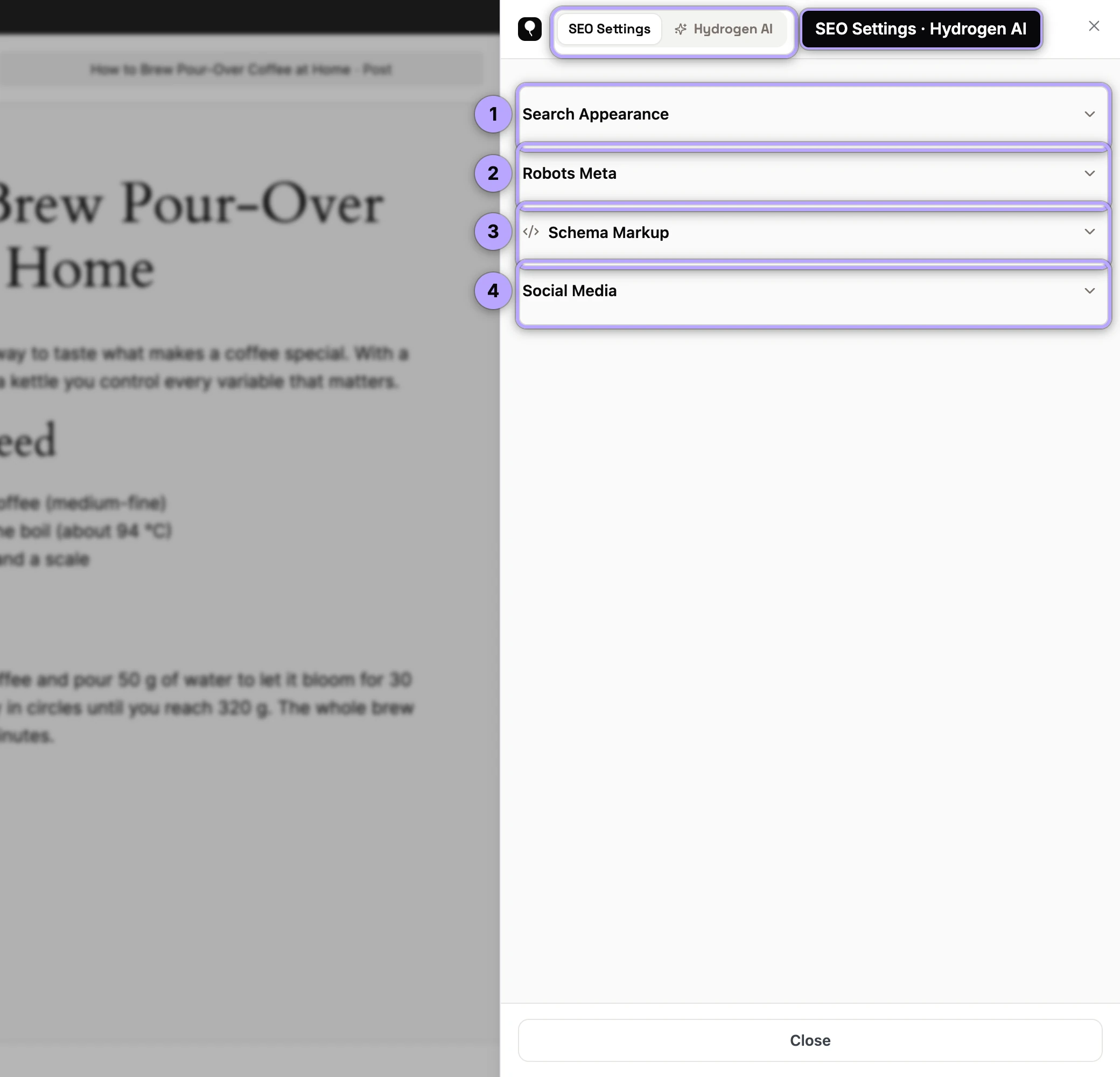
On taxonomy terms, the sheet appears on the term's edit screen (click a term's name under Posts → Categories, for example). It is not available on the Add New Category form, because the term has to exist before settings can be saved to it: add the term, then open it to edit its SEO. Terms of any taxonomy Hydrogen SEO is enabled for get the button.
The SEO score badge
The badge in the sheet header shows the post's SEO score, from 0 to 100. The score is calculated when the post is saved and again when its focus keyword changes, so it reflects the last saved version. It is made of five equal parts: content length, focus keyword density, readability, links, and image alt text. What each part measures is explained in on-page SEO analysis.
Focus keyword
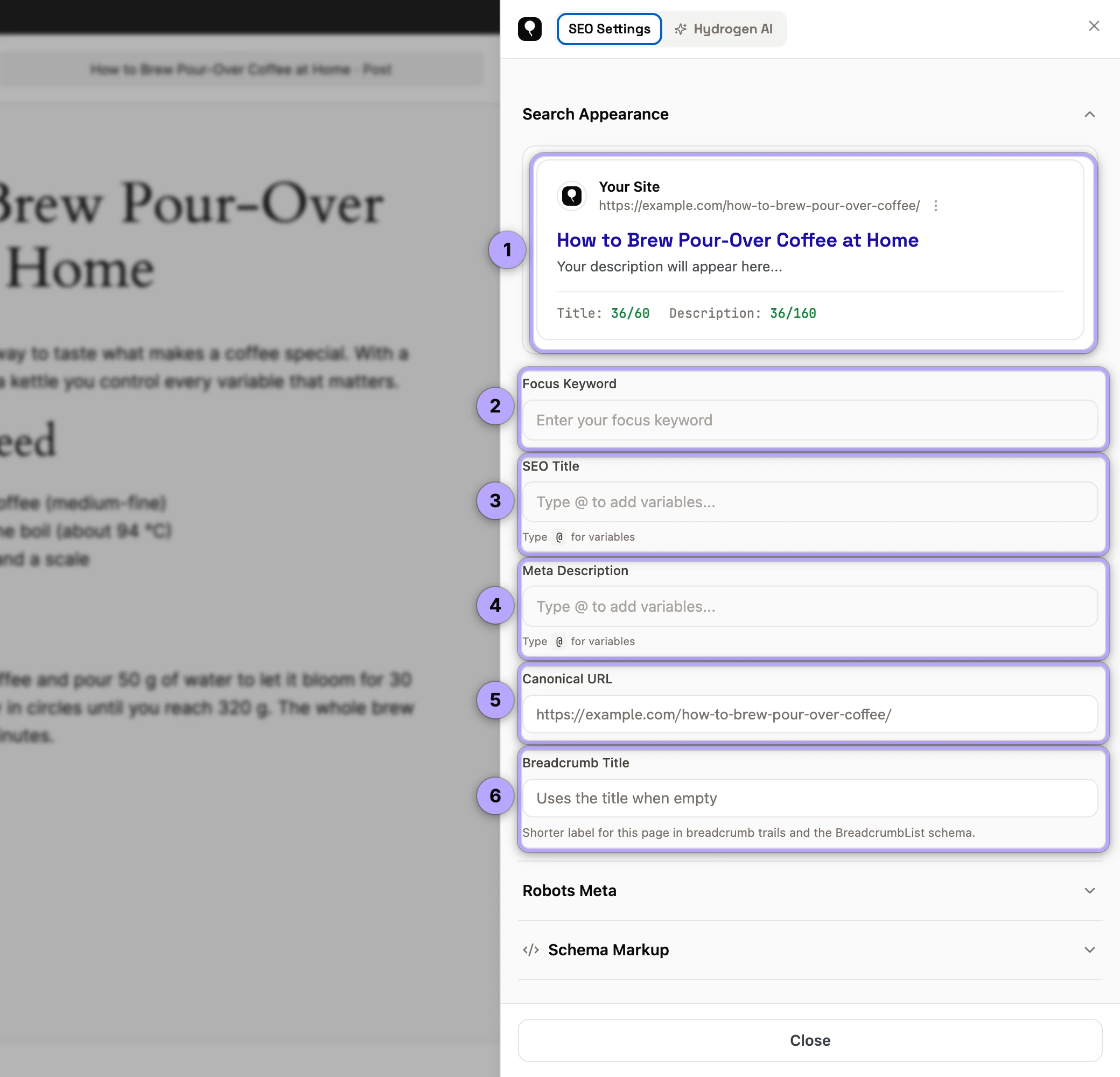
The phrase you want this post to rank for. It feeds the keyword density part of the SEO score, and changing it recalculates the score.
SEO title
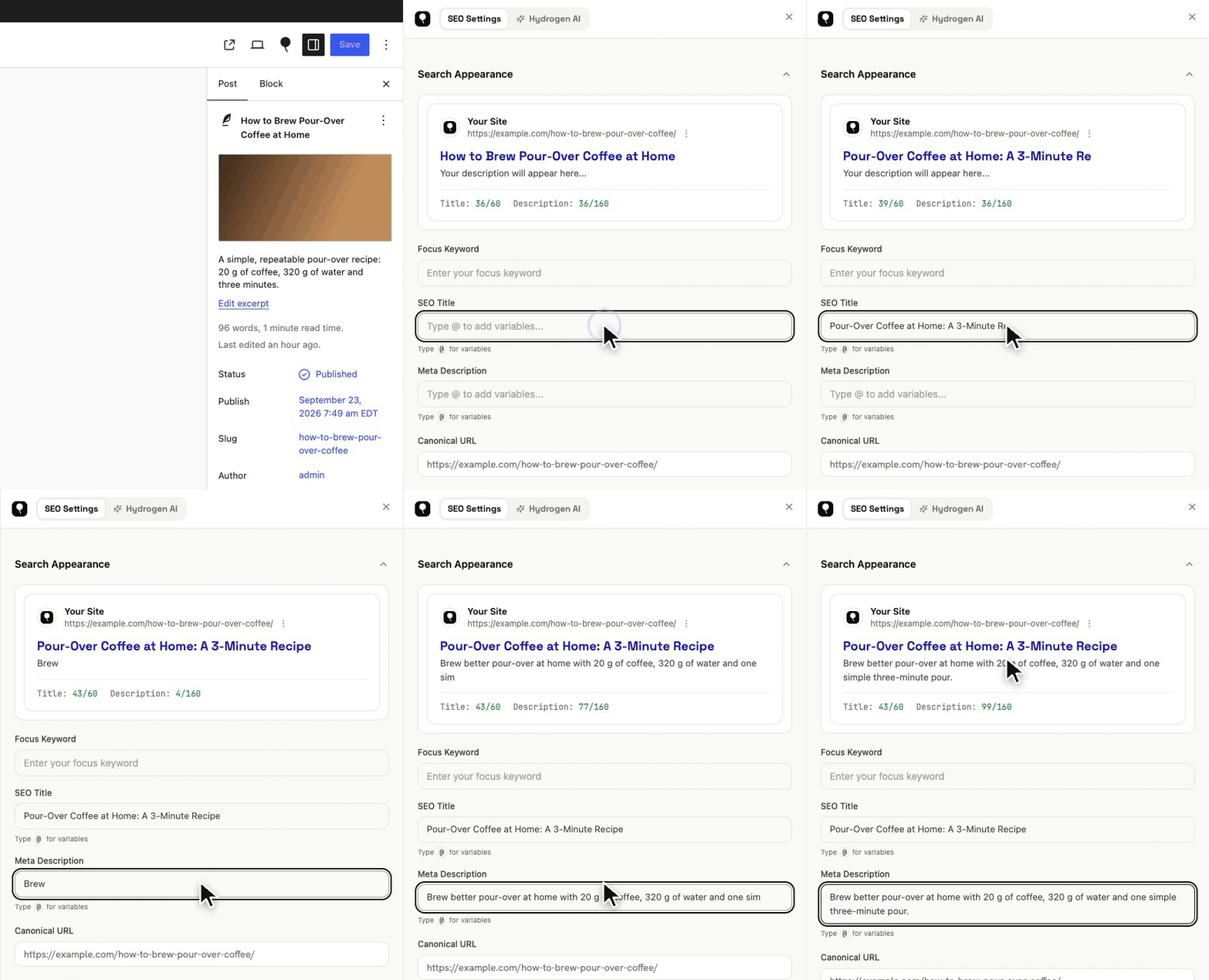
The title shown in search results and the browser tab. Type directly, or type @ to insert smart tags, dynamic template variables like %title%, %site_name%, and %separator% that resolve when the page renders. A character count and the live SERP preview show exactly how the title will display and where Google would truncate it. Leave the field empty and the post falls back to your site-wide title template from SEO titles and meta descriptions.
Meta description
The snippet text below your title in results. The same rules apply: smart tags via @, a live character count, and the SERP preview updating as you type. A good description answers the searcher's query and earns the click; if you want drafts to react to, ask the Hydrogen AI tab for suggestions (free account required; see AI titles and descriptions).
Canonical URL
Sets the canonical for this post: the URL you want search engines to treat as the authoritative address for this content. Leave it empty for the default (the post's own permalink), which is correct for almost every post. Set it explicitly when this post intentionally duplicates content that lives at another URL. Full guidance in canonical URLs.
Robots meta
Per-post crawl and index directives: noindex to keep this post out of search results, nofollow to stop link-following from it, and related directives. These override your site-wide defaults for this post only. Use with care; a stray noindex on an important page is one of the most expensive mistakes in SEO. Details and defaults in robots meta settings.
Open Graph: title, description, image
How this post presents when shared on Open Graph platforms such as Facebook and LinkedIn:
- OG title and OG description: override the search metadata when you want the social framing to differ, which is often the right call because social audiences respond to different angles than searchers.
- OG image: the share card image. Set an explicit image for anything you expect to be shared; the live share-card preview shows the assembled result.
If the share image is left empty, the post's featured image is used. (In versions before 0.0.27 the Media Library window could not be clicked while the sheet was open; update if choosing an image does nothing.)
Site-wide defaults, such as the default share image used when a post has no image of its own, live on the Social screen; per-post fields are covered in Open Graph settings.
X (Twitter): title and description
The equivalent pair for X cards, with the same live preview. If left empty, X falls back sensibly, so you only fill these when you want X-specific copy. See X (Twitter) cards.
Schema for this post
Pick a structured-data type for this post, Article, Product, FAQ, HowTo, Recipe, Event, and more, and fill its fields; Hydrogen SEO outputs valid JSON-LD in the rendered page, including the nested types a type needs (Question and Answer inside an FAQ, PostalAddress inside a Local Business) and the field defaults for anything you leave blank. The schemas you add are saved with the post and are listed again when you reopen the sheet. Schema fields support smart tags, so values like the post title or dates can be dynamic. Start with the schema markup overview, and check eligibility with validate rich results.
The Hydrogen AI tab
The final tab embeds the Hydrogen AI chat agent, scoped to the post you are editing. Ask it to "add FAQ schema to this page" or "tighten this meta description" and it acts on this post through the plugin's own abilities, showing each change and asking before anything destructive by default. It requires the AI Abilities toggle to be on and a connected account; see the Hydrogen AI agent and AI abilities and safety.
Settings on taxonomy terms
On a category, tag or other taxonomy term, the sheet holds the same kinds of settings: SEO title, meta description, robots, canonical URL, social fields and schema. They are saved to that term and override the taxonomy's template from Titles & Meta for that term's archive only. If a term has its own robots settings here, those are used instead of Noindex Empty Archives for that term.
Sheet behaviour worth knowing
- Outside click closes the sheet. Click anywhere outside the panel and it slides away, keeping the editor uncluttered.
- Unsaved changes are protected. If you have edited fields and try to close, the sheet prompts you before discarding, so a stray click cannot silently lose a rewritten description.
- Changes belong to the post or term: save the post (or update the term) to persist them.
FAQ
Do I have to fill in every field?
No. Most posts need only a title and description; everything else has sensible defaults. Fill the social fields for content you expect to be shared, and schema where a rich result is realistic.
What happens if I leave the SEO title empty?
The post uses your site-wide template for its post type, built from template variables. Explicit per-post values always win over templates.
Is there an AI option beside each field?
No. AI help lives in the Hydrogen AI tab: ask it to suggest or write a title, description or social copy for the item you have open. AI features need a free hydrogenseo.com account.
Does the sheet work outside the block editor?
Yes. It opens in the Classic editor from the Hydrogen SEO side box and on taxonomy term edit screens, and ⌘E / Ctrl+E works in both. The metadata it manages is server-rendered on every page regardless of how the page was built, which is why builder sites use the same sheet; see the Elementor guide.
Can I change SEO settings without opening each post?
For the four fields people change most, yes. On Posts → All Posts (and Pages, and custom post types), Quick Edit has the SEO title, description, focus keyword and indexing, and Bulk Edit sets indexing for many posts at once. The list also shows each post's score and lets you filter by it. Everything else, including canonical, social and schema, stays in this sheet. See SEO on the Posts screen.
Why is the score badge not updating as I type?
The score is calculated when the post is saved and when its focus keyword changes. Save the post to see the score for your latest edits.