Open Graph Settings
Control how your pages look when shared on Facebook and other platforms.
On this page
- How Hydrogen SEO builds your OG tags
- Set OG data for a post
- Site-wide defaults
- AI help with OG copy
- How the output works
- FAQ
- Do I need to fill in OG fields on every post?
- What size should the OG image be?
- Why does Facebook show my old title after I changed it?
- Does the live preview require an account?
- Related reading
Open Graph (OG) tags control how your pages look when shared on Facebook, LinkedIn, Slack, WhatsApp, and most other platforms that unfurl links: the image, title, and description that make up the share card. Hydrogen SEO outputs OG tags for every page automatically, lets you override the OG title, description, and image per post in the SEO Settings sheet, and shows you a live Facebook-style share-card preview before you publish.
How Hydrogen SEO builds your OG tags
For each page, the plugin assembles and outputs the standard Open Graph tags (og:title, og:description, og:image, and companions) in the page's <head>. Values resolve in a predictable order:
- Per-post OG fields set in the SEO Settings sheet win.
- Otherwise the page falls back to sensible values: its SEO title and meta description, so a page with good search metadata already has a workable card.
- For the image, a page with no OG image of its own uses its featured image, and a page with neither uses the default share image from the Social screen.
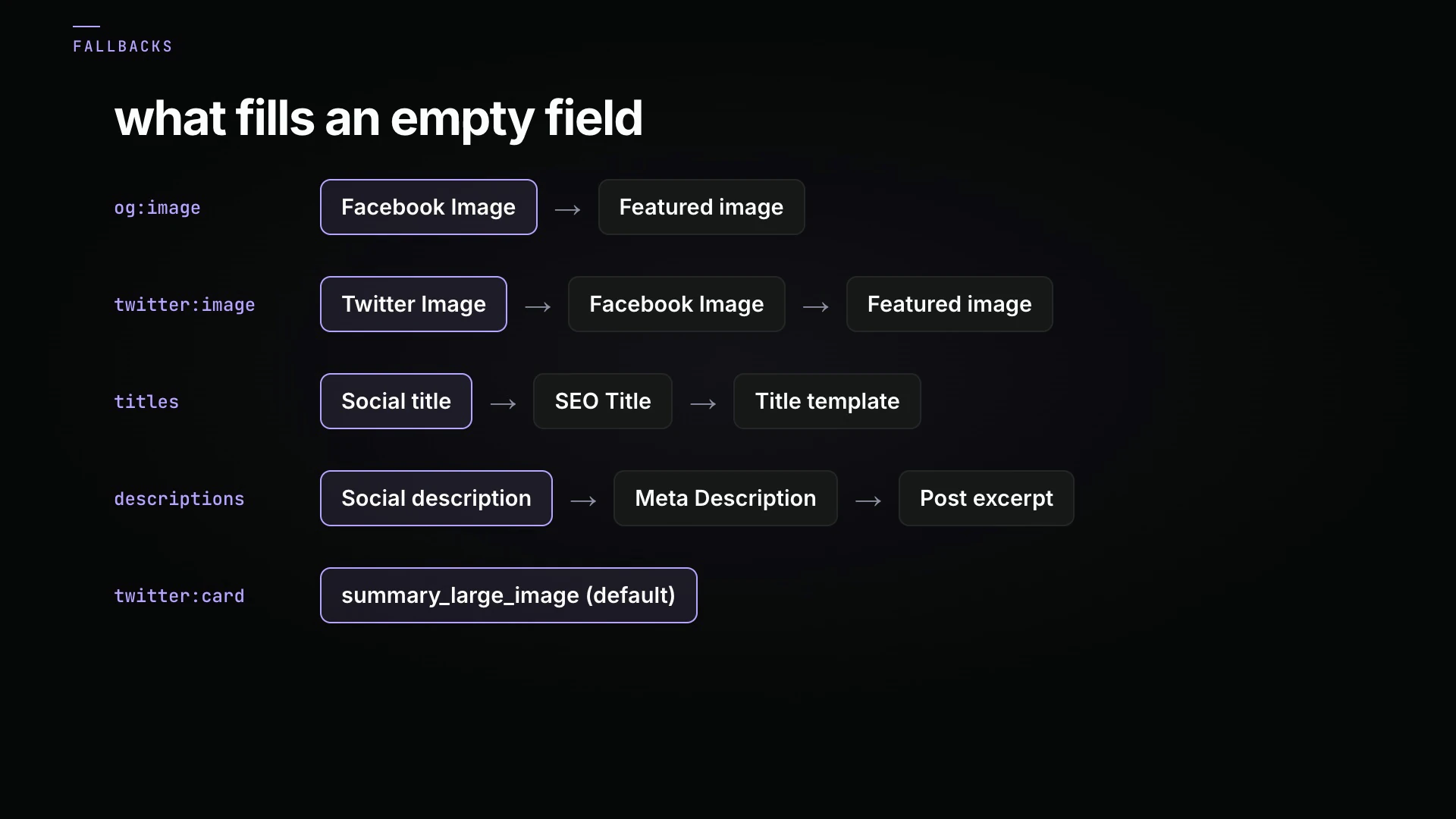
Your X (Twitter) card tags follow the same philosophy and fall back to OG values when unset, so OG is the foundation for both networks; see X card settings.
The homepage has its own OG fields on the Homepage settings screen, covered in homepage SEO settings.
Set OG data for a post
- Open the post in the editor and open the SEO Settings sheet.
- Go to the social settings and find the Open Graph fields.
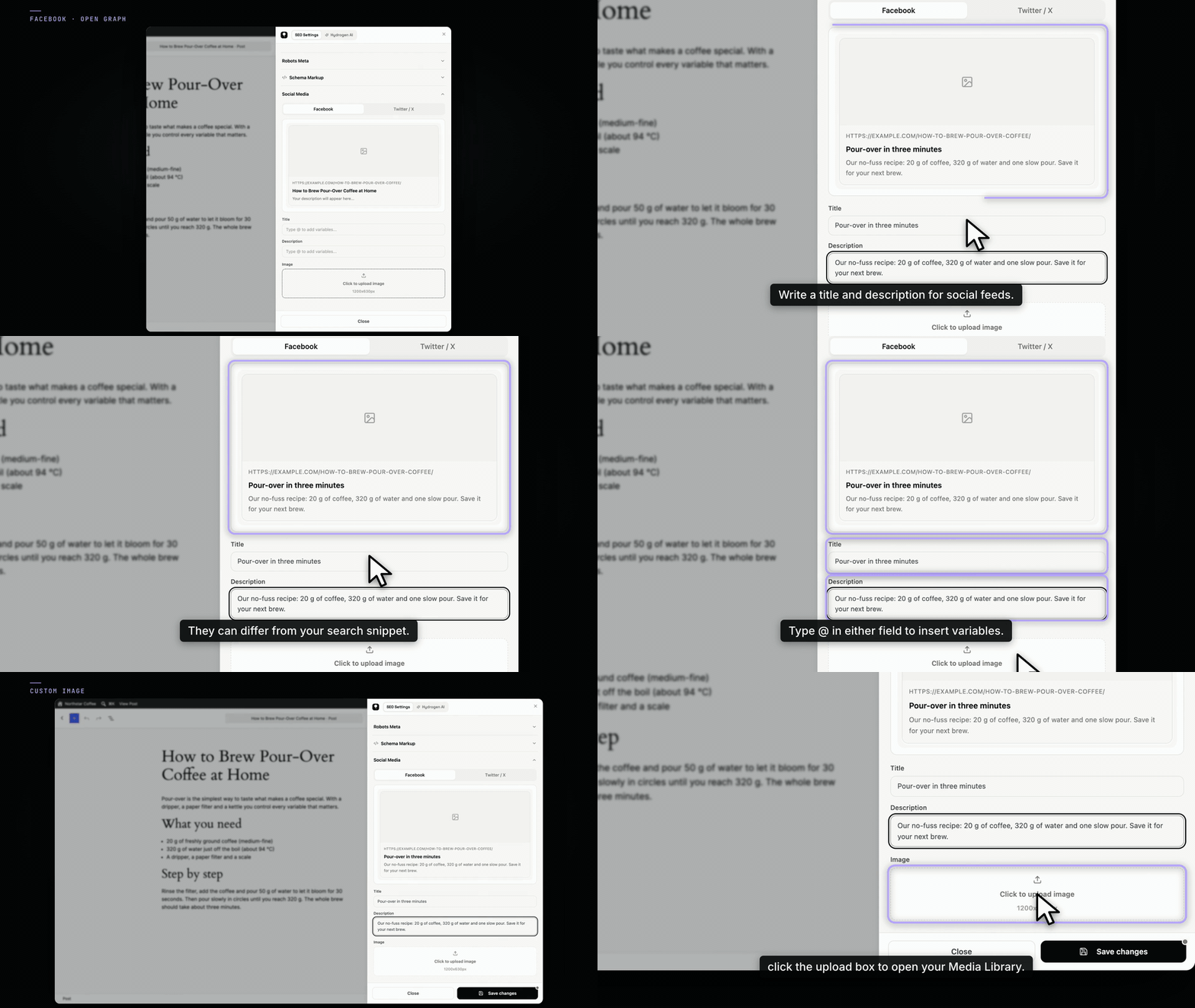
- Set the OG title. It can and often should differ from your SEO title: search titles target a query; social titles target a scrolling human. Drop the brand suffix, lead with the hook.
- Set the OG description. One or two sentences that make the click feel worth it. Social platforms typically show less text than Google, so front-load.
- Set the OG image. Choose or upload an image, ideally 1200×630 pixels (a 1.91:1 ratio), with any text large enough to read at feed size. A post with no OG image leaves the platform to pick something, and platforms pick badly.
- Check the live share-card preview, which renders your image, title, and description as a Facebook-style card and updates as you type. Full details in social share previews.
- Save or update the post. As with all metadata in Hydrogen SEO, nothing reaches the live page until you save.
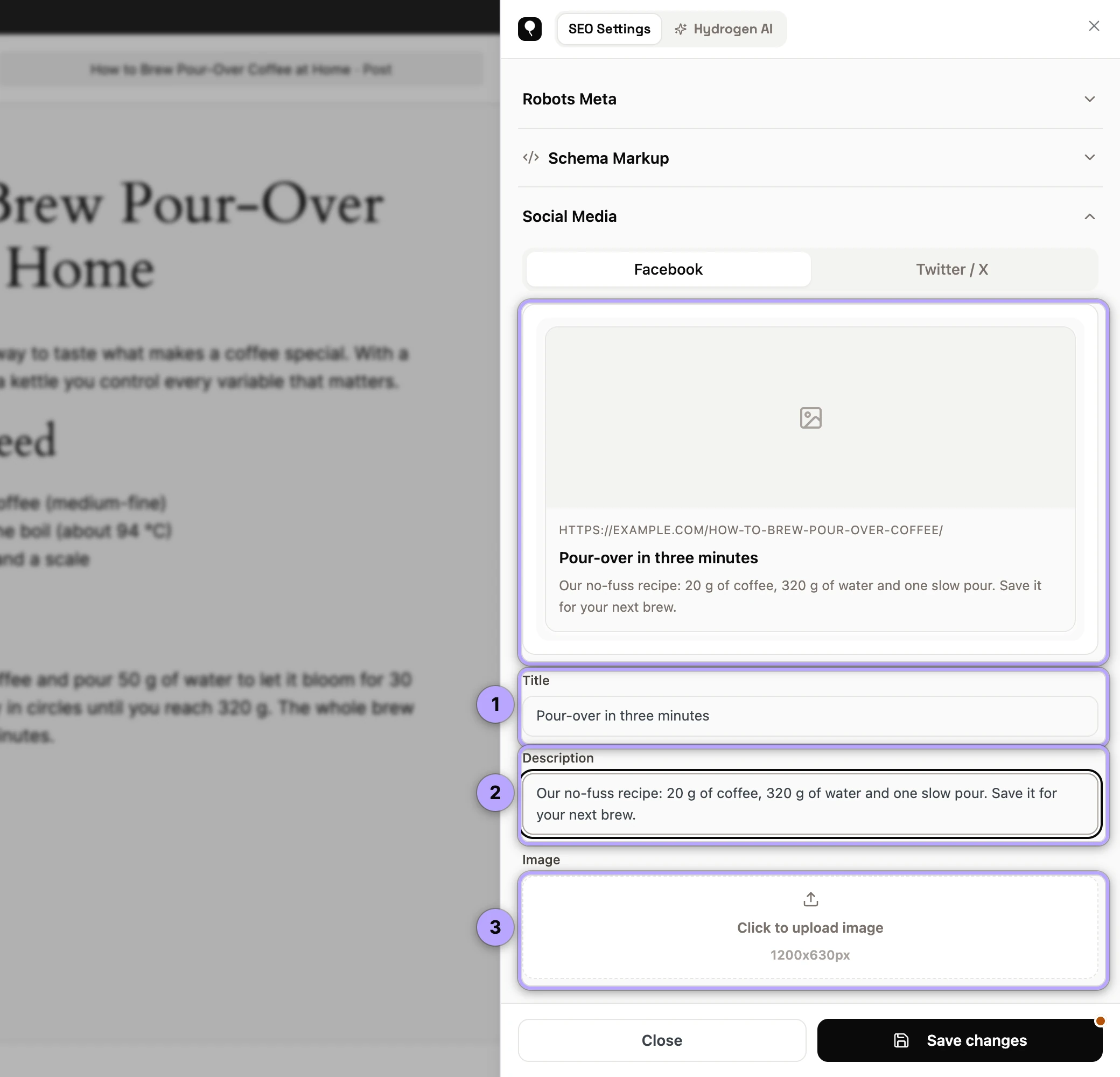
Clicking the image box opens the WordPress Media Library on top of the sheet; pick or upload an image and the preview updates. Leave it empty and the featured image is used. Choosing an image this way needs version 0.0.27 or later.
Site-wide defaults
Site-wide social settings live on Hydrogen SEO → Social (social settings):
- Open Graph tags on or off. Off removes every
og:*andarticle:*tag from the site. - The default share image, used as
og:imagewhen a page has no social image or featured image. 1200×630 pixels is recommended. - The Facebook App ID, printed as
fb:app_id. - Your Facebook page, printed as
article:publisheron posts, and your other social profiles, listed assameAsin the Organization schema.
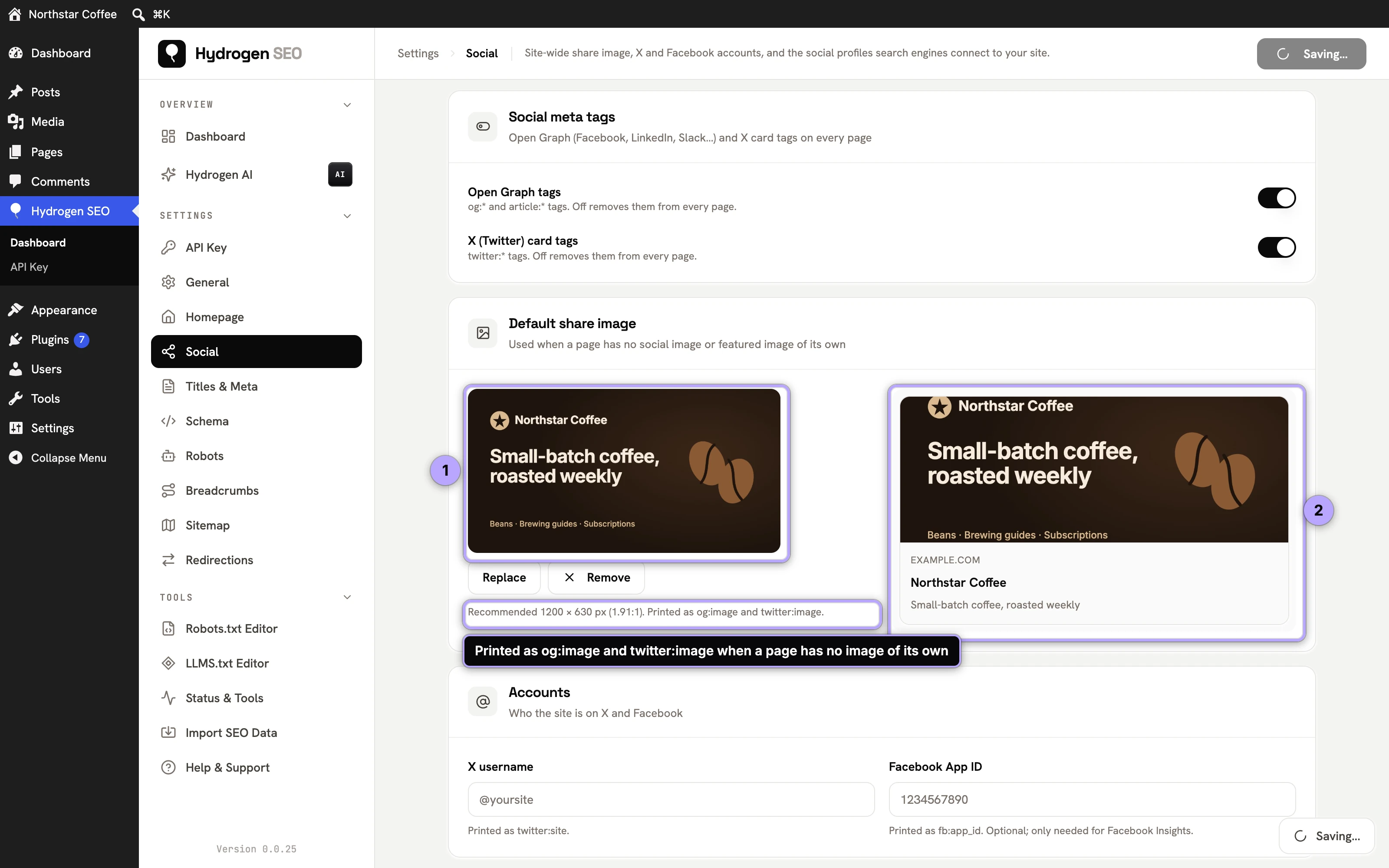
Set the default share image once, and no page on your site ships a share card without an image.
AI help with OG copy
To draft OG titles and descriptions with AI, ask the Hydrogen AI tab in the SEO Settings sheet, for example "suggest an Open Graph title and description for this post". Metadata generation produces Open Graph variants along with the SEO title and description. It requires a free connected account and uses credits; see AI meta titles and descriptions.
This is genuinely useful for social copy, because the right OG description is often a different sentence than the right meta description, and writing both by hand for every post is where most people give up.
How the output works
OG tags are server-rendered into your page HTML, with zero front-end JavaScript. This matters more for social than anywhere else: social scrapers (Facebook's crawler, Slack's unfurler, and the rest) generally read the raw HTML and do not execute JavaScript, so client-side-injected OG tags are invisible to them. With Hydrogen SEO, the tags the scraper sees are exactly the tags in your source, regardless of theme or page builder.

One caveat: if another SEO plugin is also printing OG tags, scrapers may see two conflicting sets. Run one primary SEO plugin; see fixing duplicate meta output.
Note that platforms cache scraped cards, so a card that was shared before your changes may keep showing the old data for a while. What to do about it is covered in social share previews.
FAQ
Do I need to fill in OG fields on every post?
No. The fallback to your SEO title and meta description means every post gets a functional card, and the default share image on the Social screen covers posts with no image. Hand-write OG fields for the posts you actively promote, and set a specific OG image for anything you expect to be shared.
What size should the OG image be?
1200×630 pixels is the safe standard: large enough for full-width cards on every major platform, and the 1.91:1 ratio avoids awkward cropping. Keep critical text away from the edges.
Why does Facebook show my old title after I changed it?
Facebook caches scraped pages. Re-scrape the URL with Facebook's Sharing Debugger to refresh it; see the notes in social share previews.
Does the live preview require an account?
No. The preview, the OG fields, the Social screen and all output work with no account. Only AI help through the Hydrogen AI tab needs a free connected account; see connect your account.