The Setup Wizard
Each step of the wizard, and what your Business Profile sets up.
On this page
- When the wizard appears
- The steps
- Import
- Personal Details
- Activate AI
- Business Profile
- Finish
- Skipping or exiting
- What the wizard does not do
- Re-running or finishing later
- What to do after the wizard
- FAQ
- Do I have to complete the wizard to use the plugin?
- Will the wizard overwrite my existing schema or settings?
- Is my name or email sent anywhere during setup?
- I chose Local Business, but no Local Business schema appeared. Why?
- Can I change wizard choices later?
- Related reading
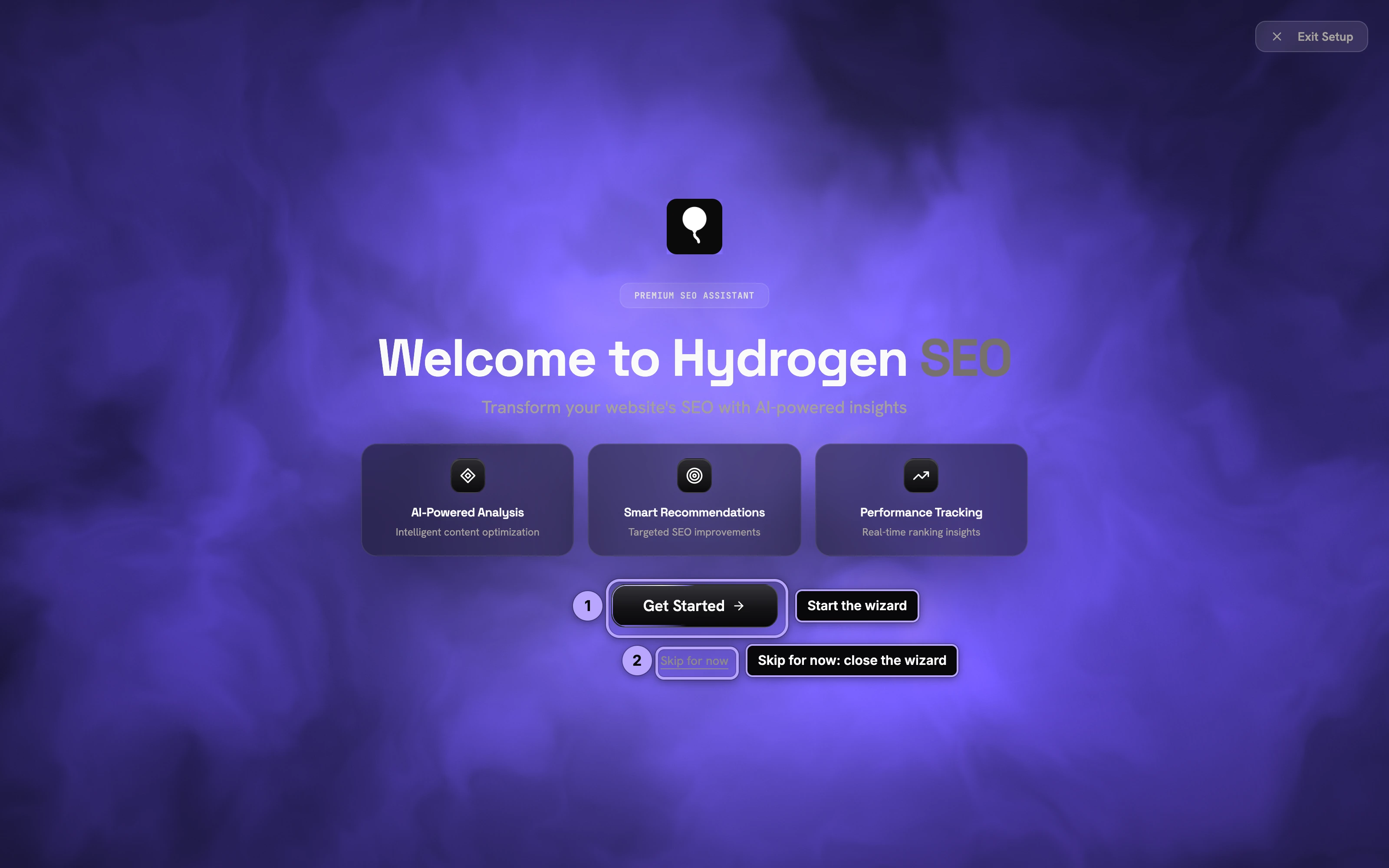
The Hydrogen SEO setup wizard appears after you activate the plugin. It walks you through importing from another SEO plugin, optionally leaving your contact details, connecting Hydrogen AI, and describing your business, and it uses that Business Profile to fill in the basics of your schema. It is entirely optional: you can skip it, skip any step, and change everything it sets later from the plugin dashboard.
When the wizard appears
Right after activating the plugin, Hydrogen SEO offers to launch the wizard. If you dismiss it, nothing is lost: every setting the wizard touches lives in the regular screens under Hydrogen SEO in the wp-admin sidebar, so you can configure the same things by hand whenever you like.
The steps
- Welcome
- Import, shown only when another SEO plugin's data is found on the site
- Personal Details
- Activate AI
- Business Profile
- Finish
Import
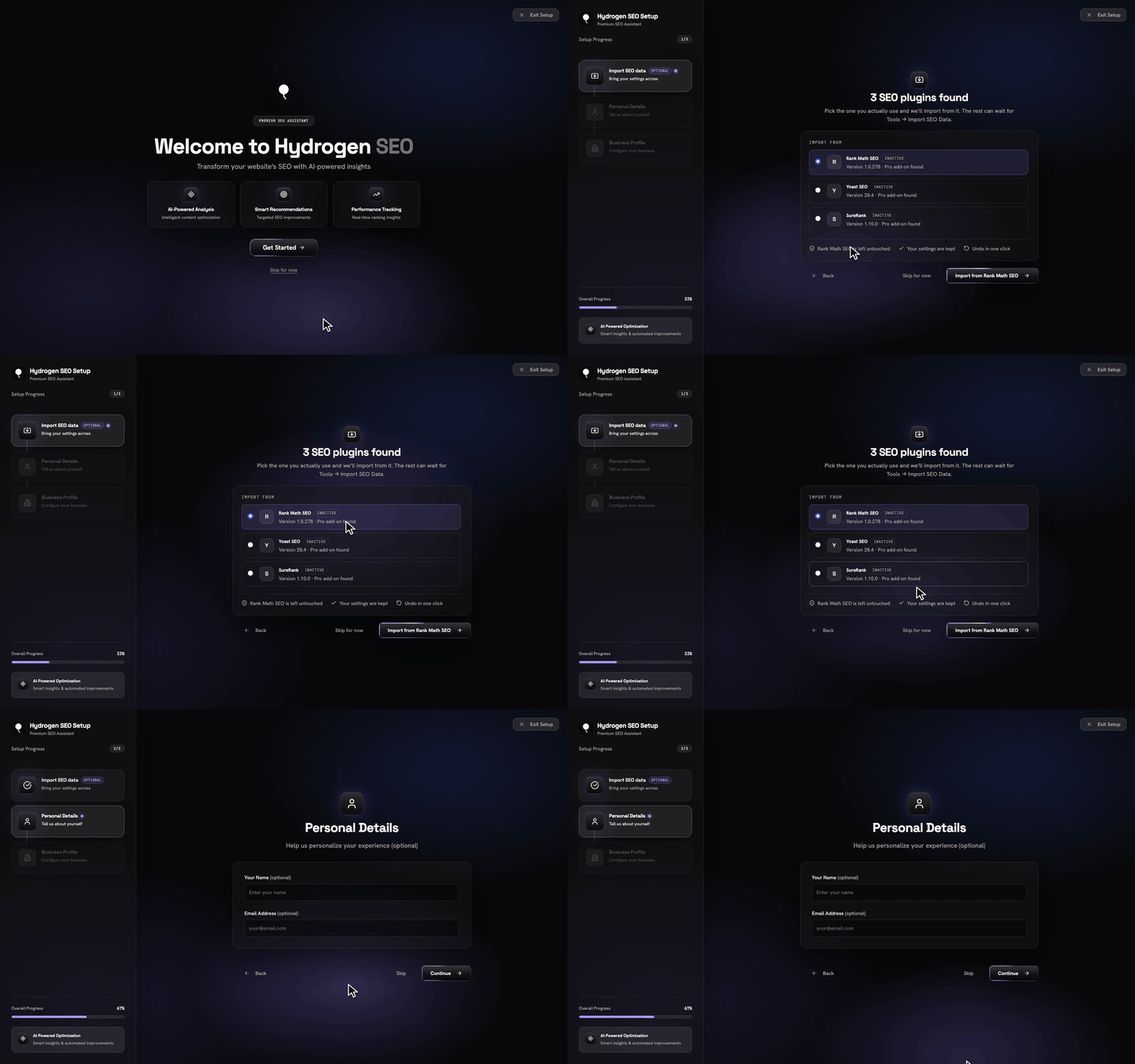
If Hydrogen SEO finds data from another SEO plugin, such as Yoast SEO, Rank Math or All in One SEO, this step offers to bring it across: settings, per-page SEO data and redirects. The step does not appear on a site with no other SEO plugin's data. The full import, with its preview and undo, is also available any time from Tools → Import SEO Data; see switch from another SEO plugin.
Personal Details
This step asks, optionally, for your name and email address, with an explicit consent checkbox. Three things are worth being precise about:
- It is optional. You can leave both fields blank and continue normally.
- It is skippable. You can skip the step entirely.
- Nothing is sent if you leave it blank. No name, no email, no data leaves your site unless you type it in and consent.
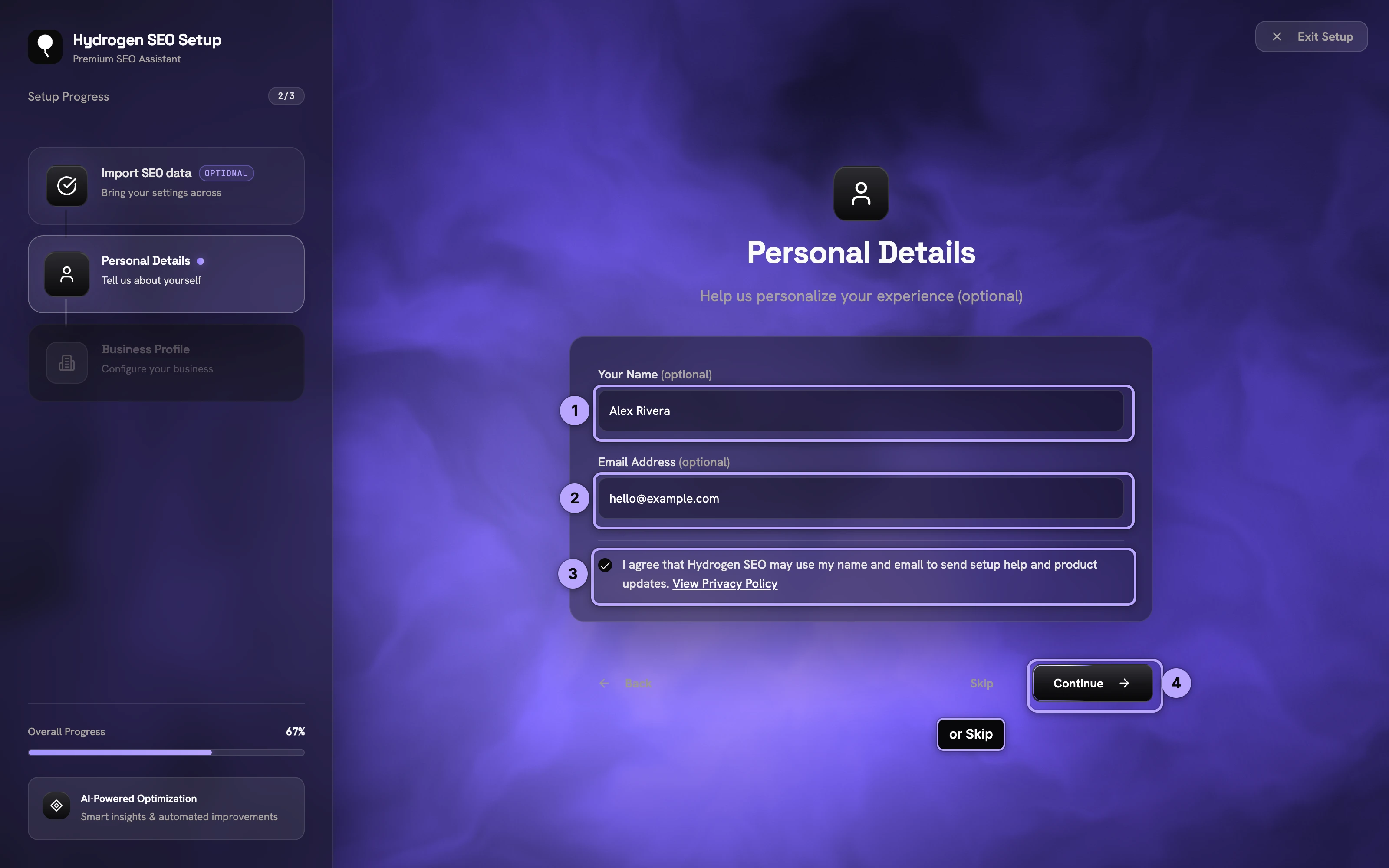
Providing your email is a way to hear from the Hydrogen SEO team about setup help; it is not an account signup and not a requirement for any feature.
Activate AI
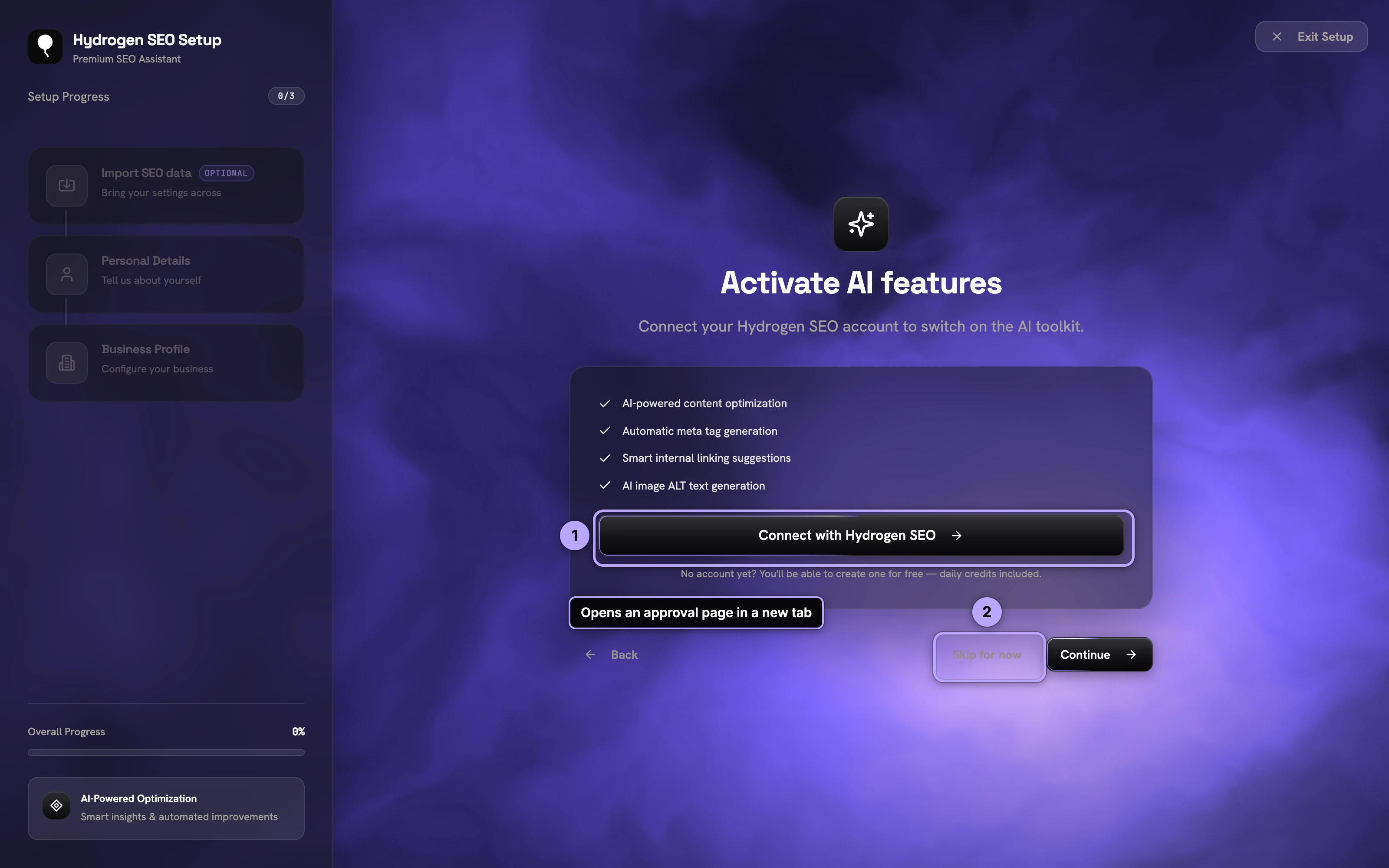
This step connects your site to your hydrogenseo.com account, which the AI features, such as Hydrogen AI and AI alt text, need. Click Connect with Hydrogen SEO and approve the connection, or choose Skip for now. You can connect later from Hydrogen SEO → API Key; see connect your account. Every non-AI feature works without connecting.
Business Profile
Tell Hydrogen SEO about the business or person behind the site:
| Field | Notes |
|---|---|
| Business name | Pre-filled from your Site Title |
| Business type | Blog, Local Business, eCommerce, Service Business, Portfolio, Personal Brand, or Other |
| Description | Optional; a sentence or two about what you do |
| Country | Optional |
| City | Optional |
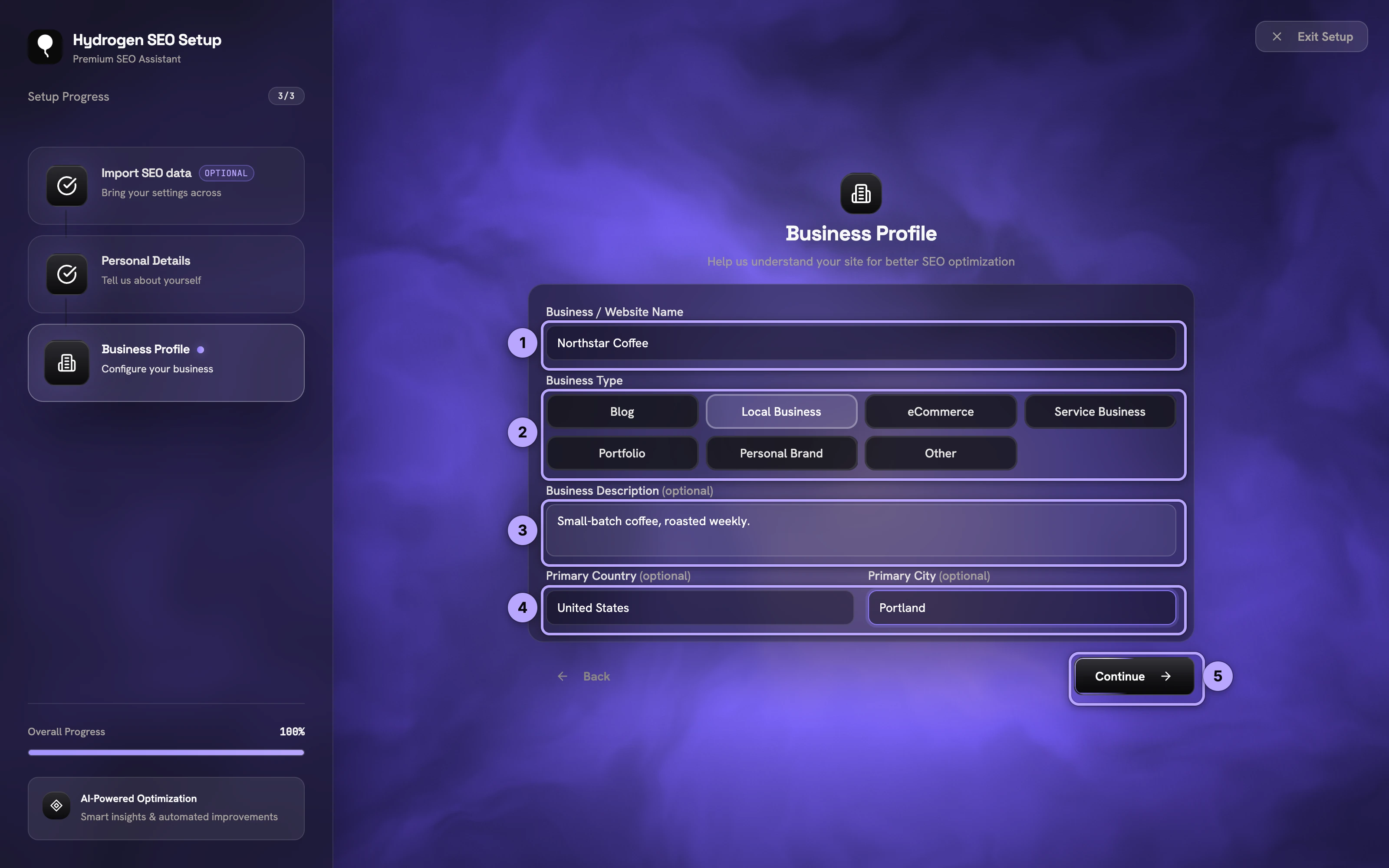
When you reach the Finish step, the Business Profile is applied to your settings, only where they are empty. Nothing you have already set, by hand or by an import, is overwritten:
- Organization schema: the name, logo, description and location. The logo is taken from your existing SEO settings when there is one.
- Site type, from the business type you picked.
- Local Business schema: if you picked Local Business and entered a country or city, a Local Business entry is created and shown on the front page. It holds only what the wizard knows, so add the street address, phone and opening hours later on the Schema screen; see Local Business schema.
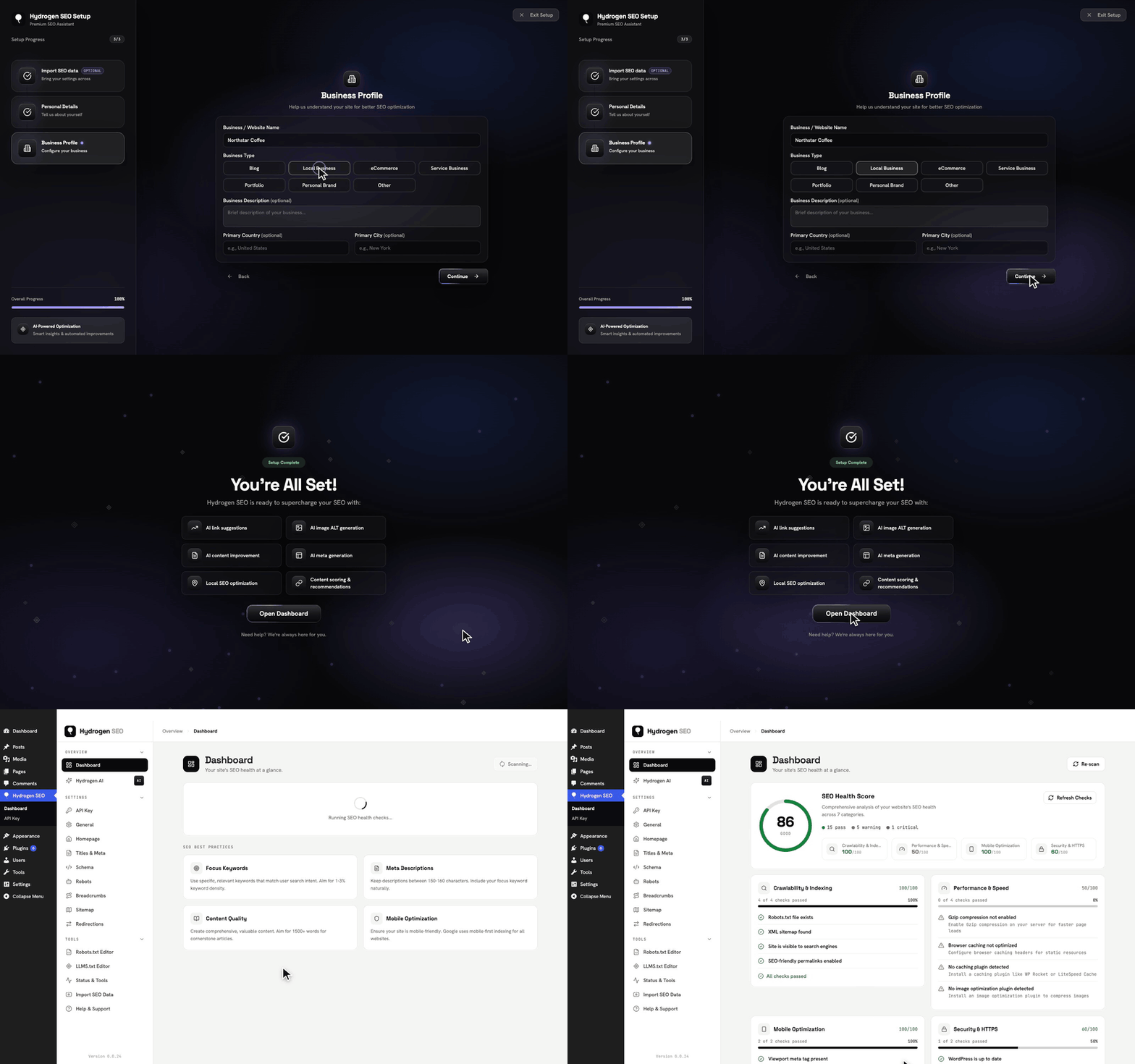
Finish
The last step lists what the wizard set up from your Business Profile, so you can see exactly which settings it filled in. Everything it lists is managed afterwards in its regular screen.
Skipping or exiting
Skipping the wizard, or exiting it before the end, applies nothing from the Business Profile. The profile is applied only when you reach the Finish step. An import you already ran from the Import step is not undone by exiting; it stays in Tools → Import SEO Data with its Undo.
What the wizard does not do
The wizard keeps to essentials on purpose. It does not:
- Overwrite any setting that already has a value.
- Configure templates, redirects, robots.txt, or llms.txt beyond what an import brings across. Those have dedicated screens (SEO titles and meta descriptions, redirection manager, robots.txt editor, llms.txt editor).
- Send your name or email anywhere without your explicit consent.
Re-running or finishing later
If you skipped the wizard or want to revisit a choice, you do not need to re-run it. Open the relevant screen under Hydrogen SEO directly: Organization and Local Business details are on the Schema screen, social profiles on the Social screen, and the account connection on API Key. The plugin dashboard overview shows where everything lives.
What to do after the wizard
- Open Hydrogen SEO → Dashboard and run your site health score. It grades crawlability, performance, mobile, security, content structure, schema markup, and technical health, and lists every issue with a hint on how to fix it (site health score).
- If you are a local business, add your address, phone and opening hours on the Schema screen (Local Business schema).
- Add your social profiles and a default share image on the Social screen (social settings).
- Confirm your XML sitemap is live and submit it to Google.
- Work through your first 30 minutes with Hydrogen SEO for the highest-impact quick wins.
FAQ
Do I have to complete the wizard to use the plugin?
No. The wizard is a convenience. Skip it and every feature still works; all its settings are available in the regular dashboard screens.
Will the wizard overwrite my existing schema or settings?
No. The Business Profile only fills settings that are empty. Anything you configured before, or brought across with an import, is kept.
Is my name or email sent anywhere during setup?
Only if you enter them and consent in the optional Personal Details step. Leave the fields blank and nothing is sent.
I chose Local Business, but no Local Business schema appeared. Why?
The wizard creates the Local Business entry only when you also enter a country or city. Add a Local Business on the Schema screen yourself; see Local Business schema.
Can I change wizard choices later?
Yes, all of them. The wizard writes ordinary plugin settings, editable at any time under Hydrogen SEO in wp-admin.