Schema Markup Overview
What structured data is, why it matters, and how Hydrogen SEO outputs it.
On this page
- What is JSON-LD structured data?
- Why schema matters
- Rich results in Google
- AI answer engines
- How Hydrogen SEO outputs schema
- The Schema screen vs the per-post SEO panel
- Organization and sameAs
- Site-wide Local Business
- Smart tags in schema fields
- FAQ
- Does schema markup improve rankings?
- Can I use more than one schema type on a page?
- Will Hydrogen SEO's schema conflict with my theme or another SEO plugin?
- Do I need a hydrogenseo.com account to use schema?
- Related reading
Schema markup is structured data you add to a page so machines can understand what the page is about. Hydrogen SEO generates it for you as JSON-LD, the format Google recommends, and prints it server-side in your page's markup with no front-end JavaScript required. You choose a schema type, fill in a few fields (or let smart tags fill them dynamically), and valid structured data ships with every page load.
This page explains what schema is, why it matters for both classic rich results and modern AI answer engines, and how the two places you manage it in Hydrogen SEO fit together.
What is JSON-LD structured data?
JSON-LD (JavaScript Object Notation for Linked Data) is a small block of machine-readable text embedded in a page. It describes the page's content using a shared vocabulary from schema.org: this page is an Article, written by this author, published on this date; this page is a Product, priced at this amount; this page answers these FAQ questions.
Humans never see it. Crawlers, search engines, and AI systems read it to understand your content without having to guess from the visible text.
Hydrogen SEO supports Article, Product, FAQ, HowTo, Recipe, Course, Event, Local Business, Breadcrumbs and more. The full list, with the key fields for each, lives in the schema types reference.
Why schema matters
Rich results in Google
Google uses structured data to power rich results: star ratings, product prices, recipe cards, event listings, breadcrumb trails, and other enhanced displays in search. A page that qualifies for a rich result takes up more space on the results page and gives searchers more reasons to click. Schema does not directly raise rankings, but it changes how your listing looks, and that changes click-through rate.
AI answer engines
Structured data is no longer just for Google. Answer engines such as ChatGPT and Perplexity build responses by reading and interpreting web content. A page that states its facts in clean, unambiguous JSON-LD is easier for these systems to parse, attribute, and cite than one that buries the same facts in prose. That is a core idea behind answer engine optimization: make your content effortless for machines to understand, and you improve your odds of being the source an AI answer quotes.
Schema markup is one of the seven areas measured by your site health score, so gaps show up on the Dashboard as issues with a fix hint.
How Hydrogen SEO outputs schema
Hydrogen SEO renders all structured data on the server. When a page is requested, the plugin builds the JSON-LD for that page and prints it directly into the HTML. There is zero front-end JavaScript involved, which means:
- Crawlers see the schema immediately, without executing scripts.
- There is no rendering delay or client-side failure mode.
- The markup is identical for every visitor, bot or human.
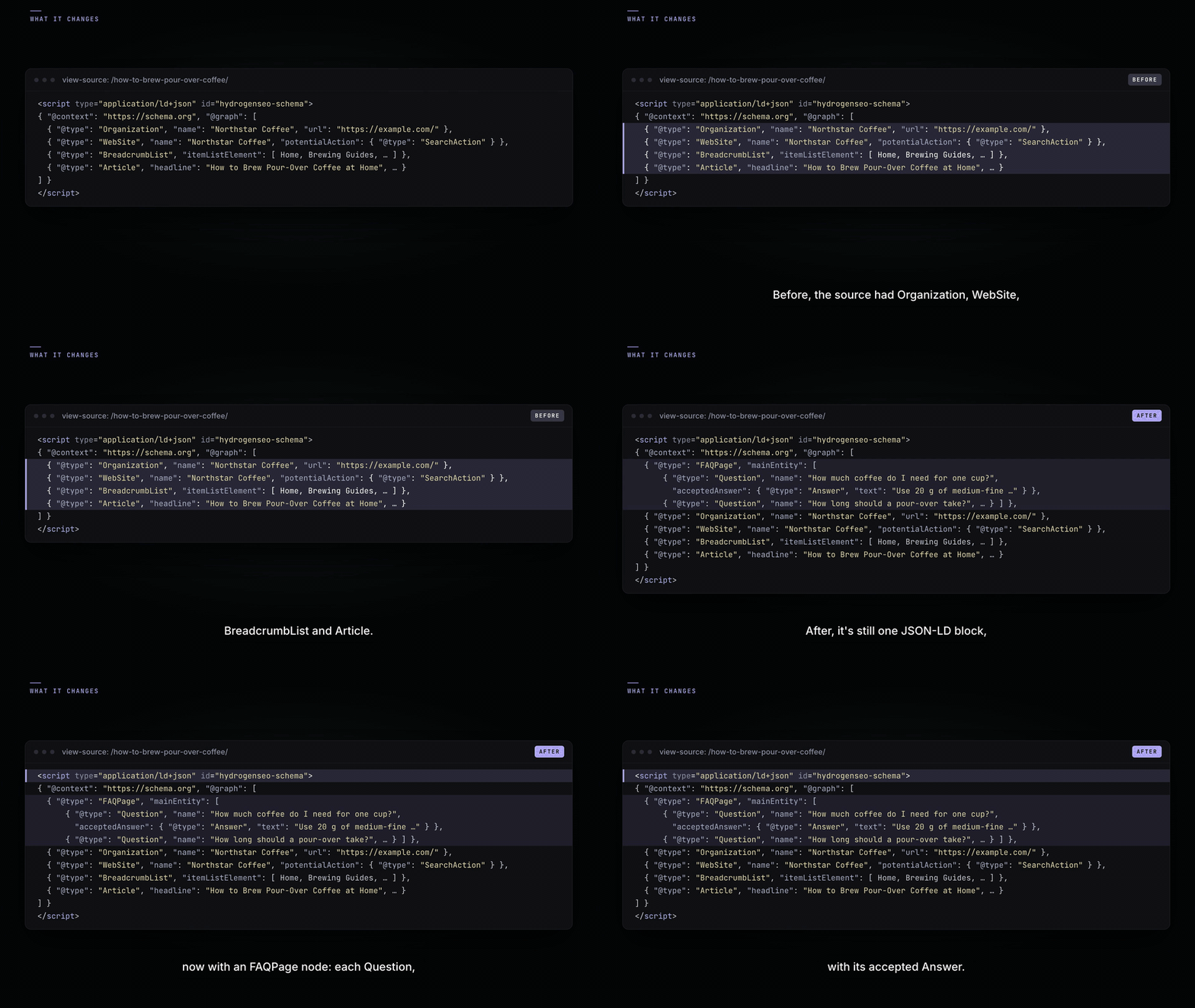
Developers can adjust the output through filters such as hydrogen_seo_schema_markup; see the filters reference for the complete list.
The Schema screen vs the per-post SEO panel
You can manage schema in two places, and they serve different jobs.
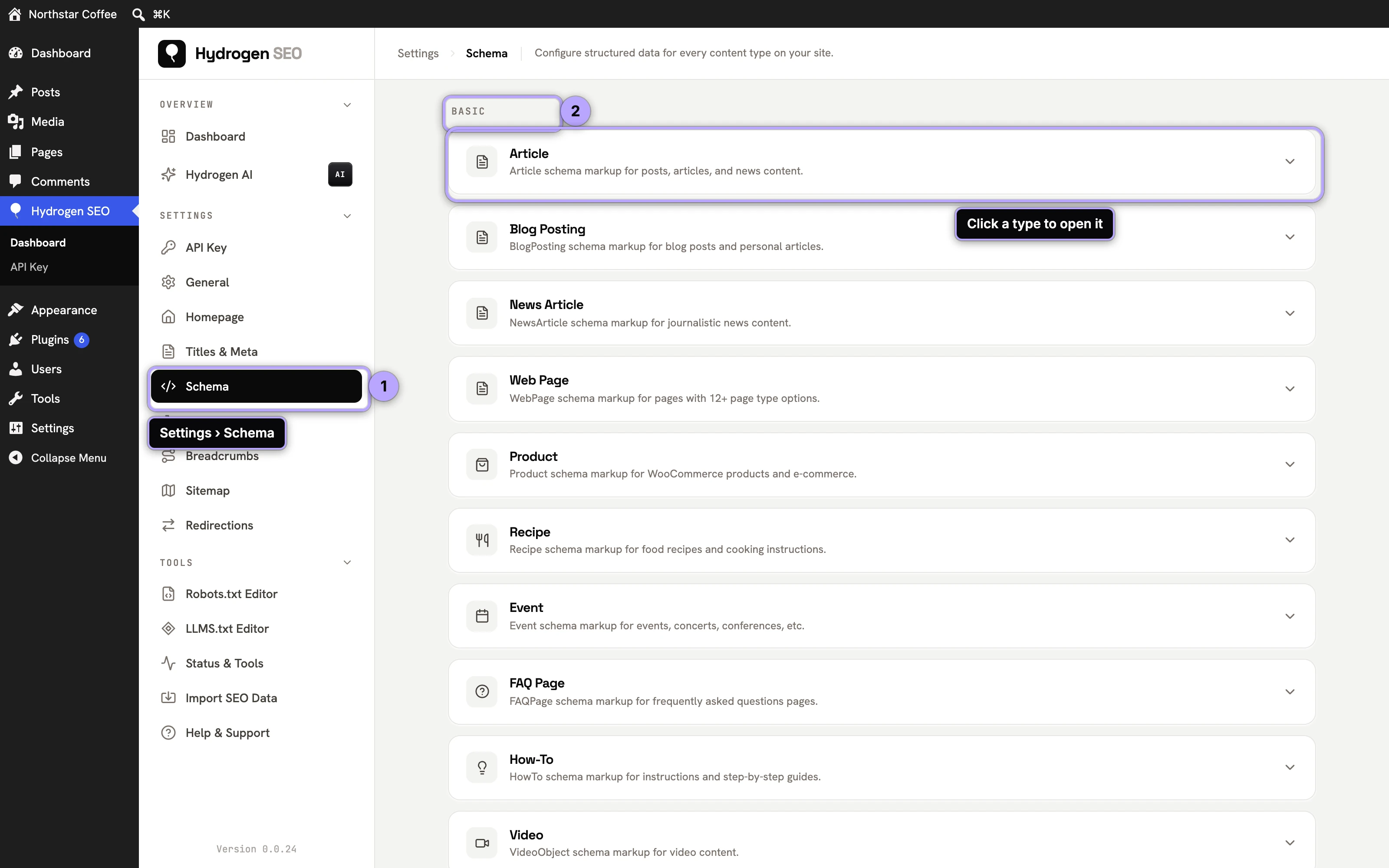
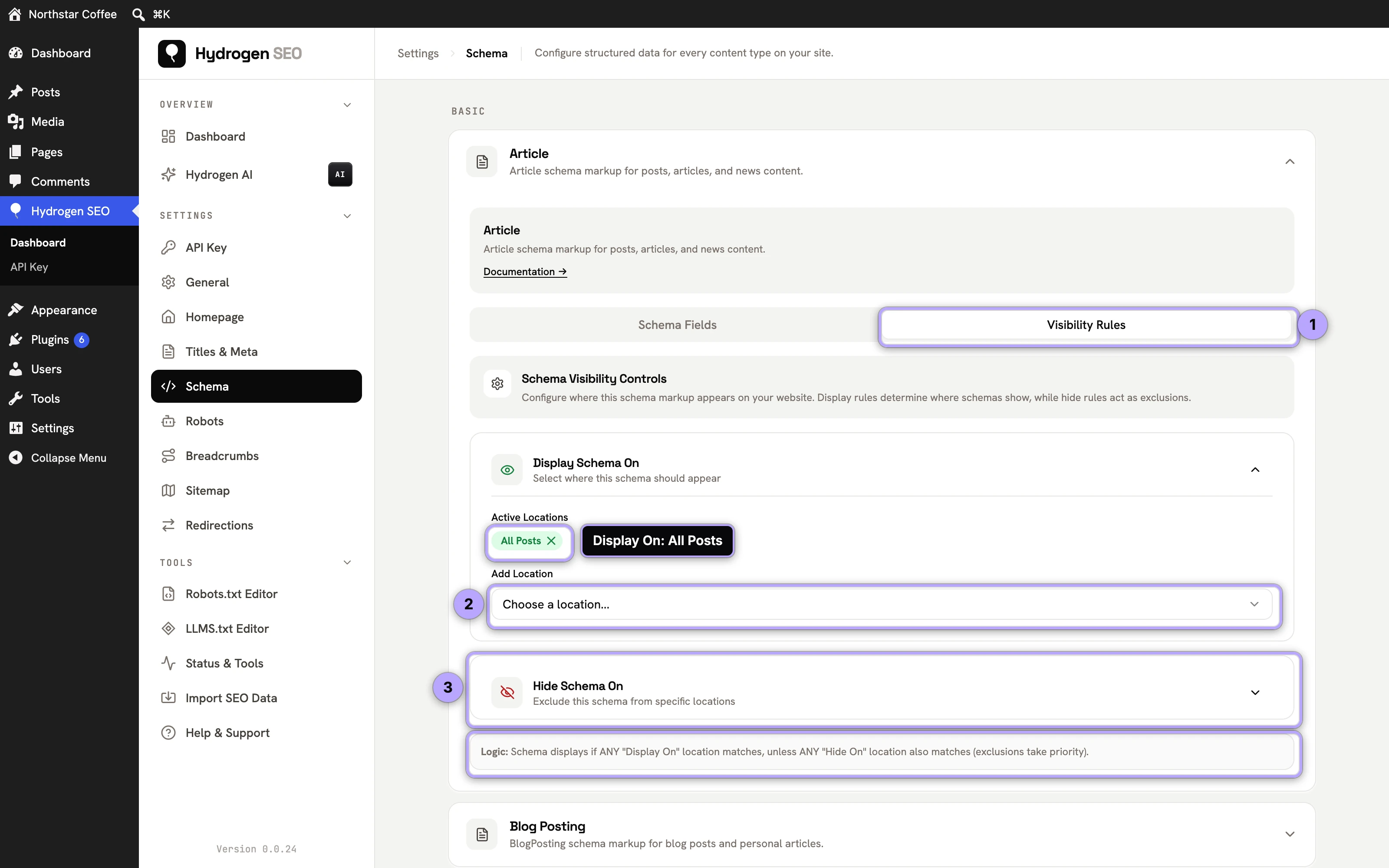
The Schema screen (in the Hydrogen SEO menu in wp-admin) is where you set schema behavior across your site: which types apply to which post types, and the default field values they use. Set an Article schema for all posts once, and every post carries it automatically.
The per-post SEO panel (the SEO Settings sheet in the editor) is where you handle the exceptions. Open any post or page, open its SEO panel, and pick a schema type and fields for that specific piece of content. A pricing page can carry Product schema, a tutorial can carry HowTo, a support page can carry FAQ, all without touching your site-wide defaults.
A practical workflow:
- Go to the Schema screen in the Hydrogen SEO menu and set sensible site-wide defaults, for example Article for posts.
- Open an individual post that needs something different, and open its SEO Settings sheet.
- Choose the schema type for that post and fill in its fields.
- Save, then confirm the output with the rich results validation guide.
Organization and sameAs
Your site's Organization schema, configured on the Schema screen, identifies who is behind the site: name, logo, URL and contact details. Its sameAs list, the URLs of your accounts elsewhere, is built from two sources:
- The Organization sameAs URLs entered on the Schema screen.
- The social profiles and X account on the Social screen: Facebook, Instagram, LinkedIn, YouTube, Pinterest, TikTok, any other profiles, and your X username.
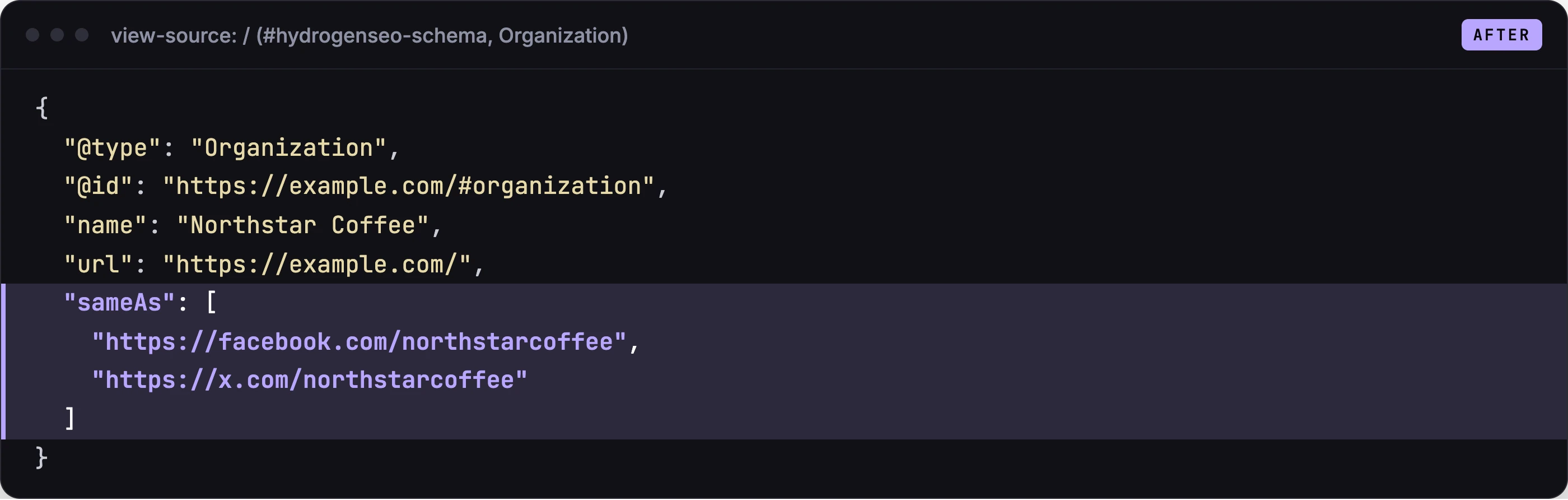
The two lists are merged and duplicates removed, so a profile entered in both places appears once. The Social screen shows the resulting list.
Site-wide Local Business
A Local Business configured on the Schema screen is printed wherever its Display On rules say: the entire website, the front page, archives, the 404 page, and so on. It is linked to your Organization with parentOrganization. It is printed only when it has real details beyond a name, such as an address, phone number or opening hours. A Local Business added to a specific page in its SEO Settings sheet replaces the site-wide one on that page, so a page never carries two. Details in Local Business schema.
Smart tags in schema fields
Schema fields support the same smart tags system as your titles and meta descriptions. Type @ in any schema field to open the variable editor and insert a dynamic value such as %title%, %author%, %date%, or %site_name%. The value is resolved per page when the schema is rendered.
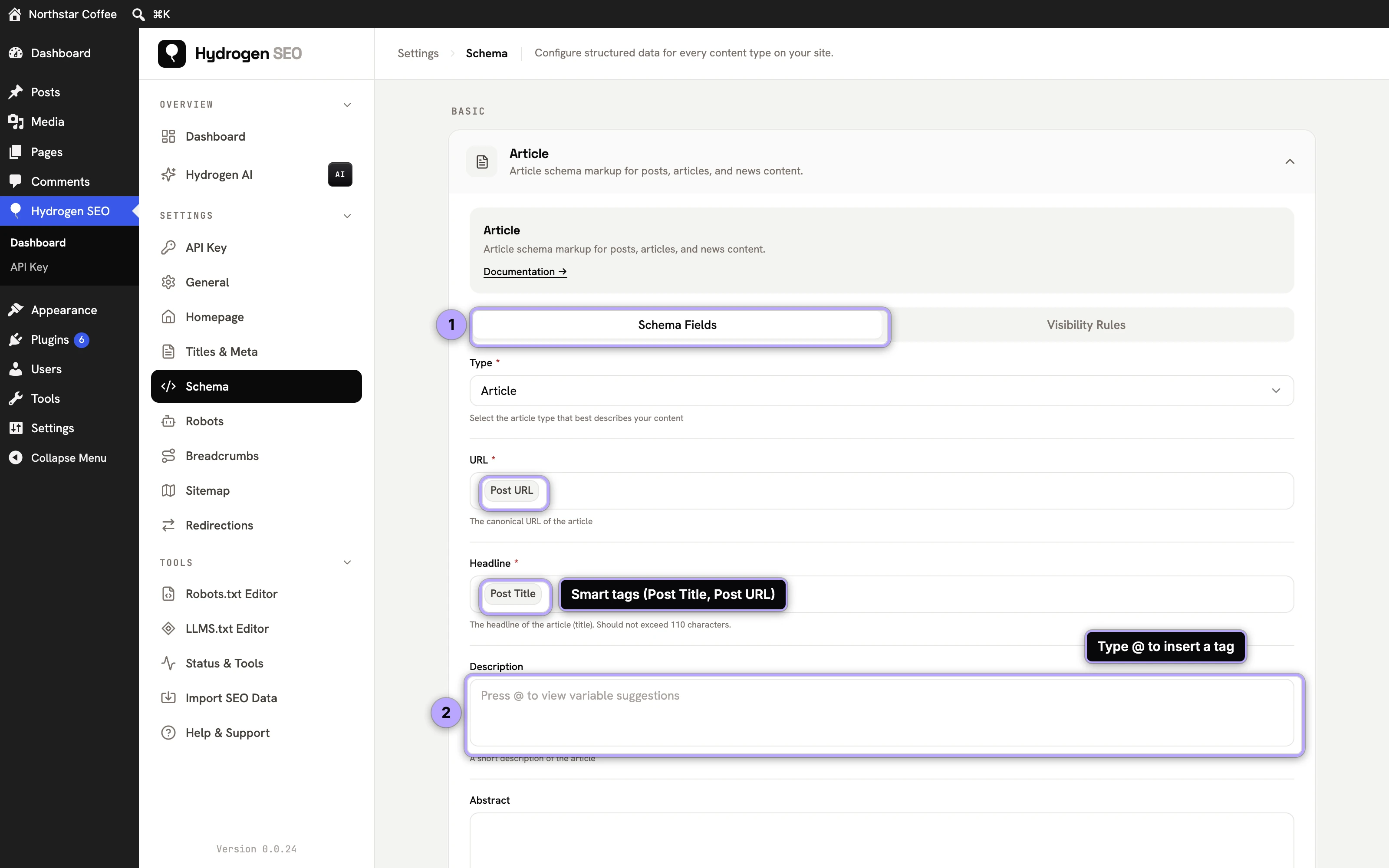
This is what makes site-wide schema practical. A single Article schema configured on the Schema screen with %title% as the headline and %author% as the author name produces correct, page-specific JSON-LD on every post, with no per-post editing. The full variable list is in the template variables guide.
If you would rather describe your business in plain language and let AI draft the structured data for you, see AI-assisted schema. And whichever route you take, always run the result through the Rich Results Test before calling it done.
FAQ
Does schema markup improve rankings?
Not directly. Google has said structured data is not a ranking factor on its own. What it does is make your pages eligible for rich results and easier for machines, including AI answer engines, to interpret and cite. Better presentation in search typically means better click-through, which is where the traffic gain comes from.
Can I use more than one schema type on a page?
Yes. A page can legitimately carry multiple types, for example Article plus Breadcrumbs, or a service page with Local Business plus FAQ. Configure site-wide types on the Schema screen and add per-page types in the post's SEO Settings sheet.
Will Hydrogen SEO's schema conflict with my theme or another SEO plugin?
Hydrogen SEO works alongside other plugins, but if two SEO plugins both print schema you will get duplicate structured data, which can confuse validators and search engines. Use one primary SEO plugin for schema output. See duplicate meta output for how to diagnose this.
Do I need a hydrogenseo.com account to use schema?
No. Schema markup, like every non-AI feature in the plugin, works with no account. Only the AI-assisted drafting in AI-assisted schema requires a free account.