Connect Hydrogen AI to Your Site
How the agent connects to your site, and exactly what that creates.
On this page
- Before you start
- Step 1: Connect your account
- Step 2: Switch on AI Abilities
- Step 3: Connect the agent
- What connecting actually creates
- What registration sends
- Disconnecting and revoking
- Troubleshooting
- FAQ
- Does the agent get my WordPress login password?
- Why does my site need HTTPS?
- What happens if I connect twice?
- Can I connect the agent on a staging site?
- Related reading
Connecting Hydrogen AI takes about two minutes: connect your hydrogenseo.com account, switch on AI Abilities, then connect the agent. This guide walks through each step and explains exactly what the connection creates on your site, what data is sent during registration, and how the credential is protected, so you can approve the setup with full knowledge of what it does.
Before you start
- The Hydrogen SEO plugin must be installed and active. See install the WordPress plugin.
- You need a free hydrogenseo.com account. Signup at /signup includes free AI credits.
- Your site must be served over HTTPS. The agent connection requires it and will not be created over plain HTTP.
- You must be logged in as a user with the
manage_optionscapability (an Administrator on most sites).
Step 1: Connect your account
- In wp-admin, go to Hydrogen SEO → Dashboard.
- Follow the connect prompt to link your hydrogenseo.com account (or create one; it's free). The full flow is covered in connect your account.
- Once connected, AI features such as AI titles and descriptions unlock immediately. The agent needs two more steps.
Step 2: Switch on AI Abilities
- In the plugin, find the AI Abilities toggle and switch it on.
- This toggle is the master gate for the agent. While it is off, the agent's tools simply do not exist on your site, regardless of any other setting.
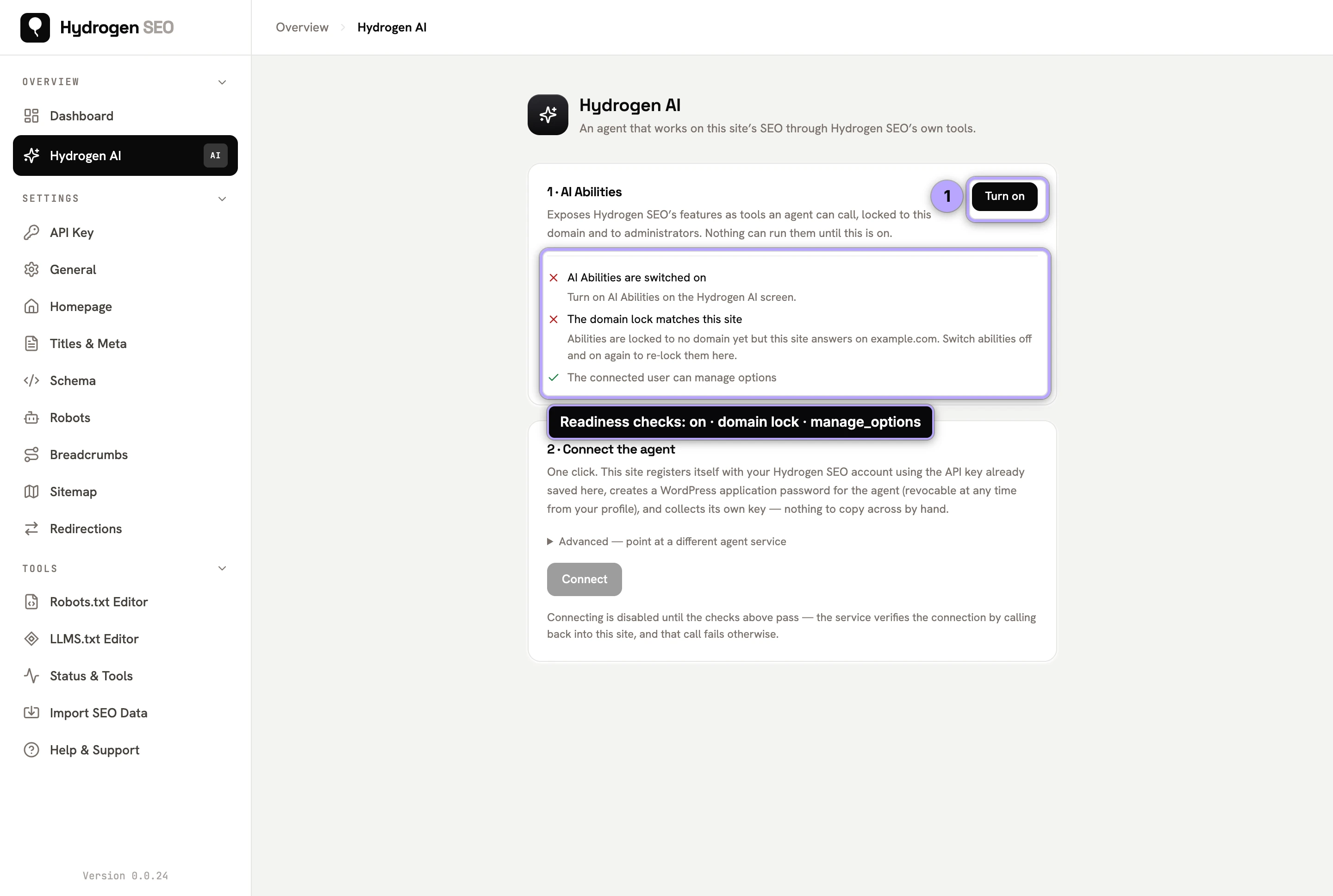
AI Abilities are also domain-locked: the abilities registered on your site only work for your site's domain. The complete gating model is explained in AI Abilities, policies and safety.
Step 3: Connect the agent
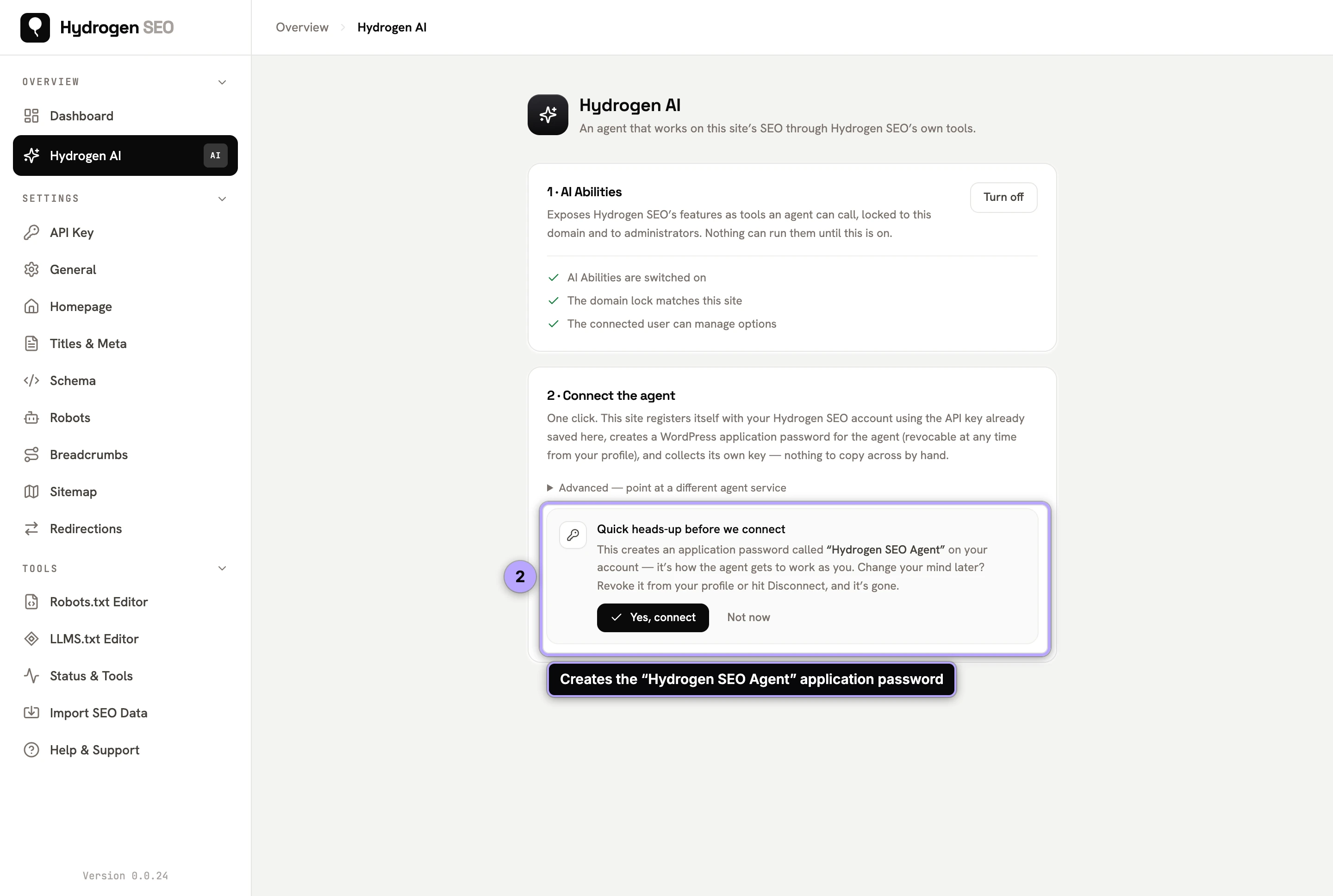
- Start the agent connection from the plugin dashboard.
- Approve the connection when prompted.
- Wait for the confirmation that the connection is verified. That's it. Open the chat in Hydrogen SEO → Dashboard or the agent tab in the editor's SEO Settings sheet and give it your first instruction. Some ready-made prompts live in Hydrogen AI recipes.
What connecting actually creates
Transparency matters here, so this is precise:
- Connecting creates exactly one WordPress application password, named "Hydrogen SEO Agent", on your user account.
- If an older application password with that same name already exists (for example, from a previous connection), it is deleted first, so you never accumulate stale agent credentials.
- The credential is sent to the hydrogenseo.com platform over HTTPS only.
- Before anything is stored, the platform verifies the credential with a callback to your site. If verification fails, nothing is saved.
- Once verified, the credential is stored encrypted with AES-256-GCM on the server side.
An application password is not your login password. It is a separate, revocable credential that only works for REST API requests, cannot be used to log in to wp-admin, and can be deleted at any time without touching your real password. That is exactly why Hydrogen AI uses one.
What registration sends
When your site registers with the platform, it sends a small, fixed set of information:
| Data | Why it's needed |
|---|---|
| Site URL | Identifies which site the agent is connected to and enforces the domain lock |
| WordPress username | Identifies which user's application password the agent acts through |
| WordPress version | Compatibility |
| Plugin version | Compatibility and support |
| Environment type | Distinguishes production from staging/development sites |
Nothing else is sent at registration: no content, no visitor data, no analytics.
Disconnecting and revoking
You have two independent ways to cut the agent off, and either one is sufficient:
- Disconnect from the plugin. Use the disconnect control in the Hydrogen SEO dashboard.
- Revoke the application password in WordPress. Go to Users → Profile → Application Passwords, find "Hydrogen SEO Agent", and revoke it. The moment it's revoked, the stored credential is useless, whatever else happens.
You can also switch off the AI Abilities toggle at any time, which removes the agent's tools from your site even while a credential exists.
Troubleshooting
If the connection fails, the most common causes are a site not served over HTTPS, a security plugin or host blocking application passwords or REST API requests, or the callback verification being unable to reach your site. Work through agent connection issues for step-by-step fixes.
FAQ
Does the agent get my WordPress login password?
No. It uses a dedicated application password named "Hydrogen SEO Agent". Your real password is never sent anywhere, and the application password can't be used to log in to wp-admin.
Why does my site need HTTPS?
The credential is transmitted to the platform during setup, and agent requests authenticate with it afterwards. HTTPS keeps that traffic encrypted in transit; the connection refuses to be created without it.
What happens if I connect twice?
The plugin deletes any existing application password named "Hydrogen SEO Agent" before creating a new one, so you always have at most one active agent credential.
Can I connect the agent on a staging site?
Yes. Registration includes the environment type precisely so production and staging/development sites are distinguished. The staging site still needs HTTPS.