The robots.txt Editor
Edit robots.txt from the dashboard, saved exactly as typed with one directive per line, and the sitemap line added for you.
On this page
- What robots.txt is for
- Editing robots.txt from the dashboard
- Check your rules before you rely on them
- When the editor is locked
- Your sitemap line is included automatically
- Reset to default
- What robots.txt can and cannot do
- FAQ
- Where does my robots.txt actually live?
- Will blocking a page in robots.txt remove it from Google?
- How do I check a rule before relying on it?
- Can I edit robots.txt for individual posts?
- Related reading
Hydrogen SEO includes a built-in robots.txt editor, so you can view and edit your site's robots.txt file directly from the plugin dashboard in wp-admin, with no FTP and no file manager. View Robots.txt opens the live file so you can check exactly what crawlers get, and Validate opens an external robots.txt checker. Your sitemap line is included automatically, and a reset option takes you back to a safe default at any time.
What robots.txt is for
robots.txt is a plain-text file at the root of your site that tells crawlers which paths they may and may not request. Well-behaved crawlers fetch it before crawling and honor its rules. It is the standard way to keep bots out of admin areas, internal search results, and other paths that waste crawl budget.
Editing robots.txt from the dashboard
- In wp-admin, open Hydrogen SEO → Robots.txt Editor (under Tools).
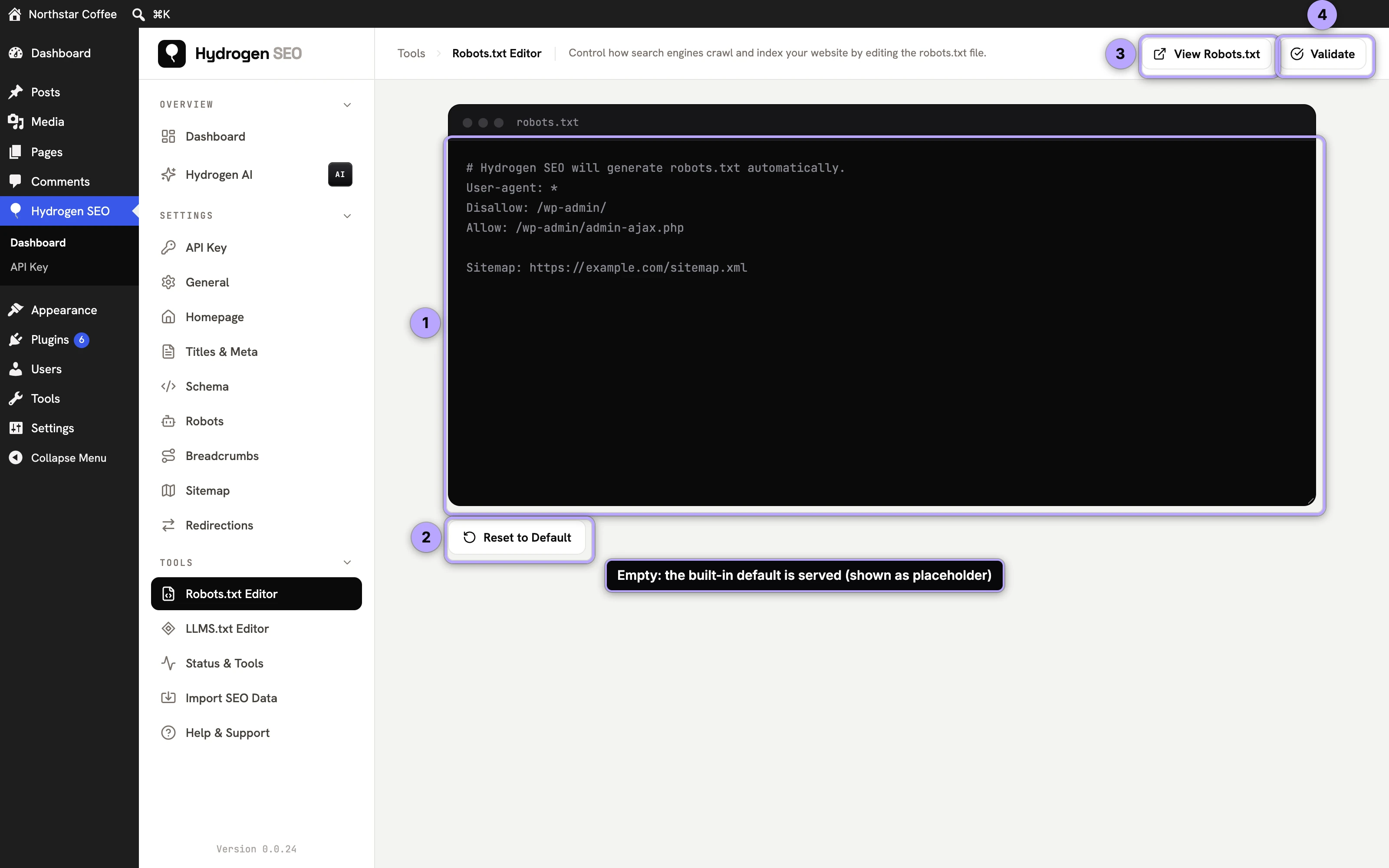
- The editor shows your site's current robots.txt content. While it is empty, your site serves Hydrogen SEO's built-in default.
- Edit the rules. A typical file is a handful of lines:
User-agentlines naming which crawler a block applies to, andAllow/Disallowlines naming paths. - Click Save Changes. The changes are live immediately at your site's
/robots.txt. - Click View Robots.txt (or open
yoursite.com/robots.txt) and read the live file.
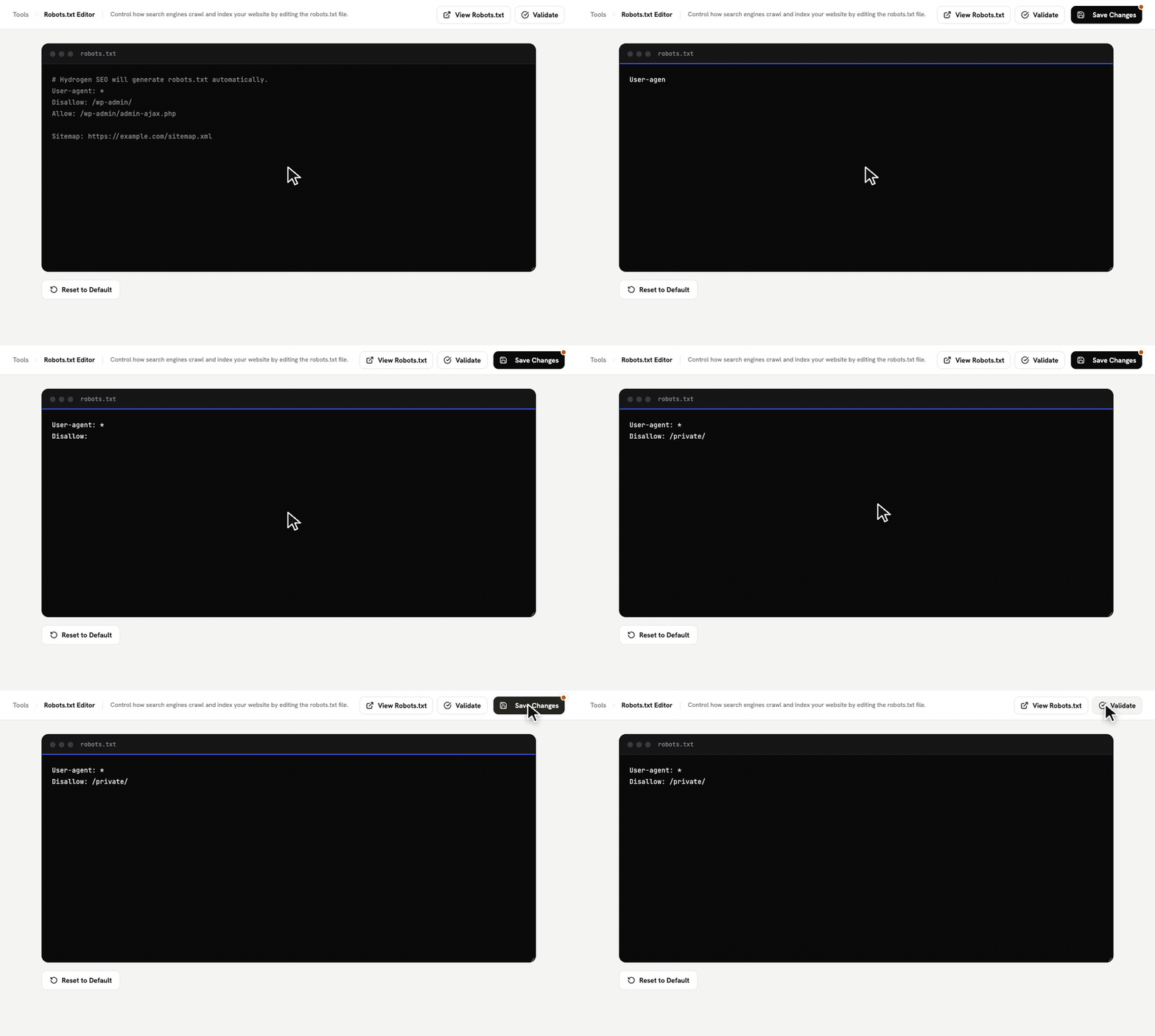
The file is saved exactly as you type it: one directive per line, blank lines between groups kept, and characters that matter in paths left alone, such as the & in Disallow: /*?color=red&size=* or percent-encoded characters like /caf%C3%A9/. HTML tags and invisible control characters are removed, and Windows line endings become plain line feeds.
Updating from a version before 0.0.27? Earlier versions saved the whole file on a single line, which crawlers read as one broken rule. Version 0.0.27 repairs a file saved that way once, on update, putting each directive back on its own line and a blank line before each new
User-agentgroup. Open View Robots.txt after updating and read the live file once to confirm it looks the way you intended.
For developers, the served content can also be filtered with hydrogen_seo_robots_txt, and the editor fires hydrogen_seo_robots_editor_updated on save; both are documented in the filters reference and actions reference.
Check your rules before you rely on them
robots.txt has an unforgiving failure mode: one over-broad line, like a stray Disallow: /, can block your entire site from crawling. The editor does not show warnings about risky rules, so check them yourself: read the live file with View Robots.txt, and use Validate, which opens an external robots.txt checker in a new tab, to test the paths that matter.
For developers, saving content with no User-agent line fires the hydrogen_seo_robots_editor_validation_warning action (with missing_user_agent); nothing is shown in the editor.
When the editor is locked
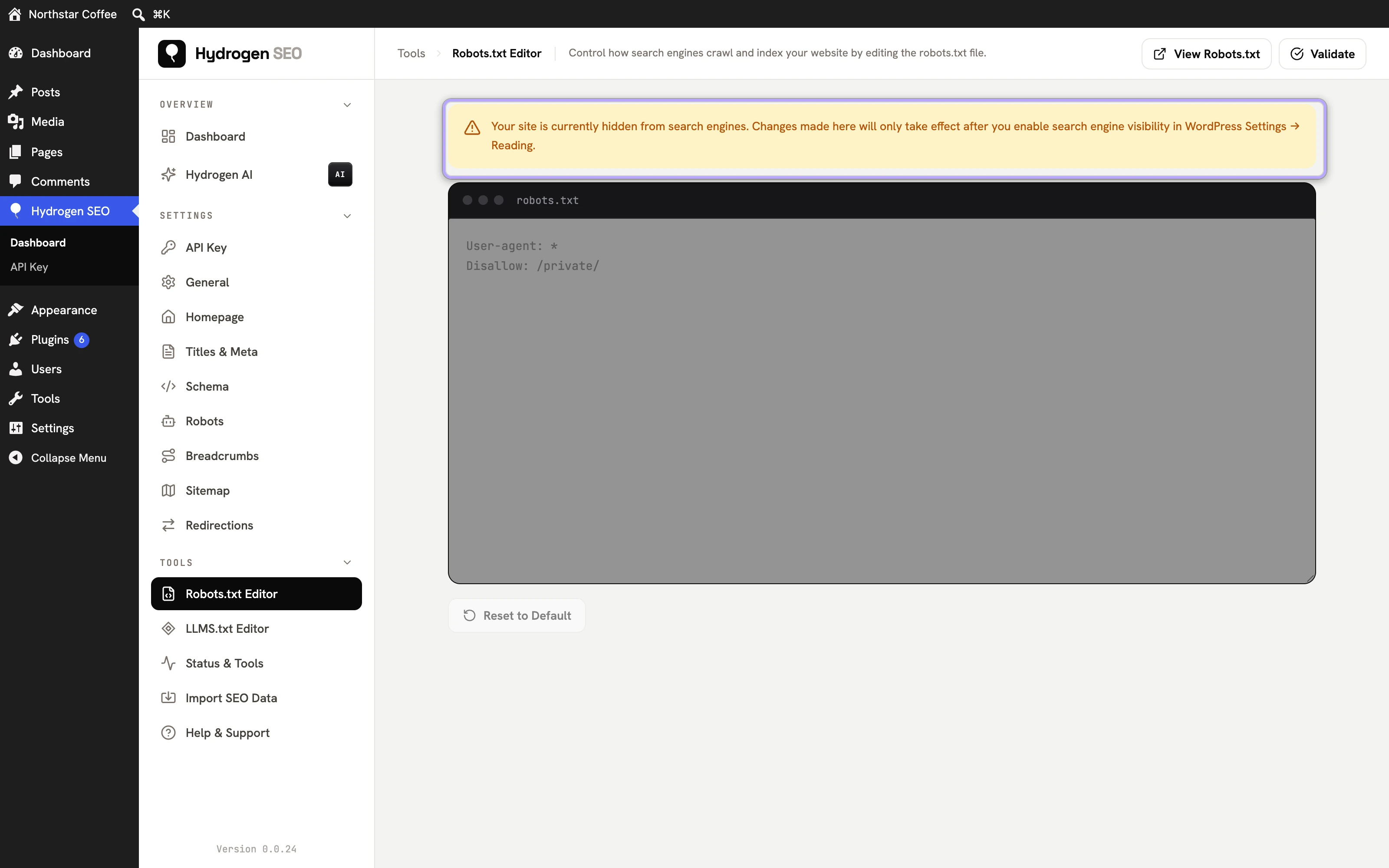
The editor is disabled, with a warning explaining why, in two cases:
- Your site is hidden from search engines (Discourage search engines from indexing this site is checked under Settings → Reading → Search engine visibility). Hydrogen SEO then serves
User-agent: */Disallow: /for the whole site and prints anoindex, nofollowrobots meta tag on every page, whatever the editor holds. WordPress on its own stopped addingDisallow: /in version 5.3 and relies on the meta tag alone; with Hydrogen SEO active you get both. The setting is meant for development and staging copies, so uncheck it before launch. - A physical
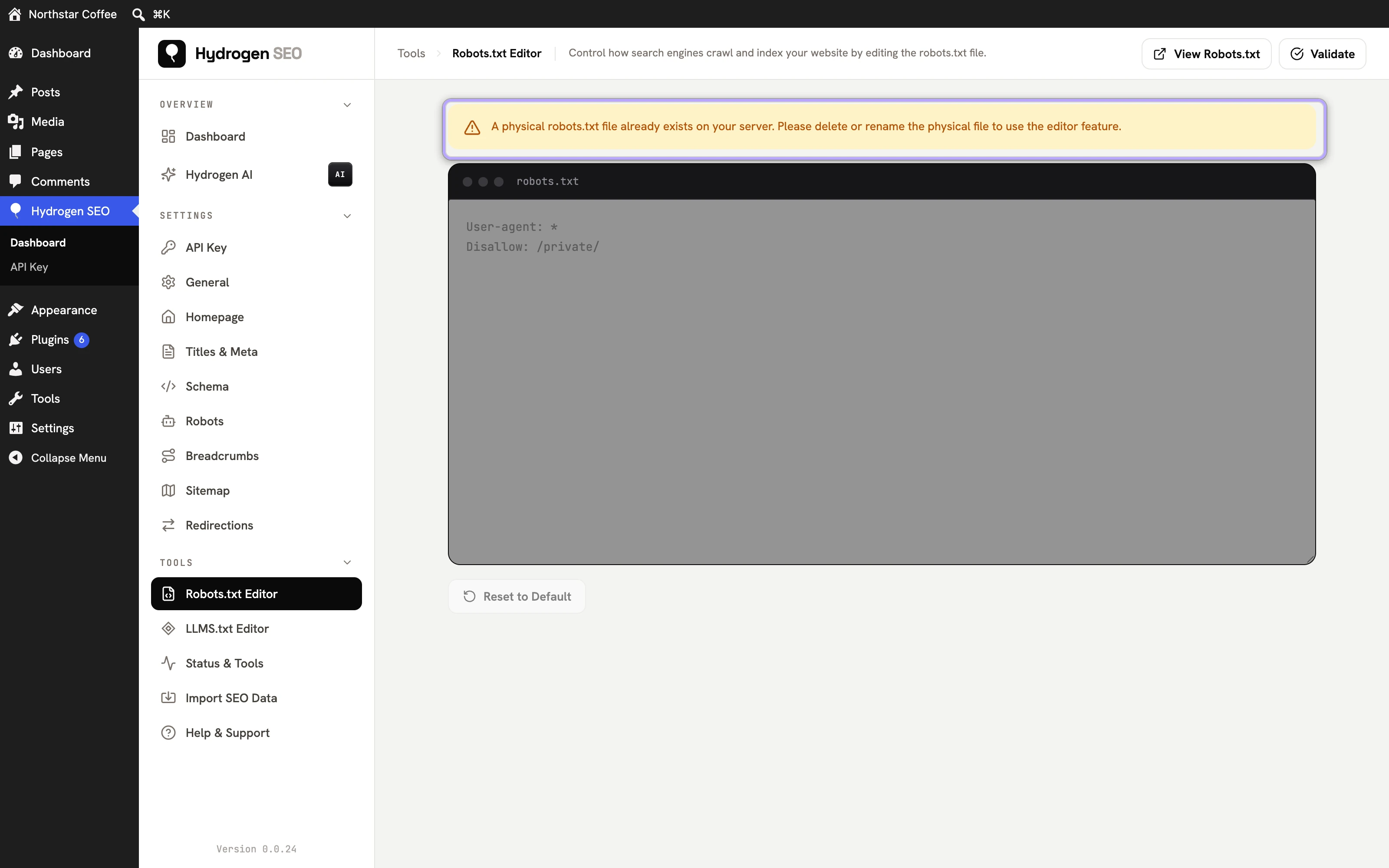
robots.txtfile exists in your site's root folder. The web server serves that file directly, so edits here would have no effect. Delete or rename the file to use the editor.
Your sitemap line is included automatically
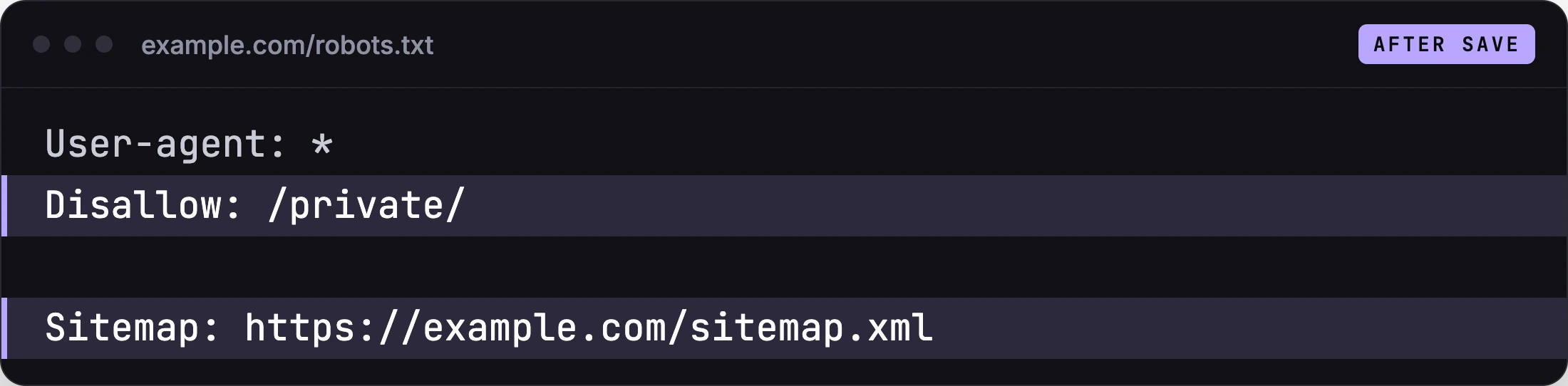
A Sitemap: line in robots.txt tells any crawler where your XML sitemap index lives, and it is one of the ways engines discover sitemaps without a manual submission. Hydrogen SEO adds this line for you automatically, pointing at the sitemap it generates (see XML sitemaps in Hydrogen SEO), so you never need to maintain it by hand. The URL used can be filtered with hydrogen_seo_robots_sitemap_url if your setup serves the sitemap from a non-standard location.
You should still submit the sitemap in Search Console for the reporting it unlocks; see submit your sitemap to Google.
Reset to default
If edits accumulate or something goes wrong, you can reset the file to Hydrogen SEO's default from the same screen: a clean, safe baseline with the sitemap line intact. The default content itself is filterable via hydrogen_seo_default_robots_txt, and the reset fires the hydrogen_seo_robots_editor_reset action. After a reset, re-add only the custom rules you actually still need; a short robots.txt is almost always the right robots.txt.
What robots.txt can and cannot do
This distinction is misunderstood often enough to state plainly.
robots.txt controls crawling, not indexing. A Disallow rule tells compliant crawlers not to fetch a path. It does not tell search engines to remove or exclude those URLs from the index. A URL blocked in robots.txt can still be indexed if other sites link to it; Google may list it with no description ("indexed, though blocked by robots.txt").
To keep a page out of the index, use a noindex robots meta tag on the page itself, via robots meta settings, and crucially, do not block that page in robots.txt. If crawlers cannot fetch the page, they can never see the noindex instruction on it. Blocking and noindexing the same URL is self-defeating.
robots.txt is not access control. It is a published, voluntary convention: anyone can read it, and a non-compliant bot can ignore it. Anything genuinely private needs authentication, not a Disallow line. For expressing preferences to AI crawlers specifically, see also the llms.txt editor.
FAQ
Where does my robots.txt actually live?
At the root of your site: yoursite.com/robots.txt. Hydrogen SEO serves the content you save in the editor; you don't need a physical file on disk or FTP access.
Will blocking a page in robots.txt remove it from Google?
No. Blocking prevents crawling, not indexing, and an already-indexed or externally linked URL can remain listed. Use a noindex robots meta tag (with the page crawlable) via robots meta settings to remove it from results.
How do I check a rule before relying on it?
Save it, click View Robots.txt to read the live file, then click Validate to test specific URLs in an external robots.txt checker. Be especially careful with rules that could block your whole site or your CSS and JS assets.
Can I edit robots.txt for individual posts?
robots.txt works on paths and patterns, not per-post intent. For page-level control, per-post noindex/nofollow settings in the SEO Settings sheet are the right tool; see robots meta settings.