SEO Titles & Meta Descriptions
Set titles and descriptions for posts, pages, CPTs, taxonomies and archives.
On this page
- Templates vs. per-post overrides
- Set your global templates
- General: separator, capitalization and empty archives
- Archives and special pages
- Index, no index or disabled
- Override a single post or page
- Character-count guidance
- How the tags are output
- FAQ
- Do global templates overwrite titles I wrote by hand?
- What happens if I leave the description template empty?
- Do I need a hydrogenseo.com account for titles and descriptions?
- Why did changing the separator not change one of my templates?
- Why does Google show a different title than the one I set?
- Related reading
Hydrogen SEO controls your SEO titles and meta descriptions in two layers: global templates that cover every post type, taxonomy, and archive automatically, and per-post overrides you set in the SEO Settings sheet when a page deserves hand-written copy. Both are output as server-rendered markup in your page's <head>, so search engines always see the final tags with zero front-end JavaScript involved.
This guide covers both layers, the character counts worth aiming for, and how the plugin actually prints the tags.
Templates vs. per-post overrides
Hydrogen SEO resolves the title and description for any URL in a predictable order:
- A per-post override written in the SEO Settings sheet always wins.
- The global template for that content type fills in everywhere else.
Templates use variables such as %title% and %site_name% that are replaced with real values at render time. That means a well-built set of templates gives every post, category, and archive on your site a sensible title and description on day one, and you only write manual copy for the pages that earn it: your homepage, cornerstone content, and key landing pages.
Set your global templates
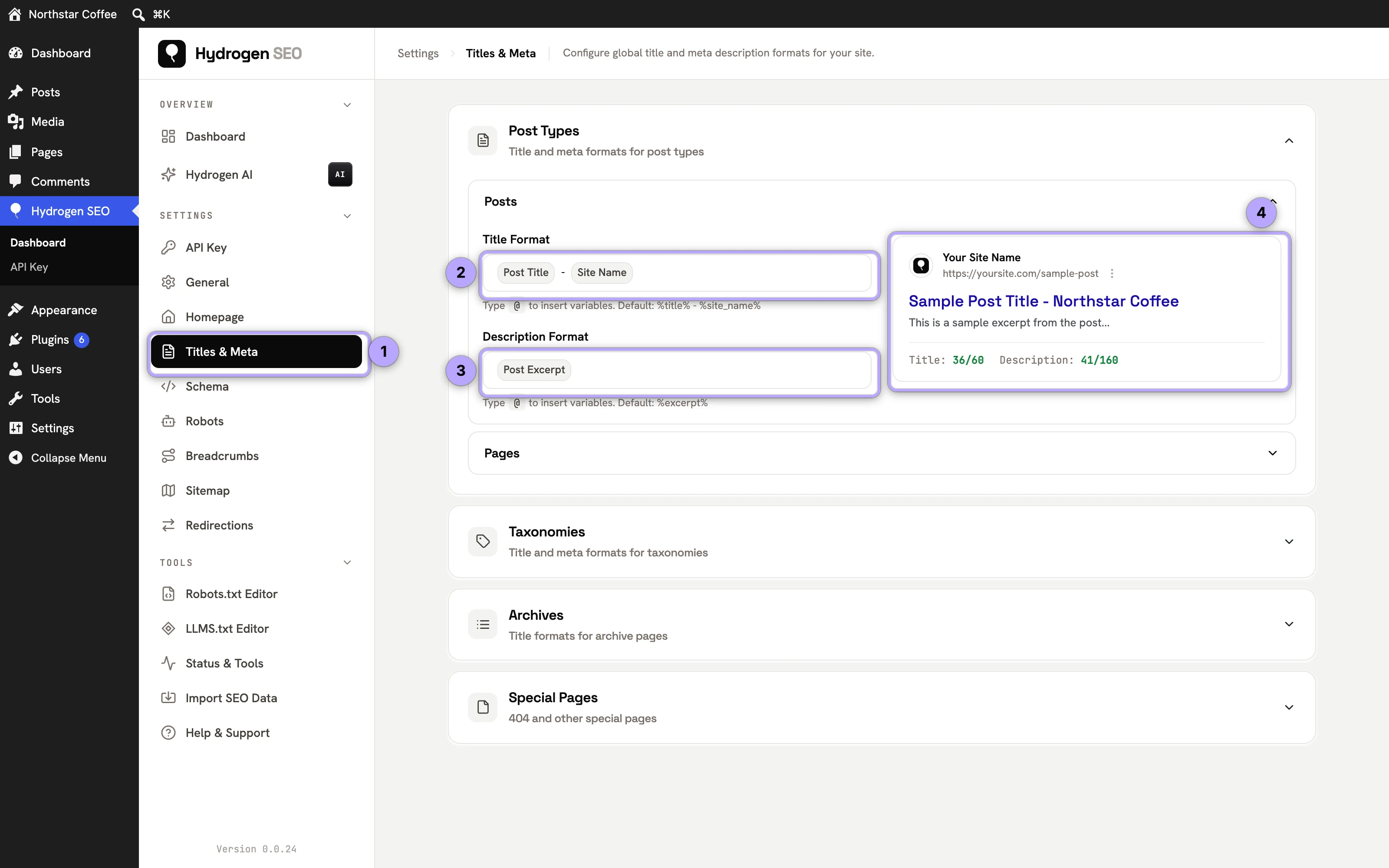
- In wp-admin, go to Hydrogen SEO → Titles & Meta.
- Choose a content type. You can set separate templates for each post type (Posts, Pages, and any custom post types), each taxonomy (Categories, Tags, and custom taxonomies), the Archives (date, author and search results) and the Special Pages (the 404 page).
- In the Title field, enter a template. The shipped default for posts is
%title% %separator% %site_name%, and for taxonomies%term_title% %separator% %site_name%. - In the Meta description field, enter a description template, for example
%excerpt%for posts or%term_description%for taxonomies. - Save your changes.
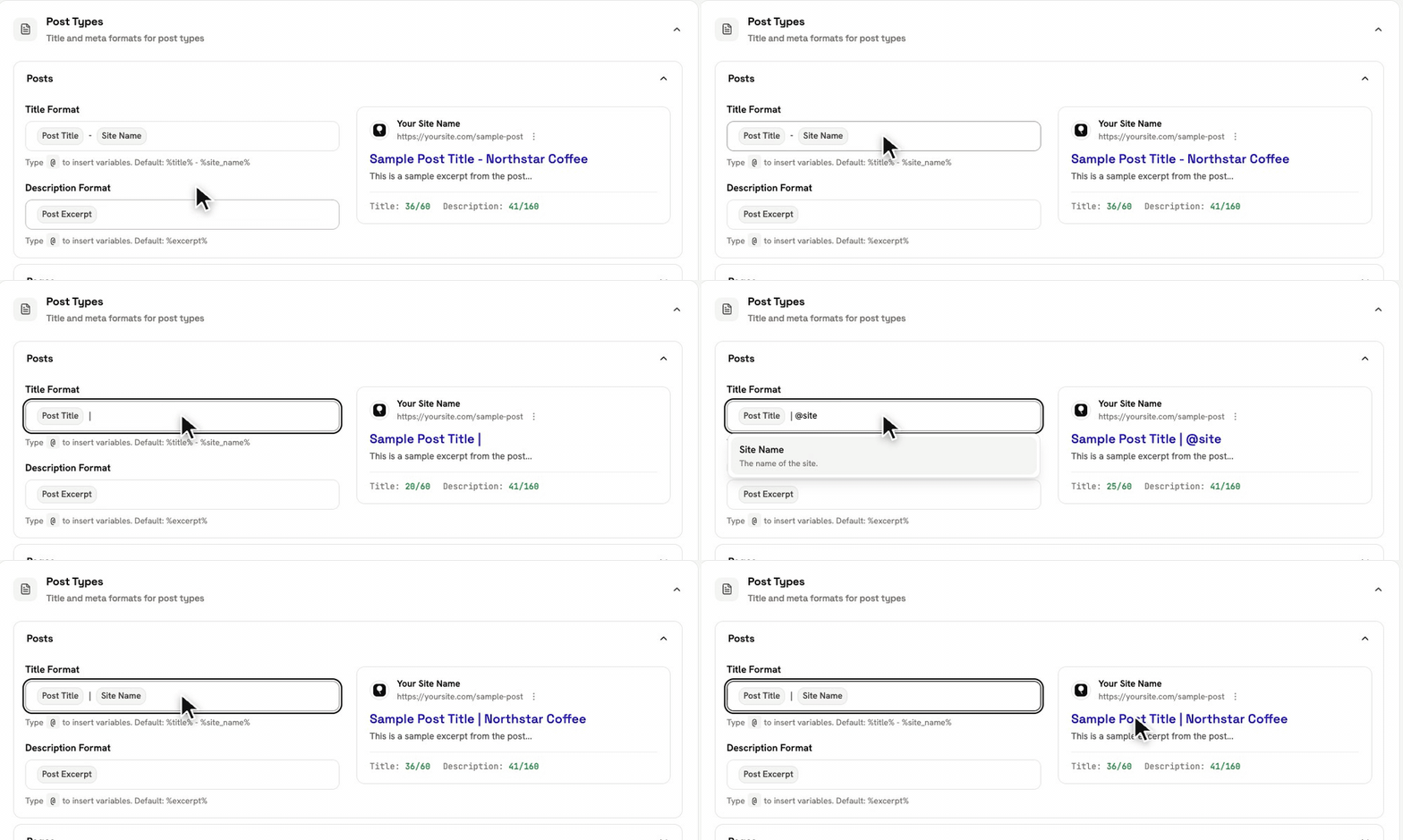
While typing in any template field, press @ to open the smart-tags variable editor, browse the available variables for that context, and insert one without memorizing its name. %separator% and %search_query% are in the picker too. The full list of variables, with what each outputs and where it applies, lives in the template variables reference.
General: separator, capitalization and empty archives
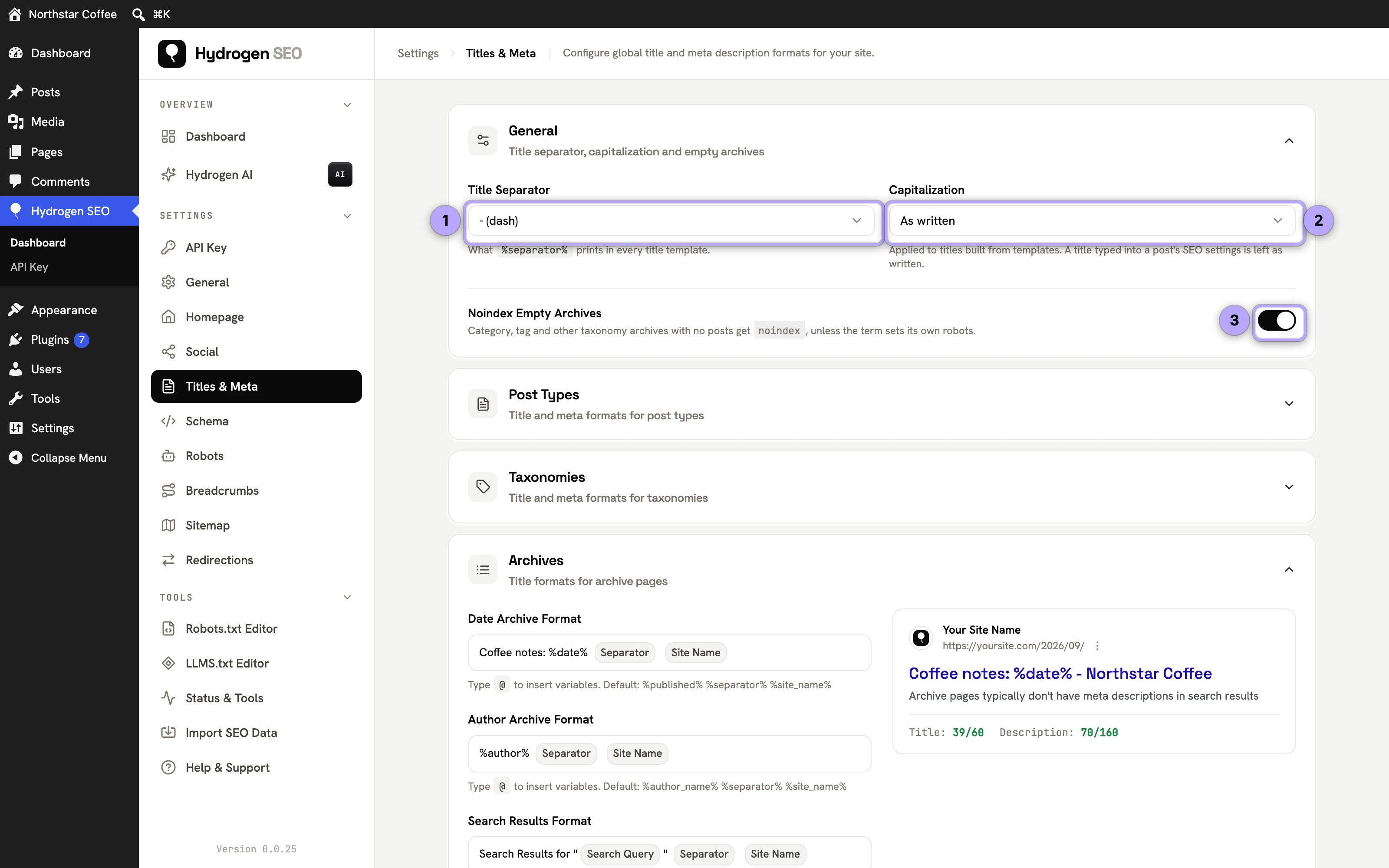
The General section at the top of Titles & Meta holds three settings that apply to every template:
- Title Separator. The character
%separator%prints in every template:-,|,•,/,\,~,:,»or«. The shipped default templates all use%separator%(for example%title% %separator% %site_name%for posts and%site_name% %separator% %tagline%for the homepage), so changing the separator here changes it across the site in one step. On existing sites, stored templates that were still the old shipped defaults are upgraded to%separator%once; templates you had edited are left as they were. - Capitalization. As written, Title Case, UPPERCASE or lowercase, applied to titles built from templates. A title typed into a post's or term's own SEO Settings sheet is always left as written. Title Case capitalizes the first letter of each word and keeps the rest of the word as it is, so "SEO" and "WordPress" survive intact.
- Noindex Empty Archives (on by default). Category, tag and other taxonomy archives with no posts get
noindex, and empty terms are left out of the XML sitemap. A term that has its own robots settings in its SEO Settings sheet uses those instead.
Archives and special pages
These templates are applied on the front end of the matching pages:
| Template | Default | Notes |
|---|---|---|
| Date Archive Format | %published% %separator% %site_name% | %published% (and %date%) is the archive period: "2026", "September 2026", or the full date in your site's date format for a day archive |
| Author Archive Format | %author_name% %separator% %site_name% | %author_name% (and %author%) is the author's display name |
| Search Results Format | Search Results for "%search_query%" %separator% %site_name% | %search_query% is what the visitor searched for |
| 404 Page Title | Page Not Found %separator% %site_name% | Used on any URL that returns a 404 |
| 404 Page Description | "The page you are looking for could not be found." | Printed as the 404 page's meta description |
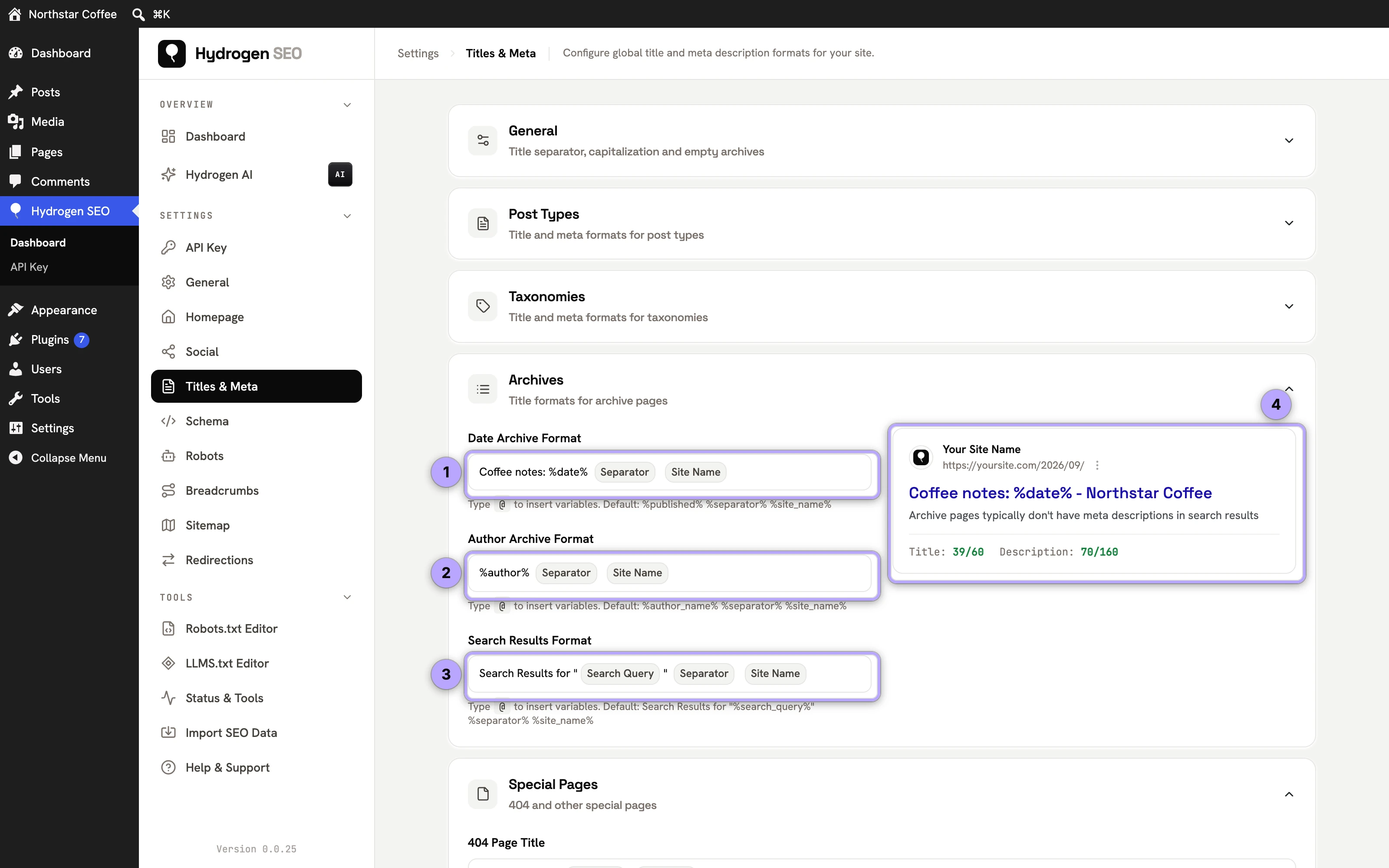
An empty title template falls back to its default, so a cleared field never produces a blank title. An empty 404 description prints no meta description at all.
Index, no index or disabled
From version 0.0.29, the Author archives and Date archives cards each start with a three-way choice above the title format: Index (listed in search results), No index (noindex, follow: visitors can open it, search engines leave it out) or Disabled (every address of that archive, its later pages and feeds included, redirects with a 301 to the homepage). Author archives default to No index and date archives to Index, which is how they behaved before. While an archive is disabled, its title format is marked as not in use. When to pick which is covered in author and date archives.
Override a single post or page
- Open the post in the editor and open the SEO Settings sheet.
- Type directly into the SEO title field. Anything you enter here replaces the template for this post only. You can still mix in variables;
@works here too. - Type your Meta description. Aim for a sentence or two that answers the searcher's question and gives a reason to click.
- Watch the Google SERP preview update live as you type, so you can spot truncation before you publish.
- If you would rather start from suggestions, ask the Hydrogen AI tab in the sheet to draft a title and description. See AI meta titles and descriptions; this is the one part that needs a connected account.
- Update or publish the post. Nothing changes on the live site until you save.
The same sheet is available for taxonomy terms, so you can override the template for an individual category or tag as well. Open the term's edit screen (for example, click a category's name under Posts → Categories) and click Hydrogen SEO → Edit SEO settings, or press ⌘E / Ctrl+E. The title, description, robots, canonical, social and schema settings you save there belong to that term and override its taxonomy template. The button is not on the Add New Category form; create the term first, then edit it. The Classic editor has the same button in a side box; see the SEO Settings sheet.
Character-count guidance
| Element | Aim for | Why |
|---|---|---|
| SEO title | 50–60 characters | Google truncates titles by pixel width (roughly 600px on desktop), and 50–60 characters usually fits |
| Meta description | 120–160 characters | Desktop shows around 155–160 characters; mobile often cuts earlier |
Treat these as guardrails, not laws. Google measures pixels, not characters, so a title full of wide letters truncates sooner than the count suggests; the SERP preview shows the honest picture. And remember that Google sometimes rewrites titles and descriptions regardless of what you set. Well-written tags that match the page's content are the best way to keep the ones you wrote.
How the tags are output
Hydrogen SEO renders the <title> tag and <meta name="description"> server-side, directly in the HTML your server sends. There is no client-side script rewriting tags after load, so crawlers, social scrapers, and browsers all see the same markup. This also makes the output theme- and builder-agnostic: it works identically with the block editor, Elementor, Divi, or a classic theme.

Developers can adjust the final values with the hydrogen_seo_title and hydrogen_seo_description filters; see the filters reference.
One caution: if another SEO plugin is active and also printing titles and meta, you will get duplicate tags. Pick one primary SEO plugin; see fixing duplicate meta output.
FAQ
Do global templates overwrite titles I wrote by hand?
No. A per-post SEO title or description set in the SEO Settings sheet always takes priority over the template. Changing a template only affects posts that have no override.
What happens if I leave the description template empty?
Hydrogen SEO falls back sensibly, but an intentional template (such as %excerpt%) gives you far better snippets than leaving it to chance. For important pages, write the description yourself.
Do I need a hydrogenseo.com account for titles and descriptions?
No. Templates, overrides, variables, and the SERP preview all work with no account. Only AI help through Hydrogen AI requires a free connected account; see connect your account.
Why did changing the separator not change one of my templates?
%separator% only changes templates that use it. A template you typed with a literal character, such as %title% | %site_name%, keeps that character. Replace it with %separator% (type @ to insert it) to follow the setting.
Why does Google show a different title than the one I set?
Google reserves the right to rewrite titles and descriptions when it believes another phrasing serves the query better. Accurate, specific, appropriately sized tags are rewritten far less often.